
How To Turn On Mac Bluetooth Without A Mouse
How to turn on Mac Bluetooth without a mouse? It’s a common problem, especially if your trusty trackpad has gone AWOL. Maybe your mouse batteries died, or you’re just trying to keep your hands on the keyboard. No matter the reason, you’ll be surprised at how easy it is to get your Bluetooth up and running without using a mouse.
This guide covers the keyboard shortcuts, accessibility features, and alternative input devices you can use to manage your Bluetooth connection. We’ll also explore some troubleshooting tips and security considerations to keep your Mac and Bluetooth devices safe. So, grab your keyboard and let’s get started!
Understanding the Problem

Imagine you’re working on your Mac, and suddenly your mouse stops responding. You need to enable Bluetooth to connect a new device, but you can’t use your mouse to navigate the settings. This situation can be frustrating, leaving you feeling stuck and unable to proceed.
This scenario highlights the challenges Mac users face when their mouse is unavailable and they need to access Bluetooth settings. The lack of a mouse can significantly hinder your ability to interact with your Mac, particularly when dealing with settings that require precise cursor movements or clicks.
Common Scenarios
It’s not uncommon to encounter this issue in various situations. Here are some examples:
- Dead Battery:The most common culprit is a drained mouse battery. You might find yourself in a bind if you haven’t charged it recently.
- Faulty Mouse:A malfunctioning mouse can also leave you without a way to control your Mac. This could be due to a hardware issue or a software glitch.
- Wireless Interference:Sometimes, interference from other wireless devices can disrupt your mouse’s connection.
- Accidental Disconnect:If you’ve accidentally disconnected your mouse from your Mac, you’ll need to find a way to reconnect it.
Limitations of Using the Keyboard
While the keyboard provides some basic navigation capabilities, it’s not always sufficient for accessing Bluetooth settings. Here are some limitations:
- Limited Cursor Control:You can use arrow keys to move the cursor, but it’s slow and cumbersome for precise navigation.
- Inability to Click:The keyboard lacks the ability to simulate mouse clicks, which are essential for interacting with most menu options.
- Hidden Settings:Some Bluetooth settings might be buried deep within the system preferences, making them difficult to reach using the keyboard alone.
Using the Keyboard for Bluetooth Control
Sometimes, you might find yourself without a mouse or trackpad, and need to access your Mac’s Bluetooth settings. Fortunately, you can manage your Bluetooth connections directly from your keyboard.This section explains how to navigate Bluetooth settings and manage your Bluetooth devices using keyboard shortcuts.
You’ll learn the key combinations to access Bluetooth settings, enable or disable Bluetooth, and pair new devices.
Turning on Bluetooth on your Mac without a mouse is a total breeze. Just hit the F12 key on your keyboard and boom, Bluetooth is on. But hey, you know what’s even more important than a working Bluetooth connection? Making sure you don’t lose your Fortnite progress when you update to iOS 14! Check out How to avoid losing Fortnite when updating to iOS 14 for some serious tips.
Once you’ve got that sorted, you can get back to your Mac and pair up your Bluetooth headphones for some epic gaming sessions.
Keyboard Shortcuts for Bluetooth Settings
The primary shortcut to access Bluetooth settings is Option + Shift + B. This key combination will open the Bluetooth pane in System Preferences, allowing you to manage your Bluetooth devices.
Utilizing Accessibility Features
If you’re unable to use a mouse, your Mac’s built-in accessibility features offer a great way to control Bluetooth. One of the most helpful tools is Voice Control, which allows you to interact with your Mac entirely using your voice.
Voice Control
Voice Control provides a comprehensive way to navigate your Mac using spoken commands. This feature allows you to control Bluetooth settings without needing a mouse or trackpad. To activate Voice Control, follow these steps:
- Open System Settings.
- Select Accessibility.
- Click on Voice Controlin the sidebar.
- Toggle the Voice Controlswitch to On.
Once Voice Control is enabled, you can use spoken commands to control your Mac. To navigate to the Bluetooth settings, you can say:
“Open System Settings”
“Click on Bluetooth”
From there, you can use voice commands to enable or disable Bluetooth:
“Click on Bluetooth”
“Click on the Bluetooth button”
Voice Control provides a powerful and versatile way to interact with your Mac, including managing Bluetooth settings. This feature empowers users with disabilities to access and control their devices with ease.
Alternative Input Devices
Sometimes, even the keyboard might not be readily accessible, or you might prefer a different input method. In such cases, there are other devices that can help you control your Mac’s Bluetooth settings.
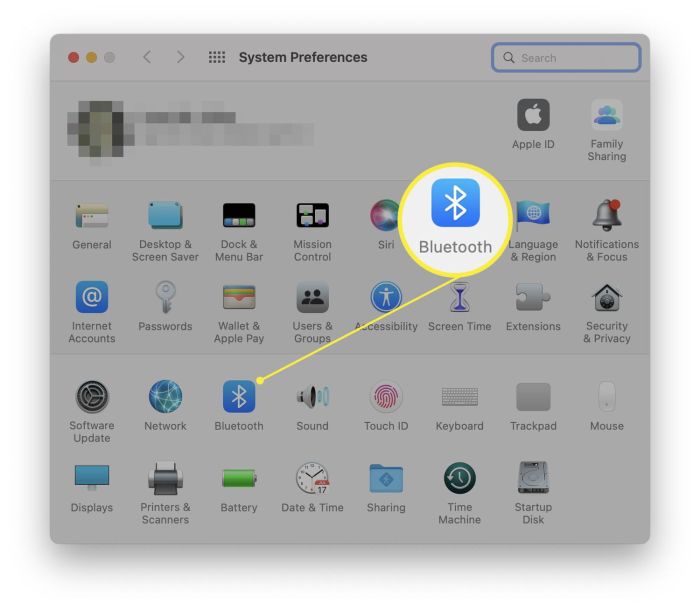
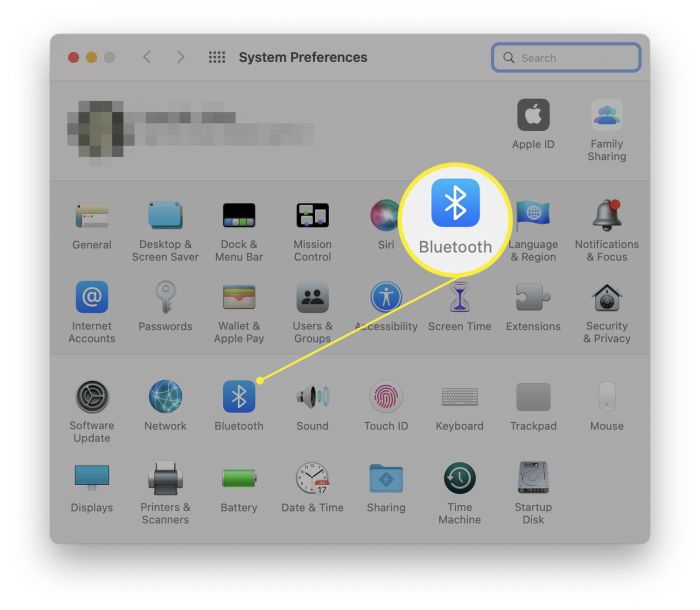
Turning on Bluetooth on your Mac without a mouse is a breeze, especially if you’re familiar with keyboard shortcuts. You can use the “Fn” key combined with the F10 key, or even go to the System Preferences and click on Bluetooth.
Speaking of preferences, if you’re looking to fine-tune your photos, Use free Snapseed on iPad to tune your photos to best effect – it’s a great free app that gives you tons of control. Once you’ve got your Bluetooth enabled, you can easily connect your Mac to a wireless keyboard, freeing up your hands for even more creative editing!
Trackpad Functionality
A trackpad is a touch-sensitive surface that mimics the functionality of a mouse. It allows you to navigate and interact with your Mac using gestures and clicks. To access Bluetooth settings using a trackpad, you would typically follow these steps:
- Click the Apple menuin the top-left corner of the screen.
- Select “System Settings”.
- Click “Bluetooth”.
- Use the trackpad to navigate the Bluetooth settings menuand interact with the available options.
Trackpads offer a more intuitive and user-friendly experience for navigating menus and interacting with graphical elements. They can be particularly helpful for individuals who find using a keyboard cumbersome or prefer a more tactile input method.
Advanced Techniques: How To Turn On Mac Bluetooth Without A Mouse
For those seeking a deeper level of control or prefer a more customized approach, exploring advanced techniques can enhance your Bluetooth management experience on a Mac without a mouse. These methods offer flexibility and empower you to tailor your interactions with Bluetooth devices to your specific needs.
Using Third-Party Applications, How to turn on Mac Bluetooth without a mouse
Third-party applications provide a wide range of features and functionalities that extend the capabilities of macOS’s built-in Bluetooth management. These applications offer a more comprehensive and user-friendly interface for controlling Bluetooth devices, enabling you to manage multiple devices simultaneously, customize settings, and automate tasks.
For example, applications like “BlueTooth 4 Me” and “Bluetooth Explorer” allow you to view detailed information about connected devices, configure advanced settings, and even create custom profiles for different Bluetooth devices.
Configuring Custom Keyboard Shortcuts
Custom keyboard shortcuts offer a highly efficient and personalized way to interact with Bluetooth functions. By assigning specific key combinations to actions like connecting, disconnecting, or pairing Bluetooth devices, you can streamline your workflow and significantly reduce the time and effort required to manage Bluetooth connections.
For instance, you can assign a shortcut like “Command + Option + B” to connect to your Bluetooth speaker, “Command + Option + H” to disconnect from your headphones, and “Command + Option + P” to pair a new Bluetooth device.
Security Considerations
Enabling Bluetooth on your Mac opens up a world of possibilities for wireless connectivity, but it’s crucial to be aware of the potential security risks associated with this technology. Just like any other wireless connection, Bluetooth can be vulnerable to attacks if not properly secured.
Think of Bluetooth as a doorway to your Mac. While it allows you to connect with various devices, it also presents a potential entry point for unauthorized access. Hackers can exploit vulnerabilities in Bluetooth protocols to gain access to your data, control your devices, or even launch denial-of-service attacks.
Identifying and Avoiding Potential Security Risks
Understanding the potential security risks associated with Bluetooth connectivity is essential to protect your Mac and your data. Here are some common vulnerabilities to be aware of:
- Bluetooth Sniffing:This technique involves eavesdropping on Bluetooth communication between devices. Hackers can use specialized software to capture data transmitted over Bluetooth, including sensitive information like passwords, credit card numbers, and personal messages.
- Bluejacking:This refers to the unauthorized sending of unsolicited messages or files to Bluetooth-enabled devices. While not typically malicious, bluejacking can be annoying and potentially expose your device to malware.
- Bluesnarfing:This is a more serious attack that involves accessing data on a Bluetooth-enabled device without authorization. Hackers can exploit vulnerabilities in Bluetooth protocols to gain access to your contacts, calendar, and other sensitive data.
- Man-in-the-Middle (MITM) Attacks:In this scenario, a hacker intercepts communication between two Bluetooth devices, potentially altering or stealing data. This can happen when a device connects to a malicious Bluetooth access point disguised as a legitimate one.
Securing Bluetooth Devices
Fortunately, there are several steps you can take to minimize the risk of Bluetooth-related security threats:
- Keep Your Software Updated:Regularly update your macOS and Bluetooth drivers to ensure you have the latest security patches. Software updates often include fixes for known vulnerabilities, reducing the risk of exploitation.
- Enable Bluetooth Security Features:macOS offers built-in security features for Bluetooth. Make sure you have enabled features like pairing requests, which require confirmation before connecting to a new device. You can also set your Mac to only accept connections from trusted devices.
- Use Strong Passwords:When pairing with a new Bluetooth device, choose a strong and unique password that is difficult to guess. Avoid using common passwords or personal information.
- Limit Discoverability:By default, your Mac is discoverable to other Bluetooth devices. Consider limiting discoverability to reduce the risk of unauthorized access. You can adjust these settings in your Bluetooth preferences.
- Be Cautious About Unknown Devices:Always be wary of connecting to unknown or untrusted Bluetooth devices. If you receive a pairing request from an unfamiliar device, do not accept it unless you are certain it is legitimate.
Preventing Unauthorized Access
Taking proactive steps to secure your Bluetooth connection can significantly reduce the risk of unauthorized access:
- Turn Off Bluetooth When Not in Use:Disabling Bluetooth when you are not actively using it is a simple yet effective way to minimize your vulnerability. This prevents your Mac from being discoverable and susceptible to attacks.
- Use a VPN:A Virtual Private Network (VPN) can encrypt your internet traffic, including Bluetooth communication, making it more difficult for hackers to intercept your data.
- Be Aware of Your Surroundings:Be mindful of your surroundings, especially in public places. Avoid connecting to Bluetooth devices in crowded or unfamiliar environments where you might be more susceptible to attacks.
Case Studies
In this section, we’ll explore real-world scenarios where users encounter Bluetooth issues on their Macs without a mouse. We’ll analyze the troubleshooting steps taken and the effectiveness of different methods to enable Bluetooth.
Troubleshooting Bluetooth Connectivity Issues
Imagine you’re working on a project and need to connect your wireless headphones to your Mac. You try to turn on Bluetooth, but nothing happens. You’re unable to use your mouse, and you’re stuck. This scenario highlights the challenges users face when dealing with Bluetooth issues without a mouse.
To diagnose and resolve this issue, you can follow these steps:
- Verify Bluetooth is Enabled:First, check if Bluetooth is enabled on your Mac. You can do this by pressing the function key (Fn) and the F10 key simultaneously. If Bluetooth is already enabled, you’ll see a blue icon in the menu bar. If it’s not enabled, the icon will be grayed out.
You can also access the Bluetooth settings in System Preferences.
- Check Bluetooth Hardware:If Bluetooth is enabled but not working, it’s possible there’s a hardware issue. Check if the Bluetooth hardware on your Mac is working correctly. You can do this by connecting a Bluetooth device to your Mac using a different input method, such as a USB Bluetooth adapter or a wired keyboard with Bluetooth capabilities.
- Restart Your Mac:Sometimes, restarting your Mac can resolve Bluetooth connectivity issues. This can help refresh the system and fix any temporary glitches.
- Remove and Re-add Bluetooth Devices:If you’ve tried the above steps and Bluetooth still isn’t working, you can try removing and re-adding your Bluetooth devices. This can help refresh the connection between your Mac and your devices.
- Check for Software Updates:Ensure your Mac’s operating system and Bluetooth drivers are up to date. Software updates often include bug fixes and performance improvements that can address Bluetooth issues.
- Reset the Bluetooth Module:If none of the above steps work, you can try resetting the Bluetooth module on your Mac. This can help resolve more persistent issues. To reset the Bluetooth module, you can use the Terminal application and run the following command:
sudo pkill bluetoothd
By following these steps, you can diagnose and resolve most Bluetooth issues on your Mac without a mouse. The effectiveness of each method will vary depending on the specific issue you’re facing.
Best Practices
Navigating your Mac’s Bluetooth settings without a mouse can feel like a puzzle, but with a few best practices, you can master the art of wireless control. These strategies will help you optimize Bluetooth usage, manage your devices efficiently, and ensure a stable connection.
Managing Bluetooth Devices
Keeping your Bluetooth devices organized is crucial for seamless control.
- Regularly check your connected devices and disconnect any you’re not currently using. This minimizes interference and extends battery life.
- Use the “Bluetooth” system preference to rename your devices for easier identification. This helps you quickly locate the device you need, especially if you have multiple peripherals.
- Consider creating a “Bluetooth Device List” to track your devices, their battery levels, and any connection issues. This proactive approach allows you to manage your Bluetooth ecosystem efficiently.
Optimizing Battery Life
Maximizing battery life is essential when relying on Bluetooth peripherals.
- Regularly check the battery status of your Bluetooth devices. You can do this through the “Bluetooth” system preference, which displays the battery level of connected devices.
- Power down your Bluetooth devices when not in use. This simple step can significantly extend their battery life.
- Explore “low-energy” Bluetooth peripherals. These devices are designed for energy efficiency and can operate for longer periods on a single charge.
Maintaining a Stable Connection
A stable Bluetooth connection is essential for smooth operation.
So, you’re trying to turn on Bluetooth on your Mac without a mouse, right? No problem! Just hit the F12 key to access the function keys, then use the up/down arrow keys to select the Bluetooth icon and press enter.
While you’re at it, check out this Pro Tip: How to disable calls on other Apple devices if you’re getting tired of calls ringing on your iPhone when you’re trying to focus on your Mac. Once you’ve got Bluetooth on, you’ll be ready to connect your favorite wireless devices!
- Ensure your Mac’s Bluetooth is up to date. Check for software updates regularly, as these often include improvements for Bluetooth stability and performance.
- Minimize interference. Avoid using Bluetooth devices near other wireless networks, such as Wi-Fi routers or cordless phones.
- Position your Bluetooth devices strategically. Keep them close to your Mac and avoid placing them near metal objects, which can interfere with the signal.
Future Trends
The world of Bluetooth technology is constantly evolving, with new advancements promising to enhance how we interact with our Mac devices. These advancements are poised to bring about significant changes in the way we control Bluetooth connections, access accessibility features, and navigate our digital world.
Improved Bluetooth Connectivity
The future of Bluetooth on Mac devices holds exciting possibilities for improved connectivity. Advancements in Bluetooth technology, such as Bluetooth 5.3 and beyond, are expected to offer faster data transfer speeds, increased range, and enhanced security.
- Faster Data Transfer:With higher bandwidth, users can expect faster file transfers and smoother streaming of audio and video content over Bluetooth. This would be particularly beneficial for tasks like transferring large files, streaming high-quality audio, and playing demanding games wirelessly.
- Extended Range:Improved range will allow users to connect their Mac devices to peripherals from greater distances. This is especially useful in larger spaces, eliminating the need to be physically close to the device.
- Enhanced Security:New security features will provide more robust protection against unauthorized access and data breaches. This is crucial for safeguarding sensitive information and ensuring the privacy of users.
Enhanced Accessibility Features
The future of Bluetooth accessibility features is likely to be driven by advancements in artificial intelligence (AI) and machine learning (ML). These technologies will empower users with a wider range of input methods and personalized experiences.
- Voice Control:Voice-activated commands will become increasingly sophisticated, allowing users to control Bluetooth connections, adjust settings, and interact with their Mac devices hands-free. This will be particularly beneficial for individuals with mobility limitations or who prefer a hands-free experience.
- Gesture Recognition:AI-powered gesture recognition systems will enable users to control their Mac devices using hand movements. This technology could revolutionize accessibility, offering a more intuitive and natural way to interact with devices.
- Predictive Text and Auto-Completion:AI-powered predictive text and auto-completion features will enhance the efficiency of text input, particularly for individuals with typing difficulties. This will improve accessibility by reducing the effort required for text communication.
Emerging Input Methods
Beyond traditional input devices like keyboards and mice, new input methods are emerging, promising to revolutionize how we interact with our Macs. These advancements will expand accessibility options and provide more intuitive ways to control Bluetooth devices.
- Brain-Computer Interfaces (BCIs):BCIs have the potential to enable users to control their Mac devices using brainwaves. While still in its early stages, this technology holds immense promise for individuals with severe disabilities, allowing them to interact with their devices in ways previously unimaginable.
- Augmented Reality (AR) and Virtual Reality (VR):AR and VR technologies are creating immersive experiences that can enhance interaction with Bluetooth devices. Imagine controlling your Mac with virtual hands in a VR environment or using AR overlays to visualize and interact with connected peripherals.
- Haptic Feedback:Haptic feedback technology is becoming more sophisticated, providing users with tactile sensations that can enhance their interaction with Bluetooth devices. This could improve the accuracy and intuitiveness of controlling connected peripherals.
Impact on User Experience
These advancements in Bluetooth connectivity, accessibility features, and input methods will significantly impact how users interact with their Mac devices.
- Enhanced Productivity:Faster data transfer speeds, improved range, and new input methods will boost productivity by streamlining workflows and enabling users to work more efficiently.
- Improved Accessibility:New accessibility features will empower individuals with disabilities to access and control their Mac devices more easily, promoting inclusivity and equal access to technology.
- More Intuitive Interactions:Innovative input methods like gesture recognition, brain-computer interfaces, and haptic feedback will create more intuitive and engaging user experiences, making it easier to interact with Bluetooth devices.
Closing Notes
While it might seem like a hassle to manage your Bluetooth without a mouse, it’s actually quite simple. With the right tools and a little know-how, you can easily control your Bluetooth devices and keep your Mac connected to the world.
So, the next time you find yourself without a mouse, don’t panic! Just follow the steps Artikeld in this guide and you’ll be back in business in no time.
FAQ Overview
Can I use my iPhone as a mouse to control my Mac?
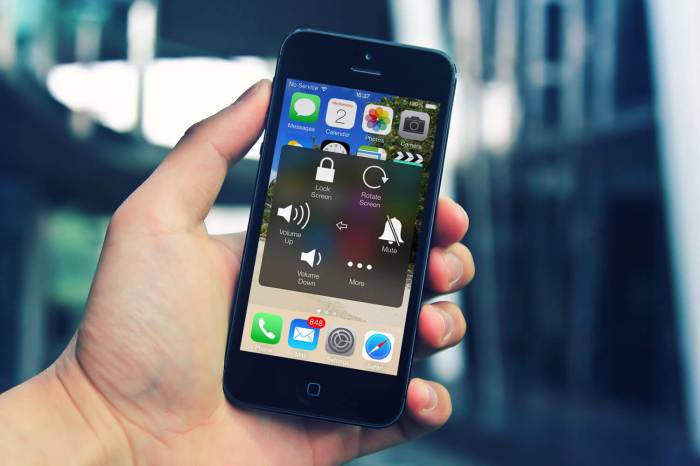
Yes, you can use your iPhone as a mouse with your Mac using the “AssistiveTouch” feature. This allows you to control your Mac’s cursor and interact with apps using your iPhone’s touchscreen.
What if my keyboard isn’t working either?
If your keyboard isn’t working, you can try using a different keyboard or connecting a USB keyboard. You can also try restarting your Mac to see if that resolves the issue.
Can I use Bluetooth to connect to my printer without a mouse?
Yes, you can connect your Bluetooth printer to your Mac without a mouse. You can do this by going to System Preferences > Printers & Scanners and adding your printer.
How can I check the battery life of my Bluetooth devices?
You can check the battery life of your Bluetooth devices by going to System Preferences > Bluetooth and looking at the battery icon next to the device’s name.



 Hubungi Kami di WhatsApp