
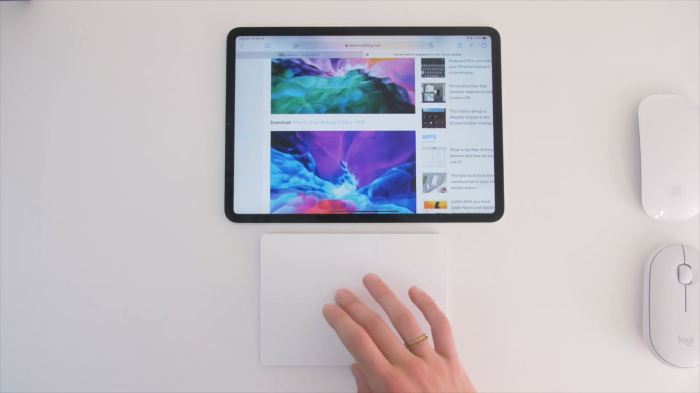
Pro Tip: Adjust Mouse And Trackpad Scroll Speed In Ipados
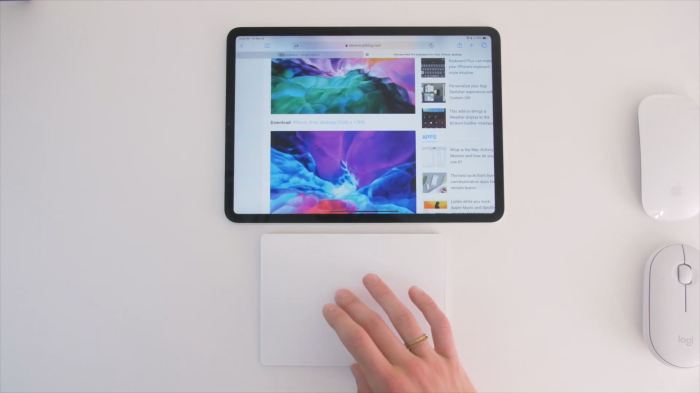
Pro tip: Adjust mouse and trackpad scroll speed in iPadOS. You know that feeling when you’re scrolling through a long article or webpage and the text just zips by too fast? Or maybe it’s the opposite, and you’re painstakingly inching your way down the page, one line at a time.
Well, say goodbye to those frustrations because iPadOS has a secret weapon for smooth scrolling: adjustable scroll speed.
It’s all about finding the perfect balance – not too fast, not too slow, just right. And the best part? It’s surprisingly easy to tweak. With a few simple taps, you can customize the scrolling experience to perfectly match your needs, whether you’re reading a novel, browsing the web, or just trying to get things done.
Setting the Stage
Scrolling is a fundamental part of using any touch-based device, and the iPadOS experience is no exception. You’re likely familiar with the feeling of frustration when scrolling through a web page or document on your iPad and encountering either a laggy or overly sensitive scroll response.
These experiences can disrupt your workflow and detract from the overall enjoyment of using your iPad.
Scrolling through documents on your iPad can be a breeze if you adjust the mouse and trackpad scroll speed to your liking. You can make it faster or slower depending on your preference. And while we’re on the topic of customizing your iPad experience, you can also choose the perfect thumbnail for your Live Photos by checking out this helpful tip: Pro Tip: How to pick a new thumbnail for your Live Photos.
Once you’ve got those settings dialed in, you’ll be navigating your iPad like a pro!
Benefits of Adjusting Scroll Speed
The default scroll speed settings in iPadOS might not be ideal for everyone, especially those who prefer a more tailored and efficient experience. Adjusting scroll speed can significantly enhance your iPad experience by providing a more natural and comfortable scrolling experience.
This is especially important for users who spend a lot of time reading, browsing, or working on their iPads.
Accessing the Scroll Speed Settings
Okay, so you want to adjust how fast your iPad scrolls? It’s super easy to do, and you can customize it to your liking. You can even make it super smooth for scrolling through long documents or websites.
Adjusting Scroll Speed
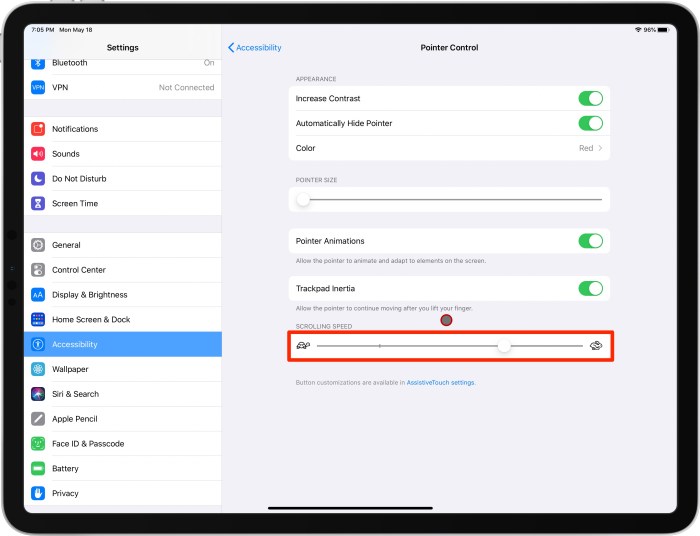
To access the scroll speed settings, you’ll need to go into the iPad’s Accessibility settings. Here’s how:
- Open the Settingsapp on your iPad.
- Tap on Accessibility.
- Select Motion.
- You’ll find the Scroll Speedsetting here.
- Use the slider to adjust the speed to your preference.
You can adjust the speed to your liking, making it faster or slower.
Accessibility Options Related to Scroll Speed
Here’s a table that summarizes the accessibility options related to scroll speed:| Option | Description ||—|—|| Scroll Speed | Controls how fast content scrolls on the screen. || Reduce Motion | Limits the amount of motion on the screen, which can be helpful for people with motion sickness.
|| Auto-Scroll | Automatically scrolls content on the screen, which can be helpful for people with limited mobility. || Zoom | Magnifies the screen content, which can be helpful for people with visual impairments. |
Pro tip: Adjust your mouse and trackpad scroll speed in iPadOS, because seriously, who wants to scroll forever? Once you’ve got that dialed in, check out How To Easily Take Screenshots In Mac OS X to capture all those amazing screenshots.
You’ll be a scrolling and screenshotting pro in no time!
Understanding the Scroll Speed Slider: Pro Tip: Adjust Mouse And Trackpad Scroll Speed In IPadOS
The scroll speed slider in iPadOS is a simple yet powerful tool that lets you customize how quickly your content scrolls on your iPad. It gives you granular control over the scrolling experience, allowing you to fine-tune it to your preference.
Impact of Different Slider Positions
The position of the scroll speed slider directly influences how fast your content scrolls. Here’s a breakdown of the impact of different slider positions:
- Leftmost position (Slowest):When the slider is positioned all the way to the left, your content scrolls slowly. This is ideal if you prefer a more controlled and deliberate scrolling experience. You can easily stop scrolling at any point, and the content moves smoothly and gently.
- Middle position (Medium):The middle position offers a balanced scroll speed, providing a comfortable scrolling experience for most users. It’s a good starting point for finding your ideal scroll speed.
- Rightmost position (Fastest):Moving the slider to the rightmost position makes your content scroll very quickly. This is helpful if you need to quickly navigate through long documents or web pages. However, it can also be difficult to stop scrolling precisely, as the content moves rapidly.
Optimizing Scroll Speed for Different Scenarios
You’ve got your scroll speed dialed in, but how do you make it work best for different situations? It’s all about finding the sweet spot for your needs.
Reading Long Articles
When you’re diving into a long article, you want to avoid getting lost in the scroll. A slower scroll speed is your friend here. It lets you take in the text at a comfortable pace, reducing eye strain and making the reading experience more enjoyable.
Imagine you’re reading a lengthy article about the history of the internet. You don’t want to be zipping through it so fast that you miss key details. A slower scroll speed allows you to absorb the information and fully appreciate the nuances of the content.
Navigating Web Pages
For web browsing, the ideal scroll speed depends on your personal preference and the type of website you’re on. If you’re exploring a website with a lot of content, a faster scroll speed can help you quickly find what you’re looking for.
Think about navigating a large online store with many categories and products. A fast scroll speed allows you to efficiently scan through the pages and locate the specific items you’re interested in. However, if you’re on a website with lots of images or complex layouts, a slower scroll speed might be more suitable to prevent you from missing important details.
Scenarios Where Fast or Slow Scroll Speed Is Advantageous
- Fast Scroll Speed:
- Gaming:In fast-paced games, a rapid scroll speed can be crucial for navigating menus, selecting items, and reacting quickly to on-screen events.
- Data Analysis:When working with large datasets or spreadsheets, a faster scroll speed can help you quickly scan through rows and columns to find specific information.
- Slow Scroll Speed:
- Video Editing:For precise editing of video timelines, a slower scroll speed allows you to make fine adjustments and avoid accidentally skipping over important frames.
- Art and Design:When working with detailed images or complex designs, a slower scroll speed helps you maintain control and avoid accidentally zooming past important elements.
Advanced Scroll Speed Techniques
So you’ve mastered the basics of adjusting scroll speed on your iPad, but what if you want to take things to the next level? Let’s explore some advanced techniques to fine-tune your scrolling experience.
Third-Party Apps
Sometimes the built-in settings just aren’t enough. Fortunately, a number of third-party apps can provide even more granular control over your iPad’s scroll speed. These apps often offer features like custom profiles, gesture-based scrolling, and even the ability to adjust scroll speed based on the app you’re using.
For example, the “Scroll Control” app allows you to set different scroll speeds for different apps, making it ideal for tasks like reading long articles or browsing social media.
Accessibility Features
Believe it or not, the iPad’s built-in accessibility features can also be a valuable tool for customizing scroll speed. Features like “AssistiveTouch” and “Zoom” can be configured to create a more personalized scrolling experience.
For instance, “AssistiveTouch” allows you to create custom gestures for scrolling, making it easier to navigate large documents or web pages.
Creating a Custom Scroll Speed Profile
If you’re a power user who wants complete control over your iPad’s scrolling behavior, creating a custom scroll speed profile is the way to go. This process typically involves adjusting scroll speed settings within a third-party app or accessibility feature.
Here’s a step-by-step guide for creating a custom scroll speed profile using the “Scroll Control” app:
- Open the “Scroll Control” app.
- Tap on the “Profiles” tab.
- Tap on the “+” button to create a new profile.
- Give your profile a name.
- Adjust the scroll speed slider to your desired setting.
- Tap on the “Apps” tab to select which apps you want this profile to apply to.
- Tap on the “Save” button to save your profile.
Impact on User Experience
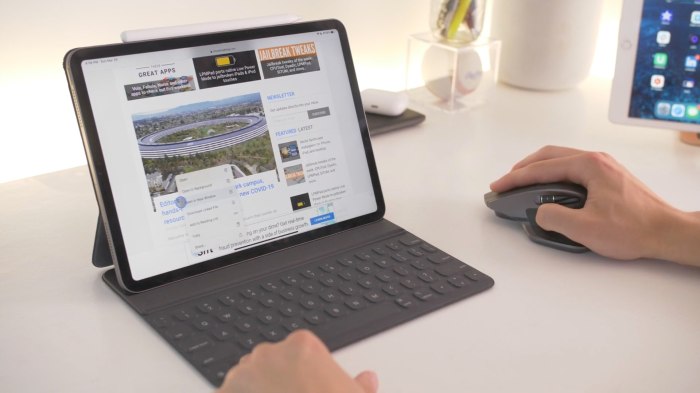
Optimizing scroll speed in iPadOS can significantly impact user satisfaction and overall experience. By tailoring scroll speed to individual preferences, users can enjoy a smoother, more efficient, and ultimately more enjoyable interaction with their iPad.
Impact on User Satisfaction
A personalized scroll speed can dramatically improve user satisfaction by making the iPad experience more intuitive and enjoyable. When scroll speed is set appropriately, users can navigate through content with ease and precision, without feeling frustrated or overwhelmed. This translates to a more positive and engaging user experience.
Impact on Productivity
Adjusting scroll speed can directly influence productivity by minimizing the time and effort required to navigate through content. For example, users who prefer faster scrolling can quickly skim through lengthy documents or websites, while those who prefer slower scrolling can carefully examine intricate details without feeling rushed.
This personalized approach allows users to optimize their workflow based on their specific needs.
Impact on Fatigue
Excessive scrolling can lead to eye strain and fatigue, especially for prolonged use. By adjusting scroll speed, users can reduce the amount of scrolling needed to access information. This, in turn, minimizes eye strain and physical discomfort, resulting in a more comfortable and enjoyable user experience.
Troubleshooting Common Scroll Speed Issues
While adjusting scroll speed on your iPad can be a breeze, sometimes things don’t go as smoothly. This section will help you navigate common scroll speed problems and find solutions.
Identifying and Resolving Scroll Speed Problems
If you’re experiencing issues with your iPad’s scroll speed, understanding the root cause is crucial. Here’s a breakdown of potential problems and their solutions:
| Problem | Solution |
|---|---|
| Scroll speed feels too fast or too slow, even after adjusting settings. | This could be due to a bug in iPadOS. Restarting your iPad often resolves this issue. If the problem persists, try updating to the latest version of iPadOS. |
| Scroll speed is inconsistent, sometimes fast and sometimes slow. | Check if any third-party apps are interfering with your iPad’s scroll speed. If you suspect an app, try temporarily disabling it and see if the problem resolves. |
| Scroll speed is erratic, causing jerky or laggy scrolling. | This could be due to insufficient memory or processing power. Close any unnecessary apps running in the background. If the issue persists, try restarting your iPad. |
| Scroll speed feels sluggish or unresponsive. | Check your iPad’s battery level. Low battery can affect performance, including scroll speed. If the battery is low, charge it and see if the problem resolves. |
Scroll Speed and Accessibility
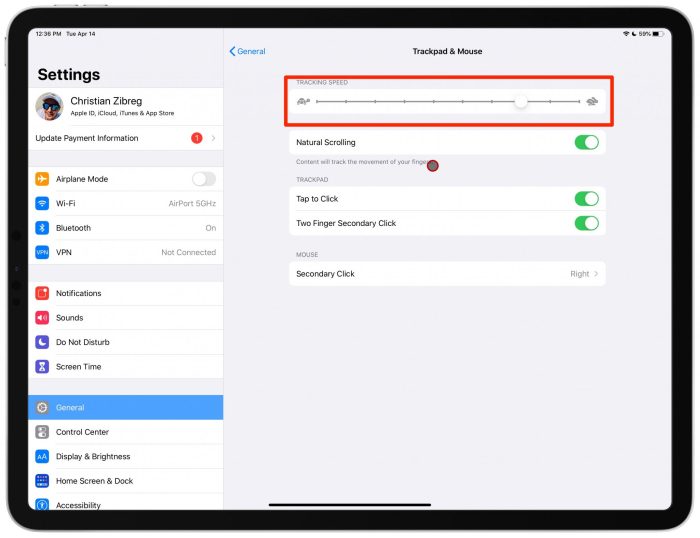
Scroll speed plays a crucial role in ensuring accessibility for users with disabilities. By adjusting the rate at which content scrolls, users with visual impairments or motor difficulties can navigate their iPadOS devices more effectively and comfortably.
Customizing Scroll Speed for Accessibility Needs, Pro tip: Adjust mouse and trackpad scroll speed in iPadOS
Adjusting scroll speed can significantly enhance the user experience for individuals with specific accessibility needs. For example, users with visual impairments may benefit from slower scroll speeds, allowing them more time to process the information displayed on the screen. Similarly, individuals with motor difficulties may find faster scroll speeds more manageable, reducing the strain on their hands and wrists.
Yo, so you’re all about that smooth scrolling action on your iPad, right? Well, you can totally tweak it to your liking! And speaking of control, check out this crazy tip: you can actually take control of any Mac via iMessage screen sharing.
It’s like magic! Anyway, back to scrolling, if you’re using a mouse or trackpad, you can adjust the speed in settings, making everything feel super fluid. It’s a game changer!
- Slower Scroll Speed for Visual Impairments:Users with low vision or visual impairments may find it challenging to keep up with rapidly scrolling content. Slower scroll speeds allow them to read and comprehend the information more easily, reducing eye strain and fatigue.
- Faster Scroll Speed for Motor Difficulties:Individuals with conditions like carpal tunnel syndrome or arthritis may experience discomfort or pain when scrolling at slower speeds. Faster scroll speeds allow them to navigate content more efficiently, minimizing physical strain.
- Adjustable Scroll Speed for Diverse Needs:iPadOS offers a customizable scroll speed setting, allowing users to fine-tune the experience to their specific requirements. This feature ensures that individuals with a wide range of accessibility needs can access and interact with content comfortably.
The Future of Scroll Speed in iPadOS
The iPadOS scroll speed settings are already pretty intuitive, but there’s always room for improvement. As Apple continues to refine iPadOS, we can expect to see even more sophisticated and customizable scroll speed options.
Predictive Scrolling
Imagine a future where iPadOS anticipates your scrolling needs, automatically adjusting the scroll speed based on the content you’re viewing. This could be particularly helpful when navigating long documents or websites with lots of text. Think about how much smoother it would be to scroll through a lengthy PDF research paper or a news article with a large number of paragraphs, as the iPadOS anticipates your scrolling needs and seamlessly adjusts the speed for a more natural and effortless experience.
Scroll Speed Profiles
Imagine having multiple scroll speed profiles for different scenarios. You could have one profile for casual browsing, another for reading long documents, and a third for gaming. This would allow you to tailor your scroll speed experience to specific activities, making your iPad more versatile.
This is similar to how some apps let you customize settings for different situations. For example, a productivity app might have a “focus mode” that disables distractions, or a gaming app might have a “performance mode” that prioritizes graphics over battery life.
Scroll Speed Automation
This could involve using machine learning to automatically adjust scroll speed based on your usage patterns. For instance, if you frequently scroll through long articles at a fast pace, iPadOS could learn this and automatically adjust the scroll speed to your preference.
This would be similar to how other Apple devices use machine learning to personalize features like Siri suggestions or auto-correct. This would be an evolution of the current system, where iPadOS would actively learn your habits and adjust the scroll speed accordingly, making the experience even more seamless and intuitive.
Conclusion
Navigating the iPadOS landscape smoothly relies heavily on a personalized scroll speed setting. This article highlighted the importance of adjusting this setting to enhance your iPad experience. We explored how to access and modify scroll speed, understood the nuances of the scroll speed slider, and learned how to optimize settings for various scenarios.
Key Takeaways
Remember these key takeaways from our exploration of scroll speed in iPadOS:
- Adjusting scroll speed is a simple yet impactful way to improve your iPad experience.
- The scroll speed slider provides granular control, allowing you to fine-tune the scrolling behavior to your liking.
- Optimizing scroll speed for different scenarios, such as reading long articles or navigating complex apps, can significantly enhance your workflow.
- Experimenting with different settings is encouraged to find the perfect balance for your individual needs and preferences.
Ending Remarks
So, next time you’re scrolling on your iPad, take a moment to adjust the scroll speed. You might be surprised at how much smoother and more enjoyable your experience can be. Whether you’re a power user or a casual browser, customizing your scroll speed is a simple tweak that can make a big difference in your daily iPad life.
Essential Questionnaire
How do I know if my scroll speed is too fast or too slow?
If you find yourself constantly having to scroll back up or down to catch what you missed, your scroll speed might be too fast. If you’re scrolling for what feels like forever to get to the bottom of a page, it might be too slow.
Can I change the scroll speed for different apps?
Unfortunately, you can’t adjust scroll speed on an app-by-app basis. The scroll speed setting applies to all apps and the system in general.
What if I have trouble adjusting the scroll speed slider?
If you’re having difficulty using the slider, try using a screen reader or magnifying the display to make it easier to interact with the settings.


 Hubungi Kami di WhatsApp