
How To Reset Airpods Pro
How to reset AirPods Pro? It’s a question many Apple users have asked themselves, especially when their beloved earbuds start acting up. Whether it’s connectivity issues, sound problems, or just a desire for a fresh start, resetting your AirPods Pro can often be the solution.
This guide will walk you through the process, providing clear instructions and addressing common concerns.
Resetting your AirPods Pro involves disconnecting them from your devices and essentially erasing any saved settings or pairings. It’s a simple process that can resolve a variety of issues, and it’s a good idea to know how to do it in case you ever need to.
Understanding AirPods Pro Reset
Resetting your AirPods Pro is a useful troubleshooting step that can help resolve a variety of issues. It essentially erases all settings and pairing information, returning your AirPods Pro to their factory default state. This can be helpful in situations where you’re experiencing problems with connectivity, sound quality, or other functionality.
Scenarios for Resetting AirPods Pro
Resetting your AirPods Pro is a good idea in a few common scenarios:
- Connectivity Issues:If your AirPods Pro are frequently disconnecting, struggling to connect, or having issues with audio lag, a reset might help establish a fresh connection with your device.
- Sound Quality Problems:If you notice a decline in sound quality, such as distorted audio, muffled sound, or a lack of bass, a reset can potentially resolve these issues.
- Pairing Problems:If you’re having trouble pairing your AirPods Pro with a new device, a reset can help clear any previous pairing information and facilitate a smooth pairing process.
- General Troubleshooting:If you’re encountering other unexpected behavior with your AirPods Pro, a reset can be a helpful step in troubleshooting the issue.
Issues a Reset Can Address
Resetting your AirPods Pro can address a variety of issues, including:
- Connectivity problems:A reset can help re-establish a stable connection between your AirPods Pro and your device.
- Audio quality issues:A reset can potentially fix distorted audio, muffled sound, or a lack of bass.
- Pairing problems:A reset can help clear any previous pairing information and allow you to pair your AirPods Pro with a new device.
- Other unexpected behavior:A reset can help resolve any other unexpected issues you may be experiencing with your AirPods Pro.
Resetting via the iPhone or iPad
Resetting your AirPods Pro through your iPhone or iPad is a straightforward process that allows you to erase all paired devices and start fresh. This is helpful if you’re experiencing connection issues or want to give your AirPods Pro to someone else.
Resetting via iOS Devices
To reset your AirPods Pro using your iPhone or iPad, follow these steps:
- Open the Settingsapp on your iOS device.
- Tap on Bluetooth.
- Locate your AirPods Pro in the list of devices and tap the “i”icon next to them.
- Scroll down and tap on “Forget This Device”.
- Confirm by tapping “Forget Device”.
Note:This will remove your AirPods Pro from the list of paired devices on your iPhone or iPad.
Resetting your AirPods Pro is pretty straightforward, but if you’re having issues, you might want to check out this article about what to do when your iOS backup is newer than your iPhone’s OS: What to do when your iOS backup is newer than your iPhone’s OS.
It’s a common problem, and understanding how to deal with it can be helpful, even if you’re just trying to get your AirPods Pro working again. Once you’ve sorted out your iPhone, you can easily reset your AirPods Pro by holding down the button on the case and following the prompts.
| Step | Screenshot | Description |
|---|---|---|
| 1. Open the Settings app on your iOS device. | [Image of the Settings app icon on the home screen of an iPhone or iPad] | Tap on the Settings app icon, which is a gear icon, to access the device settings. |
| 2. Tap on Bluetooth. | [Image of the Bluetooth settings screen, showing a list of paired devices] | Tap on the Bluetooth option to view the list of connected devices. |
| 3. Locate your AirPods Pro in the list of devices and tap the “i” icon next to them. | [Image of the AirPods Pro in the list of paired devices, with the “i” icon highlighted] | Find your AirPods Pro in the list of paired devices and tap on the “i” icon next to them to access more information. |
| 4. Scroll down and tap on “Forget This Device”. | [Image of the AirPods Pro information screen, with the “Forget This Device” option highlighted] | Scroll down to the bottom of the information screen and tap on the “Forget This Device” option to remove the AirPods Pro from the list of paired devices. |
| 5. Confirm by tapping “Forget Device”. | [Image of a confirmation pop-up asking to confirm forgetting the device] | Tap on the “Forget Device” button in the confirmation pop-up to complete the reset process. |
Resetting via the Charging Case
Resetting your AirPods Pro through the charging case is another way to troubleshoot connection issues or if you’re experiencing problems with the device’s functionality. This method is simple and can be done without your iPhone or iPad.
Steps to Reset AirPods Pro Using the Charging Case
This method involves placing your AirPods Pro in the charging case, closing the lid, and holding down a specific button. Here’s how to do it:
- Open the charging case and place your AirPods Pro inside.
- Close the lid of the charging case.
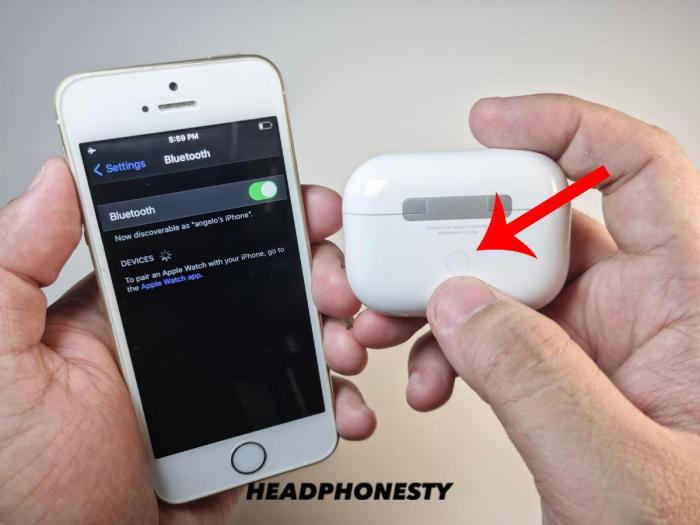
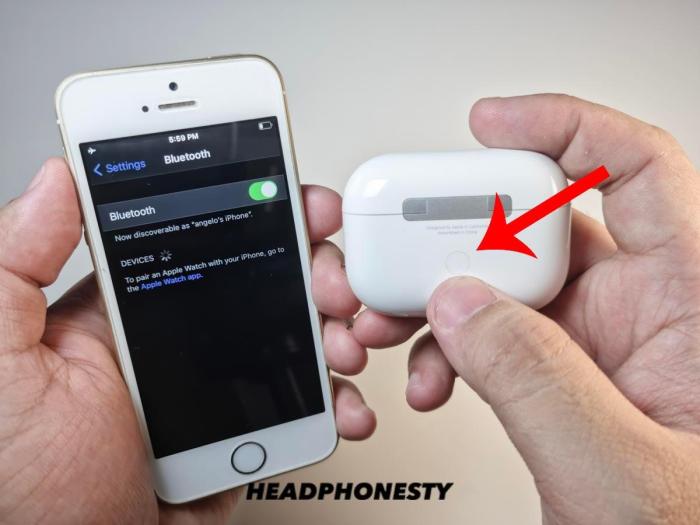
- Press and hold the button on the back of the charging case for about 15 seconds.
- You’ll see the status light on the front of the case flash white, then amber, and finally white again.
- After the light turns white again, release the button.
- Open the lid of the charging case, and your AirPods Pro are now reset.
This will reset the AirPods Pro to their factory settings, disconnecting them from your devices.
Resetting via the AirPods Pro themselves
While it’s not possible to reset AirPods Pro directly from the earbuds themselves, there are methods to reset them using your iPhone or iPad, or through the charging case.
Resetting via the Charging Case
Resetting your AirPods Pro through the charging case is a straightforward process. It involves placing your AirPods Pro in the charging case and then performing a specific sequence of actions. The process is as follows:
- Place your AirPods Pro in the charging case and close the lid.
- Open the lid of the charging case and keep it open.
- Press and hold the setup button on the back of the charging case for about 15 seconds. You’ll see a flashing white light on the case, indicating that the reset is in progress.
- Once the light turns amber, you can release the setup button. Your AirPods Pro have now been reset.
Resetting after a Firmware Update
Sometimes, after updating your AirPods Pro’s firmware, you might encounter some glitches or unexpected behavior. This is because the new firmware may have introduced changes or improvements that require a reset to function correctly. Resetting your AirPods Pro after a firmware update ensures that they are fully integrated with the new firmware and can operate smoothly.
Benefits of Resetting after a Firmware Update
Resetting your AirPods Pro after a firmware update can have several benefits, including:
- Improved performance:A reset can help resolve any issues caused by the new firmware and improve the overall performance of your AirPods Pro. This could include better sound quality, improved noise cancellation, and more reliable connectivity.
- Fixed bugs:Sometimes, firmware updates can introduce new bugs or glitches. Resetting your AirPods Pro can help resolve these issues and ensure that they are working as intended.
- Enhanced stability:Resetting your AirPods Pro can help improve their stability and prevent them from disconnecting frequently or experiencing other connectivity issues.
Resetting AirPods Pro after a Firmware Update
Resetting your AirPods Pro after a firmware update is a simple process that can be done in a few steps. Here’s how:
- Open the Settings app on your iPhone or iPad.
- Go to Bluetooth.
- Find your AirPods Pro in the list of devices.
- Tap the “i” icon next to your AirPods Pro name.
- Tap “Forget This Device”.
- Now, open the charging case with your AirPods Pro inside.
- Press and hold the button on the back of the charging case for about 15 seconds, until the status light flashes white.
- Once the light flashes white, you can release the button.
- Now, reconnect your AirPods Pro to your iPhone or iPad by following the on-screen instructions.
After resetting your AirPods Pro, you should be able to use them as normal. If you are still experiencing issues, you may want to contact Apple support for assistance.
Troubleshooting Common Reset Issues
Resetting your AirPods Pro can be a great way to fix a variety of issues, but sometimes the reset process itself can be tricky. Here are some common problems you might encounter and how to troubleshoot them.
AirPods Pro Not Connecting After Reset
Sometimes, after a reset, your AirPods Pro might not connect to your iPhone or iPad. This could be due to a few reasons.
- The AirPods Pro are not in pairing mode.To enter pairing mode, open the charging case, remove the AirPods Pro, and hold down the setup button on the back of the case for about 15 seconds. You’ll know they’re in pairing mode when the LED on the case flashes white.
- Your iPhone or iPad is not connected to Bluetooth.Make sure Bluetooth is turned on in your device’s settings.
- The AirPods Pro are connected to another device.If your AirPods Pro are connected to another device, you’ll need to disconnect them from that device before they can connect to your iPhone or iPad.
- There’s a problem with your iPhone or iPad.If you’re still having trouble connecting your AirPods Pro, you might want to try restarting your iPhone or iPad.
Re-pairing AirPods Pro after Reset
After resetting your AirPods Pro, you’ll need to re-pair them with your device. This process is straightforward and should only take a few minutes. Re-pairing your AirPods Pro will restore the connection to your device and allow you to enjoy all the features of your AirPods Pro.
Re-pairing AirPods Pro to an iPhone or iPad, How to reset AirPods Pro
Re-pairing your AirPods Pro to your iPhone or iPad is a simple process. Here are the steps:
- Open the AirPods Pro charging case and place the AirPods Pro inside.
- Make sure your iPhone or iPad is unlocked and Bluetooth is turned on.
- Press and hold the setup button on the back of the AirPods Pro charging case until the status light flashes white.
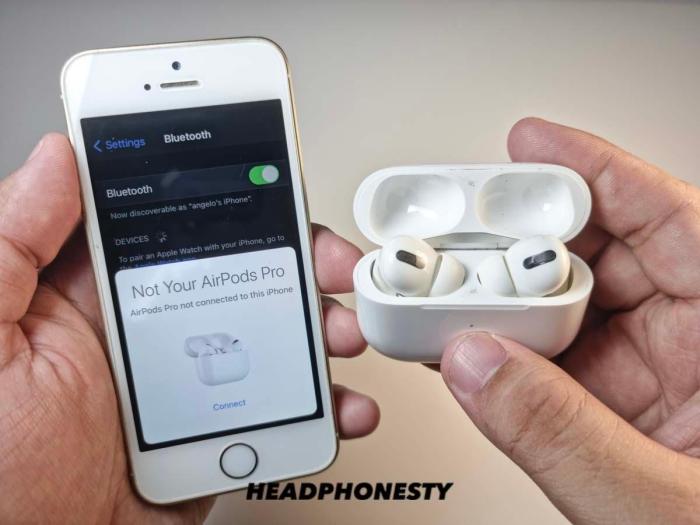
- Your iPhone or iPad will detect your AirPods Pro and display a pairing animation.
- Tap “Connect” on your iPhone or iPad to complete the pairing process.
Understanding the Impact of Reset
Resetting your AirPods Pro is like giving them a fresh start. It’s a useful tool for troubleshooting issues, but it does come with some consequences. Think of it as wiping your phone clean and starting over.
A reset essentially erases all the personalized settings and data associated with your AirPods Pro. This includes things like:
Data Lost During a Reset
Here’s a breakdown of what you’ll lose when you reset your AirPods Pro:
- Pairing information:Your AirPods Pro will forget their connection to your iPhone, iPad, or any other devices they were previously paired with. This means you’ll need to pair them again after the reset.
- Custom EQ settings:If you’ve adjusted the audio equalizer settings on your AirPods Pro, those will be reset to their default values. This means you’ll need to customize them again if you want to personalize the sound.
- Spatial audio settings:Any personalized spatial audio settings you’ve made, like head tracking, will be lost. You’ll need to set them up again after the reset.
- Automatic ear detection settings:If you’ve customized how your AirPods Pro automatically detect when they’re in your ears, those settings will be reset. This means you’ll need to configure them again.
When to Contact Apple Support
Sometimes, even after resetting your AirPods Pro, you might encounter persistent issues. This is when reaching out to Apple Support is essential.
Scenarios Requiring Apple Support
It’s time to contact Apple Support if you’ve tried all the troubleshooting steps and your AirPods Pro still aren’t working as they should.
- Persistent Connection Issues:If your AirPods Pro frequently disconnect, drop calls, or experience audio lag, even after resetting, it might indicate a deeper problem that requires Apple’s expertise.
- Hardware Malfunctions:If you notice physical damage to your AirPods Pro, like a cracked charging case or a damaged earbud, it’s best to contact Apple Support for repair or replacement options.
- Software Glitches:Sometimes, software glitches can cause unexpected behavior. If your AirPods Pro exhibit strange sounds, fail to update properly, or experience other software-related issues, Apple Support can assist in troubleshooting.
- Warranty and Repair:If your AirPods Pro are still under warranty and you encounter issues, Apple Support can help with repairs or replacements.
Communicating with Apple Support
To ensure a smooth and efficient interaction with Apple Support, follow these tips:
- Be Clear and Concise:Clearly explain the issue you’re facing, including the specific symptoms and the troubleshooting steps you’ve already taken.
- Provide Detailed Information:Include details about your AirPods Pro model, the iOS version you’re using, and any relevant error messages you encounter.
- Be Patient:Apple Support representatives are often busy, so be patient and polite while waiting for assistance.
- Stay Organized:Keep track of any troubleshooting steps you’ve taken and the details of your conversations with Apple Support.
Additional Tips and Considerations: How To Reset AirPods Pro
Resetting your AirPods Pro can be a helpful troubleshooting step, but there are some things to keep in mind before you do so. This section will provide some additional tips and best practices for resetting your AirPods Pro.
Understanding the Impact of Resetting
Resetting your AirPods Pro will erase all of their settings and pairing information. This means that you’ll need to re-pair them with your iPhone or iPad after the reset. It’s also important to remember that resetting your AirPods Pro will not erase any of your music or other data stored on your iPhone or iPad.
Resetting your AirPods Pro is super easy, just hold down the button on the back of the case until the light flashes white. If you’re still having trouble, it might be time to update your iOS! Check out Everything you need to know about iOS 13 for tips on how to get the most out of your Apple devices.
Once you’ve updated, you can try resetting your AirPods Pro again and see if that fixes the issue.
Potential Risks and Drawbacks of Resetting
While resetting your AirPods Pro can often resolve issues, it’s not a guaranteed solution. In some cases, resetting your AirPods Pro may not fix the problem you’re experiencing. Additionally, if you’re experiencing issues with your AirPods Pro, it’s always a good idea to contact Apple Support before attempting a reset.
Best Practices for Maintaining AirPods Pro Functionality
Here are some tips to help keep your AirPods Pro working properly:
- Keep your AirPods Pro clean. Use a soft, dry cloth to wipe away any dirt or debris from the AirPods Pro and the charging case.
- Store your AirPods Pro in a cool, dry place when not in use. Avoid exposing your AirPods Pro to extreme temperatures or humidity.
- Update your AirPods Pro firmware regularly. Apple releases firmware updates to improve performance and fix bugs. To update your AirPods Pro firmware, make sure your iPhone or iPad is running the latest version of iOS or iPadOS. Then, connect your AirPods Pro to your iPhone or iPad and go to Settings > Bluetooth.
If a firmware update is available, it will be downloaded and installed automatically.
- Use the charging case to keep your AirPods Pro charged. Make sure to charge your AirPods Pro regularly, as a low battery can affect performance.
- Avoid dropping or damaging your AirPods Pro. Dropping or damaging your AirPods Pro can cause irreparable damage.
Alternative Solutions to Resetting
Sometimes, resetting your AirPods Pro might not be the only solution to the problems you’re facing. Before resorting to a complete reset, there are a few alternative methods you can try that might fix the issue. These methods can be quicker and less disruptive than a full reset.
Troubleshooting without Resetting
These methods involve addressing specific issues without resorting to a full reset. They can save you time and effort, and might be enough to fix your problem.
- Check for Software Updates:Make sure your AirPods Pro and your iPhone or iPad are running the latest software. Outdated software can sometimes cause unexpected behavior. To update your AirPods Pro, connect them to your iPhone or iPad and follow the instructions in the Settings app.
To update your iPhone or iPad, go to Settings > General > Software Update.
- Clean Your AirPods Pro:Dirt and debris can accumulate in the charging case and the AirPods Pro themselves, affecting their performance. Use a soft, dry cloth to clean the charging case and the AirPods Pro, making sure to avoid getting any moisture inside.
Resetting your AirPods Pro is super easy. Just hold down the button on the back of the charging case until the light flashes white. If you’re having trouble connecting them to your iPhone, you might need to check your Wi-Fi settings.
How to use Wi-Fi and Instant Hotspot in iOS 13 is a great resource for figuring out any connectivity issues. Once you’ve sorted that out, your AirPods Pro should be good to go!
- Remove and Re-insert the AirPods Pro:Sometimes, simply removing and re-inserting the AirPods Pro into the charging case can fix connectivity issues. This can help reset the connection between the AirPods Pro and your iPhone or iPad.
- Forget and Re-pair the AirPods Pro:If your AirPods Pro are constantly disconnecting, try forgetting them from your iPhone or iPad and then re-pairing them. This can help refresh the connection and resolve any pairing issues. To forget your AirPods Pro, go to Settings > Bluetooth and tap the “i” icon next to your AirPods Pro.
Then, tap “Forget This Device.” To re-pair them, simply put them in the charging case and open the case near your iPhone or iPad.
Using Other Devices
If you’re experiencing issues with your AirPods Pro on your iPhone or iPad, you can try using them with another device. This can help isolate the problem and determine if it’s related to your AirPods Pro or your iPhone or iPad.
- Connect to a Mac or PC:Try connecting your AirPods Pro to a Mac or PC. If they work correctly on another device, it suggests that the issue might be with your iPhone or iPad.
- Connect to an Android Device:You can also try connecting your AirPods Pro to an Android device. While they might not have the same features as on iOS devices, they should still connect and play audio.
Last Word
Resetting your AirPods Pro can be a quick and effective way to troubleshoot a range of problems. By following the steps Artikeld in this guide, you can easily restore your AirPods Pro to their factory settings and enjoy a fresh start.
Remember, if you encounter any persistent issues or have questions about the process, don’t hesitate to contact Apple Support for assistance.
Questions and Answers
How often should I reset my AirPods Pro?
You don’t need to reset your AirPods Pro regularly. Resetting is usually only necessary when you’re experiencing problems or want to pair them with a new device.
Will resetting my AirPods Pro delete my music?
No, resetting your AirPods Pro won’t delete any music stored on your devices. It only resets the connection settings and preferences for the AirPods Pro themselves.
What if I can’t reset my AirPods Pro?
If you’re having trouble resetting your AirPods Pro, try restarting your iPhone or iPad and then attempting the reset again. If the issue persists, contact Apple Support for assistance.


 Hubungi Kami di WhatsApp