
How To Make Your Iphone Videos Look Like Hollywood Movies
How to make your iPhone videos look like Hollywood movies? It’s not as hard as you might think! With a little bit of creativity and some clever techniques, you can transform your everyday footage into cinematic masterpieces. You don’t need expensive equipment or a film crew – just your iPhone and a passion for storytelling.
In this guide, we’ll dive into the world of cinematic techniques, exploring how to leverage your iPhone’s camera capabilities, master lighting and composition, and use editing tools to create a truly captivating experience. We’ll even analyze scenes from famous Hollywood movies to understand how professional filmmakers achieve their stunning visuals.
So grab your iPhone, get ready to experiment, and let’s embark on this journey to elevate your videography game.
Understanding Cinematic Techniques: How To Make Your IPhone Videos Look Like Hollywood Movies
Hollywood movies are known for their captivating visuals, and this is largely due to the masterful use of cinematic techniques. These techniques are the tools that filmmakers employ to create a visually compelling and emotionally resonant experience for the audience.
Understanding these techniques can help you elevate your iPhone videos and bring them closer to the aesthetic of Hollywood productions.
Lighting
Lighting is crucial in cinematography as it sets the mood, emphasizes certain elements, and guides the viewer’s attention.
- Three-Point Lighting: This classic technique uses three light sources: a key light, a fill light, and a back light. The key light is the main source of illumination, providing the strongest light and shaping the subject. The fill light softens shadows created by the key light, and the back light separates the subject from the background, creating depth and dimension.
For instance, in a scene with a character walking down a street, the key light could be a streetlamp, the fill light could be ambient light from nearby buildings, and the back light could be a spotlight from behind the character, creating a halo effect.
- High-Key Lighting: This style uses a lot of light to create a bright and cheerful atmosphere. Often used in comedies and romantic films, high-key lighting makes the scene appear optimistic and uplifting. For example, a scene set in a sunny beach with bright, diffused light would be considered high-key lighting.
- Low-Key Lighting: In contrast to high-key lighting, low-key lighting uses less light, creating shadows and a more dramatic atmosphere. This technique is often used in thrillers, horror films, and noir movies. For example, a scene set in a dimly lit alley with only a few sources of light, creating deep shadows, would be considered low-key lighting.
Want to make your iPhone videos look like they were shot by a Hollywood pro? There are tons of editing apps and tricks you can use, but you’ll also want to make sure your connection is secure. That’s where iCloud Private Relay comes in, which helps keep your browsing private.
Learn how to enable and disable iCloud Private Relay in iOS 15 and macOS Monterey here , and then get back to making those cinematic masterpieces!
Composition
Composition refers to the arrangement of elements within the frame, and it plays a significant role in how the audience perceives the scene.
- Rule of Thirds: This principle divides the frame into nine equal sections with two horizontal and two vertical lines. Placing key elements along these lines or at their intersections creates a more balanced and visually appealing composition. For example, in a landscape shot, placing the horizon line along the top or bottom third line creates a more dynamic composition than centering it.
- Leading Lines: Using lines within the frame to guide the viewer’s eye towards the subject or a specific point of interest. These lines can be natural elements like roads, fences, or even the direction of a character’s gaze. For example, a shot of a character walking down a long road, where the road acts as a leading line, draws the viewer’s attention towards the character.
- Framing: Using natural elements within the scene to frame the subject. This technique can create a sense of isolation, focus, or intimacy. For example, framing a character through a window or doorway can create a sense of confinement or separation.
Camera Movement
Camera movement adds dynamism and visual interest to a scene. It can also be used to create a sense of suspense, anticipation, or reveal new information.
- Pan: A horizontal movement of the camera, often used to follow a subject or reveal a wider view of the scene. For example, panning across a cityscape to reveal a dramatic skyline.
- Tilt: A vertical movement of the camera, often used to follow a subject or emphasize a particular element. For example, tilting up from a character’s feet to their face to reveal their expression.
- Zoom: A movement that changes the focal length of the lens, making the subject appear closer or farther away. Zooming in can create a sense of intimacy or suspense, while zooming out can reveal more context or provide a wider perspective.
For example, zooming in on a character’s face to emphasize their emotion.
- Tracking Shot: A shot where the camera moves alongside the subject, maintaining a constant distance. This technique is often used to create a sense of movement and immersion. For example, a tracking shot following a character running through a forest.
Examples
- “The Shawshank Redemption”: This film uses low-key lighting to create a sense of claustrophobia and hopelessness within the prison walls. The use of shadows and darkness emphasizes the oppressive nature of the environment and the characters’ struggles.
- “The Godfather”: This film uses high-key lighting to create a sense of grandeur and power within the Corleone family’s world. The use of bright light and open spaces emphasizes the family’s wealth and influence.
- “Inception”: This film uses a variety of camera movements to create a sense of disorientation and confusion within the dream sequences. The use of tracking shots, zooms, and tilts creates a sense of instability and uncertainty, reflecting the nature of the dream world.
Leveraging iPhone Camera Capabilities
The iPhone camera, with its impressive array of features, offers a wealth of opportunities to emulate cinematic techniques. By understanding and utilizing its capabilities, you can elevate your videos to a professional level, capturing stunning visuals that engage and captivate your audience.
Manual Controls
Manual controls provide you with the flexibility to fine-tune your shots, achieving the desired look and feel.
The iPhone camera’s manual controls allow you to adjust exposure, ISO, shutter speed, and focus, giving you complete creative control over your shots.
- Exposure: This controls the overall brightness of your image. A higher exposure results in a brighter image, while a lower exposure creates a darker image. Adjusting exposure can be particularly useful when shooting in challenging lighting conditions, ensuring your subject is well-lit and balanced.
For example, when shooting a scene with a bright background and a darker subject, you can increase the exposure to brighten the subject while maintaining the natural brightness of the background.
- ISO: This setting determines the camera’s sensitivity to light. A higher ISO value allows you to shoot in low-light conditions, but it can also introduce noise or grain into the image. Conversely, a lower ISO value reduces noise but requires more light for a well-exposed image.
For instance, when shooting a nighttime scene with minimal ambient light, you would increase the ISO to capture a brighter image. However, be mindful of the potential for increased noise.
- Shutter Speed: This controls the duration of time the camera’s shutter remains open, capturing light. A faster shutter speed freezes motion, while a slower shutter speed creates motion blur. For instance, when capturing a fast-moving object like a car, a faster shutter speed would ensure a sharp, frozen image, while a slower shutter speed would create a sense of motion blur, emphasizing the object’s speed.
- Focus: This determines the sharpness of the image, allowing you to highlight specific areas while blurring the background. You can manually adjust focus to create a shallow depth of field, blurring the background and drawing attention to your subject, often used in portrait photography to emphasize the subject’s features.
Lenses
The iPhone’s various lenses provide unique perspectives, enabling you to capture different cinematic looks.
- Wide-Angle Lens: This lens captures a wider field of view, allowing you to encompass more of the scene. It’s ideal for establishing shots, capturing expansive landscapes, or creating a sense of grandeur. For example, when shooting a scene in a vast outdoor setting, a wide-angle lens can effectively capture the entirety of the environment, showcasing its scale and beauty.
- Telephoto Lens: This lens magnifies distant objects, allowing you to capture close-ups from a distance. It’s useful for isolating subjects, creating a sense of intimacy, or capturing details that might otherwise be lost. For example, when shooting a scene with a subject far away, a telephoto lens can bring them closer, enhancing their presence and emphasizing their features.
- Macro Lens: This lens allows you to focus on extremely close-up subjects, capturing intricate details. It’s perfect for capturing textures, patterns, or small objects with a unique perspective. For example, when shooting a scene with a delicate flower, a macro lens can capture the intricate details of its petals, highlighting its beauty and fragility.
Camera Movement and Storytelling
Camera movement is like the invisible hand guiding the viewer’s eye through your story. It’s not just about making your video look fancy; it’s about adding depth, emotion, and a sense of presence to your narrative. By strategically moving the camera, you can control the pace, tension, and overall feel of your iPhone video.
Types of Camera Movement
The different ways you move your iPhone camera, each with its unique effect on the viewer’s experience, are called camera movements. These movements add dynamism to your video and help you tell your story more effectively.
- Panning: This involves moving the camera horizontally from left to right or right to left, like scanning a landscape or following a moving subject. Panning can create a sense of vastness, reveal hidden details, or follow a character’s gaze.
- Tilting: This involves moving the camera vertically, up or down, like looking up at a tall building or down at a character’s feet. Tilting can emphasize scale, create a sense of awe, or shift the viewer’s perspective.
- Tracking Shots: These shots involve moving the camera alongside a moving subject, maintaining a constant distance and framing. Tracking shots provide a sense of immersion, allowing the viewer to feel like they’re right there with the character or action.
- Zooming: This involves changing the camera’s focal length, making the subject appear closer or farther away. Zooming in can create a sense of intimacy or emphasize a specific detail, while zooming out can reveal context or create a sense of distance.
Camera Movement and Storytelling
The way you move your camera can have a profound impact on how your story is perceived. Here’s a table that illustrates how different camera movements can be used to create specific effects:
| Camera Movement | Storytelling Impact | Visual Appeal |
|---|---|---|
| Panning | Reveals a scene, follows action, creates a sense of vastness | Dynamic, sweeping, immersive |
| Tilting | Emphasizes scale, shifts perspective, creates a sense of awe | Dramatic, impactful, eye-catching |
| Tracking Shots | Immersive, follows action, builds tension | Smooth, dynamic, engaging |
| Zooming | Creates intimacy, reveals context, emphasizes details | Intriguing, focused, impactful |
Editing Techniques for Cinematic Look
Editing is the heart and soul of making your iPhone videos look like Hollywood movies. It’s where you transform raw footage into a captivating narrative, adding polish and visual flair.
Color Grading
Color grading is the process of adjusting the colors in your video to create a specific mood or atmosphere. This can involve adjusting the overall brightness, contrast, saturation, and hue of your video. For example, you can use a cool color palette to create a sense of mystery or a warm color palette to create a sense of warmth and happiness.
- Use color grading to create a consistent look and feel across your entire video.A consistent color palette helps to unify your video and create a sense of cohesion.
- Use color grading to emphasize certain elements of your video.You can use color grading to draw attention to specific objects or characters in your video. For example, you can use a warmer color palette to make a character stand out against a cooler background.
- Use color grading to create a specific mood.You can use color grading to evoke different emotions in your viewers. For example, you can use a dark and moody color palette to create a sense of suspense or a bright and cheerful color palette to create a sense of joy.
Transitions
Transitions are the visual effects that are used to connect different shots together. They can be used to create a smooth flow between shots or to add a sense of drama or excitement. Some common transition effects include fades, cross dissolves, and wipes.
- Fades:Fades are a simple and effective way to transition between shots. They involve slowly fading out the previous shot and fading in the next shot. Fades can be used to create a sense of time passing or to create a smooth transition between different scenes.
- Cross dissolves:Cross dissolves are a more subtle transition effect than fades. They involve overlapping the previous shot with the next shot, creating a smooth blend between the two. Cross dissolves can be used to create a sense of continuity or to create a more fluid transition between scenes.
- Wipes:Wipes are a more dynamic transition effect than fades or cross dissolves. They involve moving a line or shape across the screen to reveal the next shot. Wipes can be used to create a sense of movement or to add a sense of drama or excitement.
Sound Design
Sound design is the process of creating or selecting sound effects and music to enhance the emotional impact of your video. Sound design can be used to create a sense of realism, to add excitement or suspense, or to emphasize certain elements of your video.
- Use sound effects to create a sense of realism.Sound effects can be used to make your video feel more immersive and believable. For example, you can use sound effects of footsteps, car horns, or birds chirping to create a more realistic setting.
- Use music to create a mood.Music can be used to set the tone of your video and to evoke certain emotions in your viewers. For example, you can use upbeat music to create a sense of excitement or use a slow and melancholic soundtrack to create a sense of sadness.
- Use sound design to emphasize certain elements of your video.You can use sound design to draw attention to specific objects or characters in your video. For example, you can use a sound effect to highlight a character’s entrance or a piece of music to emphasize a particular moment.
Editing Software and Plugins
There are many different editing software programs and plugins that you can use to achieve a cinematic look.
- iMovieis a free video editing app that comes pre-installed on all iPhones and Macs. It offers a variety of editing tools, including color grading, transitions, and sound design. iMovie is a great option for beginners who are just starting out with video editing.
- LumaFusionis a more advanced video editing app that is available for both iOS and iPadOS. It offers a wide range of features, including color grading, transitions, sound design, and multi-track editing. LumaFusion is a great option for more experienced editors who are looking for a more professional-grade editing app.
- Final Cut Pro Xis a professional-level video editing software that is available for Mac computers. It offers a wide range of advanced features, including color grading, transitions, sound design, and motion graphics. Final Cut Pro X is a great option for professional editors who are looking for the most powerful video editing software available.
Creating a Visual Narrative
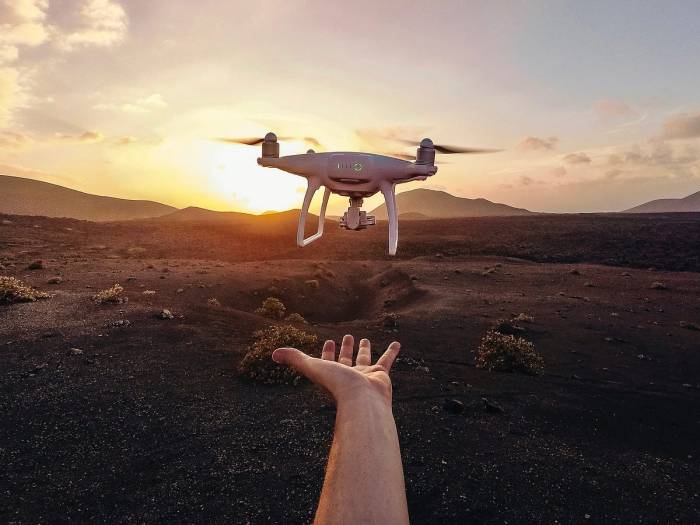
Your iPhone can be more than just a device to capture memories; it can be a tool to tell stories. But just like a good book, a captivating movie, or a compelling painting, a strong visual narrative requires planning and execution.
Storyboarding and Planning
Before you even pick up your iPhone, it’s crucial to plan your story. This is where storyboarding comes in. Storyboarding is essentially creating a visual script of your video. It helps you visualize each scene, camera angle, and movement, ensuring a smooth and engaging flow.Think of storyboarding as a blueprint for your video.
It helps you:
- Organize your shots and transitions
- Identify potential problems or areas that need improvement
- Communicate your vision to others, if you’re working with a team
There are many storyboarding apps available, but you can also create simple storyboards using pen and paper.
Camera Angles and Composition, How to make your iPhone videos look like Hollywood movies
Camera angles are the foundation of visual storytelling. They can be used to create different moods and perspectives. Here are some common camera angles and their effects:
- Wide shot:Establishes the scene and provides context. Think of a grand landscape shot or a scene in a crowded marketplace.
- Medium shot:Focuses on a character or object, providing more detail than a wide shot. A conversation between two people would typically be filmed in a medium shot.
- Close-up:Draws the viewer’s attention to a specific detail, like a character’s eyes or a crucial object. This can be used to heighten emotion or create suspense.
- Over-the-shoulder shot:Shows the scene from the perspective of a character, creating a sense of intimacy and immediacy. This is often used in dialogue scenes, where you see the back of one character’s head and the face of the other.
Camera Movement
Camera movement can add dynamism and excitement to your videos. Think about how camera movement can enhance your story:
- Panning:Moving the camera horizontally across the scene. This can be used to follow a moving object or to reveal a new element of the scene.
- Tilting:Moving the camera vertically up or down. This can be used to create a sense of grandeur or to emphasize a specific detail.
- Zooming:Moving the camera closer or further away from the subject. This can be used to create a sense of intimacy or to emphasize a specific detail.
- Tracking:Moving the camera alongside a moving subject. This can be used to create a sense of movement and energy.
Camera Techniques for Emotion and Suspense
By combining camera angles, composition, and movement, you can evoke specific emotions and create a sense of suspense, excitement, or intimacy. For example, a low-angle shot(looking up at the subject) can make the subject appear powerful or threatening. A high-angle shot(looking down at the subject) can make the subject appear vulnerable or insignificant.
A slow zoomcan be used to build tension and anticipation, while a quick zoomcan be used to startle the viewer. By experimenting with these techniques, you can transform your iPhone videos from simple recordings into cinematic masterpieces.
Using Sound to Enhance the Experience
Sound design is the unsung hero of filmmaking, playing a crucial role in immersing viewers in the story and amplifying the emotional impact. Just like how a carefully chosen soundtrack elevates a movie, your iPhone videos can benefit from a thoughtful approach to sound.
Recording and Editing Sound Effectively
You can use your iPhone’s built-in microphone for basic audio recording, but for a more professional sound, consider using an external microphone. This can be a lavalier mic for close-up dialogue, a shotgun mic for directional sound, or a stereo mic for capturing a wider soundscape.
Once you’ve recorded your audio, editing it is essential. Editing software like iMovie or GarageBand on your iPhone lets you clean up unwanted noise, adjust levels, and add sound effects.
Using Foley and Sound Effects
Foley is the art of creating sound effects by manipulating objects. You can create a wide range of sounds by using everyday items like paper, cloth, or even your own body. Imagine the crunch of footsteps on gravel, the rustle of leaves, or the clinking of glasses.
These sounds, meticulously recorded and edited, can add a layer of realism and immersion to your video. Sound effects are pre-recorded sounds that can be added to enhance your video. You can find a vast library of sound effects online, ranging from explosions and gunshots to animal noises and ambient sounds.
Enhancing Emotional Impact and Creating Realism
Sound is a powerful tool for manipulating emotions. A tense scene can be amplified with dramatic music, while a heartwarming moment can be heightened with a gentle melody. Sound effects can also create a sense of realism. For example, the sound of a train passing by can make a scene feel more authentic.Conversely, sound can also be used to create a sense of fantasy.
Imagine a whimsical scene accompanied by ethereal music and whimsical sound effects. This can transport viewers to a different world and evoke a sense of wonder.
Inspiration from Hollywood Movies
It’s time to dive into the world of cinematic brilliance and see how you can use these techniques to elevate your iPhone videos. We’ll explore specific scenes from iconic Hollywood films, dissecting the cinematic techniques employed, and learn how you can adapt these techniques for your own iPhone videography.
Cinematic Techniques in Action
Hollywood films utilize a vast array of techniques to create captivating visuals and tell compelling stories. Let’s look at some examples:
- The Use of Lighting:Lighting plays a crucial role in shaping the mood and atmosphere of a scene. In the opening scene of “The Shawshank Redemption,” the dim, oppressive lighting in the prison contrasts sharply with the bright, hopeful light of Andy’s escape.
You can emulate this by using natural light sources, adjusting your iPhone’s exposure settings, and experimenting with artificial light sources like lamps or flashlights.
- Camera Movement and Composition:The way the camera moves and frames the scene can significantly impact the viewer’s experience. The slow, deliberate tracking shots in “Goodfellas” create a sense of suspense and immersion. You can use your iPhone’s built-in stabilization features to achieve smooth camera movements and explore different framing techniques like the rule of thirds and leading lines to enhance your compositions.
- Color Grading:Color grading is the process of adjusting the color palette of your footage to create a specific mood or style. The vibrant, saturated colors of “La La Land” create a whimsical and romantic atmosphere. You can use editing apps like LumaFusion or FilmoraGo to adjust the color, contrast, and saturation of your iPhone footage.
- Sound Design:Sound design is often overlooked but plays a vital role in creating a cinematic experience. The iconic score of “Star Wars” enhances the film’s sense of wonder and adventure. You can use your iPhone’s built-in microphone or external microphones to capture high-quality audio.
You can also incorporate sound effects and music from royalty-free libraries to enhance your videos.
Practical Tips and Tricks
Okay, you’ve got the gear, the knowledge, and the inspiration. Now, let’s dive into the nitty-gritty of making your iPhone videos look their best. We’ll cover some practical tips and tricks for shooting and editing, maximizing image quality, and achieving a professional look.
Maximizing Image Quality
To get the most out of your iPhone camera, you need to understand how to capture the best possible image.
- Use the Grid Overlay:This handy tool, found in the Camera app’s settings, helps you compose your shots using the rule of thirds. This rule suggests dividing your frame into thirds, both horizontally and vertically, and placing your subject at the intersection of those lines for a more visually appealing composition.
Making your iPhone videos look like Hollywood movies isn’t just about fancy equipment; it’s about mastering the editing process. And while you’re at it, check out these 7 amazing iPad apps to make your photos pop – they’ll help you create killer stills to accompany your awesome films.
Think of it as a complete creative package, from shooting to editing, and you’ll be on your way to making your own blockbuster!
- Utilize Natural Lighting:Embrace the power of natural light. Shoot in well-lit environments, and try to avoid harsh shadows. If you’re shooting indoors, position your subject near a window to get soft, natural light.
- Adjust Exposure and Focus:Your iPhone camera offers manual controls for exposure and focus. Tap and hold on the screen to lock focus and adjust exposure for optimal brightness.
- Clean Your Lens:This might seem obvious, but a smudged lens can significantly impact your image quality. Wipe it down with a microfiber cloth before shooting.
Using Accessories
Accessories can make a huge difference in your iPhone videography.
- External Microphones:Upgrade your audio with an external microphone. This is especially important for capturing clear dialogue and ambient sound. You can find a variety of options, from lavalier mics for close-up audio to shotgun mics for capturing sound from a distance.
- Tripods and Stabilizers:A tripod provides stability for your shots, eliminating shaky footage. Stabilizers, like gimbals, offer smooth, professional-looking camera movement. They’re especially useful for handheld shots.
Overcoming Common Challenges
Here are some common challenges faced in iPhone videography and tips for overcoming them:
- Shaky Footage:This is a common issue with handheld shooting. Use a tripod or stabilizer to avoid shaky footage. If you must shoot handheld, try to keep your movements slow and steady.
- Poor Lighting:Low light can create grainy footage. Try to shoot in well-lit environments or use a light source to brighten up your scene.
- Wind Noise:Wind can create distracting noise in your audio recordings. Use a windsock or a furry microphone cover to minimize wind noise.
Creating Your Own Cinematic Masterpiece
It’s time to unleash your inner Spielberg and turn your iPhone into a cinematic powerhouse. This section will guide you through the process of crafting your own cinematic masterpiece, from the initial spark of an idea to the final, polished product.
Pre-Production Planning: Laying the Foundation
Before you even touch your iPhone, it’s crucial to lay a solid foundation for your cinematic vision. Pre-production is where you map out your story, gather your resources, and set yourself up for success.
- Storyboarding: Visualizing Your Narrative: Storyboarding is like creating a comic book version of your video. It involves sketching out each scene, frame by frame, to visualize the flow of your story, camera angles, and character movements. This process helps you refine your narrative, identify potential problems, and even estimate the time and resources you’ll need.
Think of it as a blueprint for your cinematic creation.
- Scriptwriting: Crafting Your Dialogue and Action: The script is the heart of your video. It Artikels the dialogue, action, and overall narrative arc. Even for a short video, a well-written script will ensure a clear and engaging story. Think about the characters, their motivations, and the emotional impact you want to create.
Remember, a good script can make or break your video.
- Location Scouting: Finding the Perfect Setting: Location scouting is like finding the perfect backdrop for your story. Choose locations that complement your narrative and create the right atmosphere. Consider lighting, sound, and accessibility when making your choice. A well-chosen location can add a layer of authenticity and visual appeal to your video.
Production: Bringing Your Vision to Life
Now that you’ve laid the groundwork, it’s time to bring your cinematic vision to life. This is where you’ll capture the footage that will form the backbone of your video.
- Time Management: Staying on Schedule: Time is of the essence during production. Stick to your storyboard and script to ensure you capture everything you need within your allotted time. Create a shooting schedule and stick to it as closely as possible.
Remember, every minute counts.
- Resource Management: Making the Most of Your Equipment: Make the most of your iPhone’s capabilities. Experiment with different camera angles, lenses, and lighting techniques. Utilize apps like Filmic Pro to unlock more advanced features. Remember, your iPhone is a powerful tool, but it’s up to you to harness its full potential.
- Collaborating with Others: Building a Team: Even if you’re a one-person crew, don’t be afraid to enlist the help of others. Find friends or family members to assist with camera operation, sound recording, or acting. Collaboration can bring fresh perspectives and help you achieve your creative vision.
Remember, teamwork makes the dream work.
Post-Production: Polishing Your Masterpiece
After you’ve captured your footage, it’s time to turn it into a polished, cinematic masterpiece. This is where you’ll edit, add sound, and refine your video to create a truly immersive experience.
- Editing Software: The Power of Post-Production: Utilize editing software like iMovie or LumaFusion to bring your video to life. Experiment with different transitions, effects, and sound design. Think of post-production as the finishing touches that will elevate your video from good to great.
Remember, the editing process is where your video truly takes shape.
- Sound Design: Creating an Immersive Atmosphere: Sound plays a vital role in creating a cinematic experience. Use music, sound effects, and voiceovers to enhance the emotional impact of your video. Consider using a microphone to capture high-quality audio. Remember, sound can transport your audience to another world.
- Refining Your Video: Iterative Process: Don’t be afraid to iterate and experiment. Watch your video multiple times, identify areas for improvement, and make adjustments until you’re satisfied with the final product. Remember, creating a cinematic masterpiece is an ongoing process of refinement and exploration.
Okay, so you want to make your iPhone videos look like they’re straight out of Hollywood? Well, you’ll need some serious editing power, which means your MacBook might start to heat up. To avoid that, you can check out this guide on how to Disable Turbo Boost to keep your MacBook cool.
Once you’ve got your MacBook running smoothly, you can focus on the real magic: adding those cinematic touches to your videos!
Beyond the Basics
You’ve mastered the fundamentals of cinematic iPhone videography, but there’s always room to push your creativity further. This section explores advanced techniques and tools to elevate your videos to a whole new level of artistry.
Special Effects and Motion Graphics
Adding special effects and motion graphics can enhance the visual impact of your videos, making them more captivating and engaging. You can use a variety of apps to achieve these effects, including:
- LumaFusion:A powerful video editing app that offers a wide range of special effects, transitions, and motion graphics.
- FilmoraGo:A user-friendly app with an extensive library of special effects and motion graphics templates.
- ActionDirector:A specialized app for action sports videos, featuring slow-motion effects, time-lapses, and other tools for creating dynamic footage.
When using special effects, it’s important to maintain a balance and ensure they enhance the story rather than distract from it. Remember, the goal is to create a visually compelling experience, not to overwhelm the viewer with excessive effects.
Experimentation and Finding Your Style
The beauty of filmmaking lies in its boundless possibilities. Don’t be afraid to experiment with different techniques, tools, and styles to find what works best for you. Try out different camera angles, lighting setups, editing styles, and special effects to see what resonates with you.
“The most important thing is to be yourself. If you try to be someone else, you’ll never be as good.”
John Lennon
By exploring and experimenting, you’ll develop your unique voice and style as a filmmaker, allowing your creativity to shine through in your videos.
Conclusive Thoughts
By embracing the principles of cinematography, understanding your iPhone’s capabilities, and mastering the art of editing, you can unlock the potential to create cinematic iPhone videos that will leave your audience in awe. It’s about more than just capturing moments; it’s about crafting a visual narrative that resonates with viewers on an emotional level.
So, don’t be afraid to experiment, try new techniques, and let your creativity shine. Your next iPhone video could be a Hollywood-worthy masterpiece!
Essential Questionnaire
What are some good apps for editing iPhone videos?
There are tons of great apps out there! Some popular options include LumaFusion, Adobe Premiere Rush, and iMovie. Experiment with a few to find one that fits your workflow and style.
Do I need to buy expensive lenses for my iPhone?
While external lenses can enhance your shots, your iPhone’s built-in camera is surprisingly capable. You can achieve great results with a little creativity and practice.
How can I get better sound quality for my iPhone videos?
Invest in an external microphone, like a lavalier mic or a shotgun mic, to capture clear and crisp audio. This can make a huge difference in the overall quality of your videos.
 Hubungi Kami di WhatsApp