
How To Get Started With Homekit Home Automation
How to get started with HomeKit home automation? It’s like stepping into a futuristic world where your home responds to your every command! Imagine turning on the lights with your voice, adjusting the thermostat from your phone, and even locking your doors remotely.
HomeKit, Apple’s smart home platform, makes this a reality, seamlessly integrating with your Apple devices to create a truly connected living experience.
This guide will walk you through the process of setting up your own HomeKit system, from choosing the right hardware to configuring your devices and creating custom automations. We’ll cover everything you need to know to transform your home into a smart haven, making your life easier and more enjoyable.
Introduction to HomeKit
HomeKit is Apple’s platform for controlling and automating smart home devices. It’s designed to make your home more convenient, efficient, and secure. HomeKit allows you to control your home’s lighting, temperature, appliances, and more using your iPhone, iPad, Apple Watch, or even your voice with Siri.
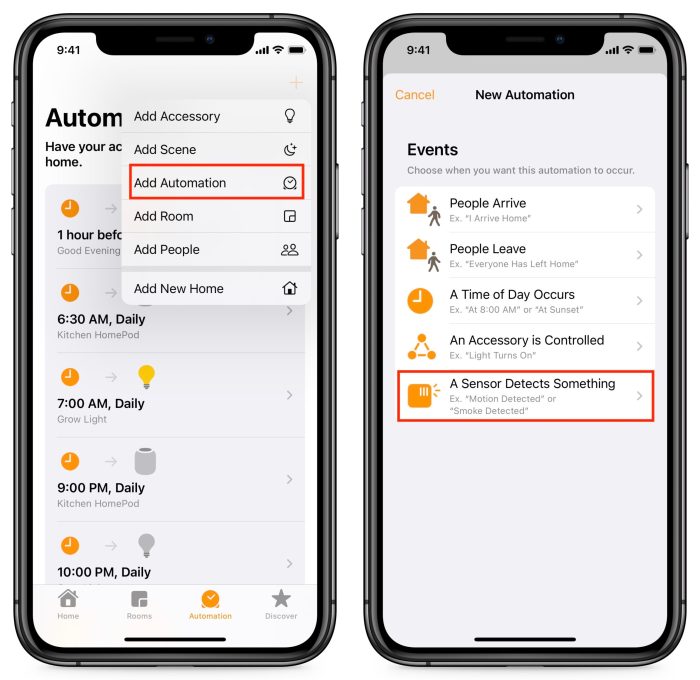
You can also create automations that trigger actions based on specific events, like turning on the lights when you arrive home or adjusting the thermostat based on the time of day.
Integration with the Apple Ecosystem
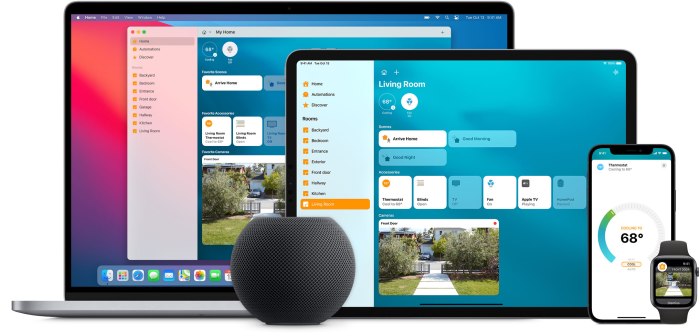
HomeKit seamlessly integrates with the Apple ecosystem, offering a unified experience across your devices. For example, you can control your HomeKit-enabled devices using the Home app on your iPhone or iPad, or even use Siri voice commands. This integration extends to other Apple products like Apple Watch and AirPods.
“The beauty of HomeKit is that it’s a part of the Apple ecosystem, so it just works with all your Apple devices.”
HomeKit Automation Scenarios
HomeKit offers a wide range of automation possibilities. Here are a few examples:
- Turning on the lights when you arrive home:You can set up an automation that turns on the lights in your living room when your iPhone connects to your home’s Wi-Fi network. This provides a welcoming and safe environment as you enter your home.
- Adjusting the thermostat based on your schedule:You can create an automation that lowers the thermostat temperature when you leave for work and raises it again when you’re expected to return home. This helps save energy and money on your heating and cooling costs.
- Locking your doors when you leave home:HomeKit allows you to lock your smart door locks automatically when you leave home. This adds an extra layer of security to your home.
Setting up a HomeKit System
You’ll need a few things to get started with HomeKit. It’s a pretty simple process, and you can get your smart home up and running in no time. First, you’ll need a HomeKit hub. This is a device that acts as the central control point for your HomeKit system.
The most popular HomeKit hubs are Apple devices, like an Apple TV or a HomePod.
HomeKit Hubs
- Apple TV (4th generation or later): This is a great option if you already have an Apple TV. It’s also a good choice if you want to use HomeKit to control your home remotely.
- HomePod or HomePod mini: These smart speakers are also great HomeKit hubs. They can control your smart home devices with your voice, and they also provide excellent audio quality.
- iPad: If you have an iPad running iOS 10 or later, you can use it as a HomeKit hub. Keep in mind, though, that it needs to be plugged in and on for your home automation to work.
Installing the Home App
- Download the Home app: The Home app is available for free on all iOS devices. You can download it from the App Store.
- Open the Home app: Once you’ve downloaded the Home app, open it. You’ll be prompted to set up your HomeKit system.
- Select your HomeKit hub: Choose the device you’ll be using as your HomeKit hub. You’ll need to have your Apple ID and password handy.
- Set up your home: You’ll be asked to give your home a name. You can also choose to add a photo of your home.
Adding and Configuring HomeKit-Compatible Devices
Once you’ve set up your HomeKit system, you can start adding HomeKit-compatible devices. Here’s how:
- Open the Home app: Open the Home app on your iOS device.
- Tap the “+” button: You’ll find this in the top-right corner of the screen.
- Select “Add Accessory”: This option will allow you to add a new HomeKit-compatible device.
- Follow the on-screen instructions: The process for adding a device will vary depending on the device you’re adding. You’ll usually need to scan a QR code or enter a code that’s found on the device.
- Name and configure your device: Once the device has been added, you’ll be able to give it a name and configure its settings.
Controlling Devices with HomeKit: How To Get Started With HomeKit Home Automation
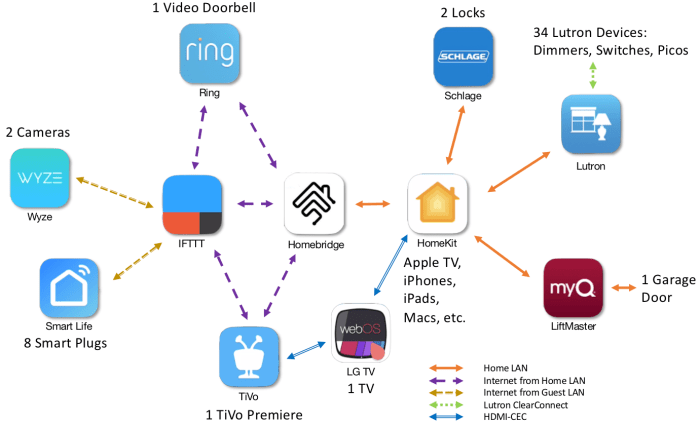
Once your HomeKit system is set up, you’ll be ready to start controlling your smart home devices. HomeKit offers various ways to manage your connected devices, including voice control, automation routines, and the Home app interface.
Controlling Devices with Siri
Siri, Apple’s voice assistant, is a key part of HomeKit. You can use Siri to control your smart home devices hands-free.
- Turning on and off lights: “Hey Siri, turn on the living room lights.” “Hey Siri, turn off the bedroom lights.”
- Adjusting thermostat settings: “Hey Siri, set the thermostat to 72 degrees.” “Hey Siri, turn on the AC.”
- Controlling appliances: “Hey Siri, start the coffee maker.” “Hey Siri, turn on the TV.”
- Locking and unlocking doors: “Hey Siri, lock the front door.” “Hey Siri, unlock the back door.”
Creating Automation Routines
HomeKit allows you to create automation routines that trigger specific actions based on certain events. This lets you automate common tasks and enhance your home’s efficiency.
- Turning off lights when leaving home: Set up an automation routine that automatically turns off all lights when your iPhone leaves the home. This helps save energy and prevent accidents.
- Turning on lights at sunset: Create an automation that turns on your porch lights automatically when the sun sets, providing safety and security.
- Adjusting the thermostat based on your schedule: You can set up routines to automatically adjust your thermostat based on your daily schedule, optimizing energy use and comfort.
- Playing music when you arrive home: Configure an automation to play your favorite playlist when you arrive home, creating a welcoming atmosphere.
Using the Home App Interface
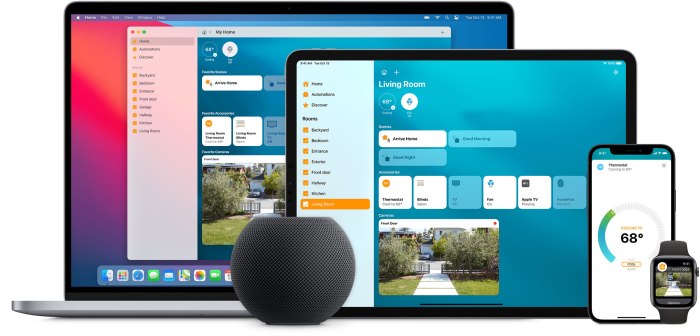
The Home app provides a centralized interface for managing your HomeKit devices. It offers a visual representation of your home and allows you to control devices manually.
- Viewing device status: The Home app displays the current status of your devices, such as whether lights are on or off, the current thermostat temperature, and the status of your door locks.
- Controlling devices: You can tap on individual devices in the Home app to turn them on or off, adjust settings, or perform other actions.
- Creating scenes: Scenes allow you to group multiple devices together and control them with a single tap. For example, you can create a “Good Morning” scene that turns on lights, opens blinds, and starts your coffee maker.
- Customizing device settings: The Home app lets you customize settings for individual devices, such as setting brightness levels for lights, adjusting temperature ranges for thermostats, and configuring timers for appliances.
HomeKit Security and Privacy
HomeKit is designed with security and privacy in mind. Apple prioritizes these aspects to ensure your home automation system is safe and protects your personal information.
Device Encryption and Access Control
HomeKit utilizes end-to-end encryption for communication between your devices and Apple’s servers. This means that your data is encrypted and only accessible to you and the devices you’ve authorized. HomeKit also employs access control mechanisms, ensuring that only authorized users and devices can interact with your home automation system.
HomeKit’s Privacy Measures
HomeKit is designed to protect user privacy by not storing personal data on Apple servers. Instead, HomeKit uses a unique HomeKit ID for each device, allowing it to communicate with other devices without revealing your personal information. This helps ensure that your data remains secure and private.
Setting up HomeKit is super easy. Just download the Home app on your iPhone and start adding your smart devices. But before you get too comfy with your new smart home, make sure to give everything a good cleaning! You can find a great guide on how to disinfect your Mac, iPhone, mouse, trackpad, keyboard and cases to keep your devices germ-free and working smoothly.
Once you’ve got everything clean and shiny, you’re ready to dive into the world of HomeKit and automate your home!
Comparison with Other Smart Home Platforms
HomeKit’s security measures are considered strong compared to other smart home platforms. While some platforms offer similar encryption and access control features, HomeKit’s focus on privacy and its commitment to not storing personal data on its servers set it apart.
Troubleshooting Common HomeKit Issues
HomeKit is a powerful system, but like any technology, it can sometimes encounter problems. This section explores some common issues users face and provides troubleshooting tips to help you get back on track.
Connectivity Issues
Connectivity issues are among the most frequent problems encountered with HomeKit. These issues can stem from a variety of factors, including network instability, device limitations, and even interference from other devices. Here are some common connectivity problems and how to address them:
- Device not responding:This often indicates a weak Wi-Fi signal or a problem with the device’s connection to your network. Ensure the device is within range of your router and that its Wi-Fi connection is strong. You can also try restarting the device or your router to refresh the connection.
- HomeKit Hub not reachable:A HomeKit hub, such as an Apple TV or HomePod, acts as a bridge between your devices and your HomeKit network. If the hub is offline or unreachable, your devices may not respond. Check the hub’s connection to your network and ensure it’s powered on and running properly.
Setting up HomeKit automation is super easy. Just grab your iPhone and start adding devices to your Home app. You can control your lights, thermostat, and even your coffee maker with just a tap. And if you want to take things to the next level, you can create custom automations triggered by time, location, or even other devices.
For example, you could set up a playlist to start playing automatically when you get home from work. Check out this article on how to create smart playlists in Apple Music on iOS finally to make your home even smarter.
- Intermittent connection:If your devices are experiencing intermittent connectivity, this might indicate a network issue or interference. Try temporarily disabling other devices that might be using your Wi-Fi network to see if it resolves the issue. You can also consider using a different Wi-Fi channel or updating your router’s firmware to improve network stability.
Device Incompatibility
Not all smart home devices are compatible with HomeKit. While Apple’s HomeKit ecosystem is growing, some manufacturers may not have implemented HomeKit support in their devices.
Setting up HomeKit automation can be pretty simple. Just grab a compatible device, like a smart bulb or thermostat, and you’re good to go. But before you start turning your house into a futuristic dream home, make sure you’ve got your tech under control.
You can avoid those annoying pop-ups from the Mail app by checking out How to stop the Mail app from randomly interrupting you in macOS. Once you’ve got your notifications sorted, you’ll be ready to fully enjoy the ease and convenience of HomeKit.
- Check for HomeKit compatibility:Before purchasing a smart home device, ensure it is HomeKit-compatible. Look for the “Works with Apple HomeKit” logo on the packaging or product description. You can also check Apple’s website or a reputable smart home device review site for compatibility information.
- Device not showing up in Home app:If a HomeKit-compatible device is not appearing in the Home app, it might be a setup issue. Ensure the device is powered on, connected to your Wi-Fi network, and within range of your HomeKit hub. Follow the manufacturer’s instructions for setting up the device with HomeKit.
- Limited functionality:Some HomeKit-compatible devices may not support all HomeKit features. For example, a smart light bulb might not be able to change its color, or a smart lock might not support automatic unlocking. Check the device’s documentation or the manufacturer’s website for information on supported features.
Automation Errors, How to get started with HomeKit home automation
HomeKit automations are designed to streamline your smart home experience, but they can sometimes encounter errors. These errors might be due to faulty triggers, incorrect actions, or even problems with the device itself.
- Automation not triggering:If an automation is not triggering as expected, check the conditions that trigger the automation. Ensure the trigger is accurate and that the device associated with the trigger is functioning properly. For example, if an automation is supposed to turn on a light when you arrive home, check that your phone’s location services are enabled and that your location is accurate.
- Automation not performing the desired action:If an automation is triggering but not performing the intended action, check the actions associated with the automation. Ensure the actions are correctly configured and that the device associated with the action is functioning properly. For example, if an automation is supposed to turn off a light when you leave home, check that the light is connected to the correct outlet and that it is working.
- Automation error messages:If you see an error message when creating or editing an automation, carefully review the error message for clues about the problem. The error message might provide specific information about the issue, such as a missing device or a configuration error.
The Future of HomeKit
HomeKit, Apple’s smart home platform, has already made a significant impact on the home automation landscape. As technology continues to evolve, the future of HomeKit holds even more exciting possibilities. Emerging trends in smart home technology are paving the way for a more connected, automated, and personalized living experience.
HomeKit’s Role in the Future of Connected Living
The future of HomeKit is closely intertwined with the broader trends shaping the connected home. HomeKit will likely play a central role in creating a seamless and intuitive ecosystem for managing smart devices. Here are some key areas where HomeKit will likely continue to evolve:
- Enhanced Interoperability:HomeKit’s commitment to interoperability will continue to expand, enabling seamless integration with a wider range of smart home devices from various manufacturers. This will provide users with more choices and flexibility in building their ideal smart home system.
- Advanced Automation:HomeKit will likely incorporate more sophisticated automation capabilities, allowing users to create complex scenarios based on a combination of triggers, conditions, and actions. This will enable more personalized and context-aware automation, making homes truly intelligent.
- Data Privacy and Security:As the number of connected devices grows, data privacy and security will become even more critical. HomeKit’s strong focus on these areas will continue to be a key differentiator, providing users with peace of mind knowing their data is protected.
- Voice Control Integration:Voice control is becoming increasingly popular in smart homes. HomeKit will likely continue to integrate seamlessly with voice assistants like Siri, enabling users to control their smart home devices with their voice.
- Integration with Other Apple Services:HomeKit will likely become more tightly integrated with other Apple services, such as Apple Music, Apple TV, and iCloud. This will create a more cohesive and personalized experience for users across their Apple devices.
Final Conclusion
With HomeKit, you’re not just controlling your devices; you’re shaping your home’s environment to suit your needs. From creating personalized scenes for different moods to automating everyday tasks, HomeKit empowers you to personalize your living space in ways you never thought possible.
So, dive into the world of HomeKit and discover the endless possibilities of a truly connected home.
Question Bank
What if I don’t have an Apple TV or HomePod?
You can still use HomeKit, but you’ll need an iPad or Apple TV running tvOS 11 or later as your home hub. These devices act as the central point for controlling your HomeKit accessories.
Can I control my HomeKit devices from outside my home?
Absolutely! As long as you have an internet connection, you can control your HomeKit devices remotely using the Home app on your iOS device or through Siri. Just make sure your home hub is connected to the internet.
What are some popular HomeKit-compatible accessories?
There’s a wide range of accessories available, including smart bulbs (Philips Hue, LIFX), smart thermostats (Nest, Ecobee), smart door locks (August, Schlage), and even smart security cameras (Logitech Circle, Arlo).
 Hubungi Kami di WhatsApp