

How To Force Safari To Open Tabs The Way It Should
How to force Safari to open tabs the way it should? It’s a question many Mac users have asked themselves, especially when Safari seems to have a mind of its own when opening new tabs. Whether it’s opening in a new window, background, or just not where you expect, it can be frustrating.
This guide will dive into the reasons behind Safari’s tab behavior, troubleshoot common issues, and provide solutions to get those tabs opening exactly how you want.
We’ll cover everything from checking Safari settings and identifying potential extensions that might be causing trouble, to resetting Safari and even considering alternative browsers if all else fails. We’ll also discuss the importance of browser security and provide tips to keep your browsing experience safe and secure.
Understanding Safari’s Tab Behavior
Safari, like most modern web browsers, offers a variety of ways to open new web pages. Understanding these different options is crucial to navigating the web efficiently.
Default Tab Opening Behavior
Safari’s default behavior when you click a link is to open the new page in the current tab, replacing the existing content. This is a common approach among web browsers, and it’s often considered the most intuitive way to navigate the web.
Tab Opening Modes
While the default behavior is to open links in the current tab, Safari offers additional options to control how new web pages are opened. Here are some of the most common tab opening modes:
- New Tab:This option opens the new page in a separate tab within the same Safari window. This allows you to switch between the two pages easily without losing your current content. You can access this option by right-clicking on a link and selecting “Open Link in New Tab” or by using the keyboard shortcut “Command + T” to open a new tab.
- New Window:This option opens the new page in a completely new Safari window. This is useful when you want to view two pages simultaneously or when you need to isolate specific content from your main browsing session. You can access this option by right-clicking on a link and selecting “Open Link in New Window” or by using the keyboard shortcut “Command + N” to open a new window.
- Background Tab:This option opens the new page in a new tab, but it doesn’t switch to the new tab immediately. Instead, it continues to display the current tab while loading the new page in the background. This can be useful for quickly loading a page without interrupting your current workflow.
You can access this option by right-clicking on a link and selecting “Open Link in Background Tab” or by using the keyboard shortcut “Command + Option + T” to open a new background tab.
Examples of Unexpected Tab Behavior
Safari’s tab opening behavior might not always be as expected, especially in specific scenarios.
- Pop-up Windows:Many websites use pop-up windows to display additional content, such as advertisements or forms. However, Safari’s default settings may block these pop-ups, preventing them from opening. In such cases, you may need to adjust Safari’s pop-up blocking settings to allow specific pop-ups.
- Links Within a Page:Some web pages contain links that open new tabs or windows within the same page. These links might not always function as expected, depending on the page’s design and how it interacts with Safari’s tab opening settings.
Identifying the Issue: How To Force Safari To Open Tabs The Way It Should
Safari’s tab opening behavior can sometimes be frustrating, especially when it doesn’t work as expected. You might encounter situations where tabs open in an unexpected location, fail to open in the desired window, or open in the background without your knowledge.
This section will guide you through recognizing common issues related to Safari’s tab opening behavior and identifying specific problems.
Identifying Specific Tab Opening Problems
Identifying specific tab opening problems is crucial for troubleshooting and finding solutions. Here are some common issues users face:
- Unexpected Tab Placement:Tabs might open in a different window or tab group than intended, leading to confusion and disorganization.
- Tabs Not Opening in the Desired Window:You might expect a new tab to open in a specific window, but it opens in a different one, forcing you to manually move it.
- Tabs Opening in the Background:Sometimes, tabs open silently in the background without any visual indication, making it difficult to track open tabs.
Recognizing Error Messages and Unusual Behavior
Certain error messages or unusual behavior can indicate problems with tab opening:
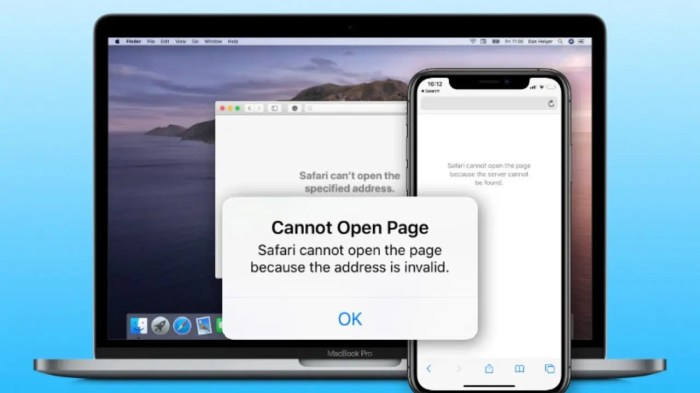
- “Safari Cannot Open the Page” Error:This error message usually signifies a problem with the website itself, but it can also be related to Safari’s tab opening functionality.
- Blank Tabs:If you click a link and a blank tab opens, it might suggest a problem with Safari’s tab opening mechanism.
- Slow Tab Loading:While not directly related to tab opening, slow tab loading can be an indicator of underlying issues that affect Safari’s overall performance, including tab opening.
Checking Safari Settings
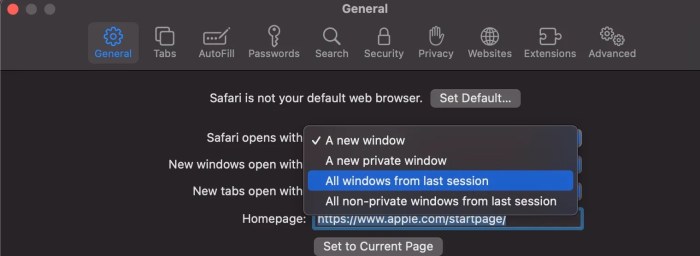
It’s time to dive into Safari’s settings to see if anything’s amiss. You’ll find a treasure trove of options here that control how Safari behaves, including how it opens new tabs.
Safari Settings, How to force Safari to open tabs the way it should
Safari’s settings are where you can customize your browsing experience. To access them, follow these steps:
- Open Safari on your Mac.
- Click on “Safari” in the menu bar at the top of your screen.
- Select “Preferences” from the dropdown menu.
You’ll see a window with various tabs, each dedicated to different settings. We’re interested in the “General” tab, which holds the settings related to how Safari opens new tabs.
General Settings
Within the “General” tab, you’ll find a section labeled “New windows open with”. This setting determines how Safari opens new windows, which directly impacts how tabs behave. Here are the options:
- “Blank Page”: This option opens a fresh, empty page when you click a link in a new window. This is the most basic setting and doesn’t directly affect how tabs open.
- “Homepage”: If you’ve set a homepage, this option will open that page whenever you create a new window. While this setting impacts the initial page of a new window, it doesn’t affect how tabs open within that window.
- “Previous Page”: This setting is more relevant to our tab behavior discussion. When you click a link in a new window, it will open the page you were viewing before you clicked the link. This is a convenient option if you’re frequently switching between pages and want to quickly return to your previous browsing session.
- “Top Sites”: If you’ve enabled “Top Sites” in Safari, this option will open a page displaying your most frequently visited websites when you create a new window. This setting is similar to “Homepage” in that it impacts the initial page of a new window but doesn’t directly affect how tabs open within that window.
The “New windows open with” setting isn’t the only one related to tab behavior. Safari also has a setting that determines how tabs are organized when you open a new window:
Open Tabs in New Windows
You might be wondering why Safari doesn’t open all tabs from a previous window in a new window. This setting can be customized in Safari’s settings. To change this behavior, follow these steps:
- Open Safari and go to “Safari” in the menu bar.
- Select “Preferences” from the dropdown menu.
- Click on the “Tabs” tab.
- In the “New windows open with” section, select “All tabs from previous window”.
This setting will open all the tabs from your previous window in a new window when you click a link in a new window. This behavior can be very useful for managing your browsing sessions and keeping your work organized.
Troubleshooting Extensions
Safari extensions can significantly impact how your browser behaves, including how tabs open. Sometimes, an extension might be the culprit behind your unusual tab opening behavior. It’s a good idea to rule out extensions as a possible cause before diving deeper into Safari’s settings.
Figuring out how to force Safari to open tabs the way you want can be a pain, but don’t worry, you’re not alone. It’s a common issue, and sometimes you just need to dig into the settings to find the right solution.
If you’re struggling with Safari, you might want to check out How To Easily Take Screenshots In Mac OS X to see if there’s anything helpful there. It’s always a good idea to have a quick and easy way to take screenshots when you’re troubleshooting any tech issue, especially when it comes to Safari tabs.
Temporarily Disabling Extensions
Temporarily disabling your extensions can help you determine if they are causing the problem. Here’s how to do it:
- Open Safari.
- Go to Safari > Preferences.
- Click on the Extensionstab.
- Uncheck the box next to each extension to disable it.
- Restart Safari.
If your tab opening issue disappears after disabling extensions, you know that one of them is the culprit. You can then re-enable them one by one to identify the offending extension.
Common Extensions That Might Interfere With Tab Opening
Some extensions are known to cause issues with tab opening behavior. Here are a few common culprits:
- Ad blockers:Ad blockers can sometimes interfere with website scripts that handle tab opening behavior. This is because they might block scripts that are necessary for the proper functioning of the website’s tab opening mechanism.
- Tab management extensions:These extensions are designed to manage your tabs, but they can sometimes cause conflicts with Safari’s built-in tab management features. If you’re experiencing issues with tab opening, it’s a good idea to temporarily disable any tab management extensions you have installed.
- Privacy extensions:Privacy extensions can sometimes block scripts that are necessary for websites to function properly. This can lead to issues with tab opening behavior. If you’re using a privacy extension, try disabling it temporarily to see if it resolves the issue.
Resetting Safari
Resetting Safari to its default settings can be a helpful solution when you’re experiencing unexpected tab behavior. This process effectively erases all custom settings and extensions, returning Safari to its original state. While this might seem drastic, it can be the most effective way to resolve persistent issues.
If you’re struggling with Safari opening tabs in a way that feels wonky, you might want to check out the latest iOS update. The iOS 17 Developer Beta, which you can install by following these instructions How to install the iOS 17 Developer Beta , has some bug fixes that might address your Safari issues.
Plus, it’s a good excuse to try out the new features and see if you like them. Once you’re running the beta, you can see if your Safari woes are gone.
Potential Benefits and Drawbacks of Resetting Safari
Resetting Safari offers a fresh start, potentially resolving various issues. However, it also comes with certain drawbacks.
- Benefits:
- Resolves persistent issues related to tab behavior, including unexpected opening, closing, or loading of tabs.
- Fixes problems caused by corrupted preferences or extensions.
- Removes unwanted customizations that might be interfering with Safari’s functionality.
- Drawbacks:
- You’ll lose all your custom settings, including saved passwords, bookmarks, and browsing history.
- You’ll need to re-install any extensions you previously used.
- It might require you to reconfigure certain settings, such as privacy preferences and website permissions.
Steps to Reset Safari
Before you reset Safari, consider backing up your essential data, such as bookmarks and passwords, to prevent data loss. Here’s how to reset Safari:
- Open Safari Preferences:Go to the Safari menu and select “Preferences”.
- Select the “Advanced” Tab:In the Preferences window, click on the “Advanced” tab.
- Enable “Show Develop Menu in Menu Bar”:Check the box next to “Show Develop menu in menu bar”.
- Access the Develop Menu:You’ll now see a “Develop” menu in the Safari menu bar. Click on it.
- Select “Empty Caches”:Choose “Empty Caches” from the Develop menu. This will clear Safari’s cache, cookies, and other temporary data.
- Reset Safari:Go back to the Safari menu and select “Reset Safari”.
- Confirm Reset:In the confirmation dialog, click “Reset” to confirm the reset process. This will reset Safari to its default settings, effectively erasing all customizations and extensions.
Updating Safari

Keeping Safari updated is super important for a smooth browsing experience. Updates often include bug fixes, performance improvements, and new features. Think of it like giving your browser a regular checkup – it helps it run better and stay secure.
Checking for Updates
You can check for updates in a couple of ways:
- From the Safari menu:Go to the “Safari” menu at the top of your screen, select “About Safari,” and Safari will automatically check for updates. If an update is available, it will download and install automatically.
- Through System Preferences:Open “System Preferences” and go to “Software Update.” This section will show you if there are any updates available for Safari, along with other apps on your Mac.
Using Alternative Browsers
If you’re still having trouble with Safari’s tab behavior, you might consider using a different browser. There are many popular options available, each with its own set of features and tab management quirks.
Popular Alternative Browsers
Here are some popular alternative browsers that you can try:
- Google Chrome:A widely used browser known for its speed and extensive features. It has a similar tab management system to Safari, but with some additional features like tab groups.
- Mozilla Firefox:A highly customizable browser with a strong focus on privacy and security. Firefox’s tab behavior is similar to Safari, but it offers more flexibility in how tabs are displayed and managed.
- Microsoft Edge:The default browser for Windows, Edge has undergone significant improvements and now offers a user-friendly interface and features like tab previews and vertical tabs.
- Opera:A fast and feature-rich browser with a unique sidebar for quick access to bookmarks, notes, and other tools. Opera’s tab management system is similar to other browsers, but it includes features like tab stacking and tab hibernation.
Tab Opening Behavior Comparison
The tab opening behavior of these browsers is generally similar to Safari. They typically open new tabs in the foreground, but some browsers, like Chrome, offer settings to control this behavior.
Ever get frustrated when Safari opens tabs in a weird order? It’s annoying, but you can fix it! First, make sure you’re running the latest iOS version. This can help with performance and stability, which is super important if you’re trying to make your old iPhone last longer.
Once you’ve updated, check your Safari settings and make sure “Open Links in New Tabs” is turned on. That should get your tabs opening the way they’re supposed to!
Reasons for Switching Browsers
There are several reasons why users might consider switching browsers:
- Performance:Some browsers might offer better performance, especially when dealing with multiple tabs.
- Features:Different browsers offer different features, such as built-in ad blockers, privacy tools, or extensions.
- Customization:Some browsers offer more customization options, allowing users to tailor the browsing experience to their preferences.
- Security:Different browsers have different security measures in place, so users might choose a browser that aligns with their security needs.
Seeking Help from Apple Support
If you’ve exhausted all the troubleshooting steps and are still facing issues with Safari’s tab behavior, contacting Apple support is the next logical step. They offer various support channels to assist you in resolving the problem.Apple Support provides multiple avenues for getting help with Safari issues.
These options cater to different preferences and urgency levels.
Types of Support
- Online Resources:Apple’s website offers a wealth of information on Safari, including troubleshooting guides, user manuals, and FAQs. You can search for specific issues or browse through the available resources to find solutions.
- Phone Support:Apple provides phone support for technical issues, including those related to Safari. This option allows you to speak directly with a support representative who can assist you with troubleshooting steps or escalate the issue if necessary.
- In-Person Assistance:Apple retail stores offer in-person support for various Apple products, including Safari. If you prefer face-to-face assistance, you can visit a nearby Apple store and speak with a Genius Bar technician who can diagnose and resolve the issue.
Describing the Problem to Apple Support
When contacting Apple support, it’s crucial to clearly and concisely describe the problem you’re experiencing. This helps them understand the issue and provide appropriate assistance.
- Provide Specific Details:Include details about the specific tab behavior you’re experiencing, such as whether tabs are not loading properly, are crashing, or are not displaying correctly.
- Explain the Steps You’ve Taken:Describe the troubleshooting steps you’ve already attempted, including checking Safari settings, disabling extensions, and resetting Safari. This helps Apple support avoid repeating steps and focus on more advanced solutions.
- Mention Your Device and Operating System:Specify the device you’re using (e.g., MacBook Pro, iPhone) and the version of macOS or iOS you’re running. This information helps Apple support identify potential compatibility issues or provide device-specific solutions.
Additional Tips and Tricks
Safari’s tab management capabilities go beyond the basics. Here are some additional tips and tricks to enhance your browsing experience.
Using Tab Groups
Tab groups provide a way to organize related tabs into distinct sets. You can create new tab groups, rename them, and easily switch between them. To create a new tab group, right-click on a tab and select “New Tab Group.” You can then drag and drop tabs into the group.
Tab groups are especially helpful for managing multiple research projects, online shopping sprees, or even keeping track of different work-related tasks.
Pinning Important Tabs
Pinning tabs ensures they stay visible in your tab bar, even when you have many open tabs. To pin a tab, hover over the tab’s icon and click the pin icon. Pinned tabs are useful for keeping essential websites readily accessible, such as your email, calendar, or social media accounts.
Using Tab Search
If you have a large number of tabs open, finding a specific one can be challenging. Safari’s tab search feature helps you quickly locate a tab based on its title or URL. To use tab search, simply click the “Show All Tabs” button (a series of three horizontal lines) in the tab bar, then type your search query in the search bar.
Customizing Tab Appearance
Safari offers some customization options for tabs. You can change the tab’s color, size, and position. For example, you can set the tabs to appear at the top or bottom of the window, or you can adjust their size to fit your preferences.
Managing Tab History
Safari keeps a history of all the websites you’ve visited. This history can be helpful for revisiting websites or finding specific information. To access your tab history, click the “History” menu in the Safari menu bar. You can then view a list of recently visited websites, search for specific websites, or clear your browsing history.
Understanding Browser Security
Your browser is your gateway to the internet, and it plays a critical role in protecting your privacy and security online. A secure browser ensures that your personal information, like passwords, credit card details, and browsing history, remains safe from malicious actors.
Common Security Threats
Browser security is paramount because it safeguards your personal information and devices from various threats.
- Malware: Malicious software can be downloaded unknowingly, potentially stealing your data or taking control of your device.
- Phishing: Fake websites designed to trick you into revealing sensitive information like login credentials or credit card details.
- Tracking: Websites and advertisers can track your online activities, building profiles of your interests and habits.
- Data Breaches: Hackers can exploit vulnerabilities in your browser or websites you visit to steal your personal data.
Protecting Your Browser
Here are some practical tips to protect your browser and personal information:
- Keep Your Browser Updated: Regularly update your browser to patch security vulnerabilities and ensure the latest security features are enabled.
- Use Strong Passwords: Create unique and strong passwords for all your online accounts, including your browser.
- Enable Two-Factor Authentication: Add an extra layer of security to your accounts by requiring a second verification step, typically a code sent to your phone or email.
- Be Cautious of Links and Attachments: Avoid clicking on suspicious links or opening attachments from unknown senders, as they could contain malware.
- Use a VPN: A Virtual Private Network encrypts your internet traffic, making it more difficult for others to intercept your data.
- Install and Update Security Software: Use antivirus and anti-malware software to protect your device from threats.
- Be Aware of Browser Extensions: Carefully consider the permissions you grant to browser extensions, as some can track your browsing activity.
- Clear Your Browsing History and Cookies Regularly: This helps prevent tracking and protects your privacy.
Outcome Summary
Navigating the world of tabs can be a breeze with a few simple tweaks and a bit of troubleshooting. By understanding Safari’s tab behavior and taking steps to ensure it’s working as intended, you can unlock a smoother and more efficient browsing experience.
So, whether you’re a seasoned Mac user or a newcomer to Safari, this guide has you covered. Get ready to conquer those stubborn tabs and make Safari open them just the way you like.
Top FAQs
Why do my Safari tabs open in the background?
This is usually due to a Safari setting. Go to Safari > Preferences > Tabs and make sure “Open new windows in tabs” is selected.
How do I stop Safari from opening tabs in a new window?
Again, this is a setting in Safari. Go to Safari > Preferences > Tabs and make sure “Open new windows in tabs” is selected.
My Safari tabs are opening in the wrong place, what can I do?
Try restarting your Mac and Safari. If that doesn’t work, try resetting Safari to its default settings.


 Hubungi Kami di WhatsApp