
How To Enter Handwritten Text With Scribble On Ipad Os 14
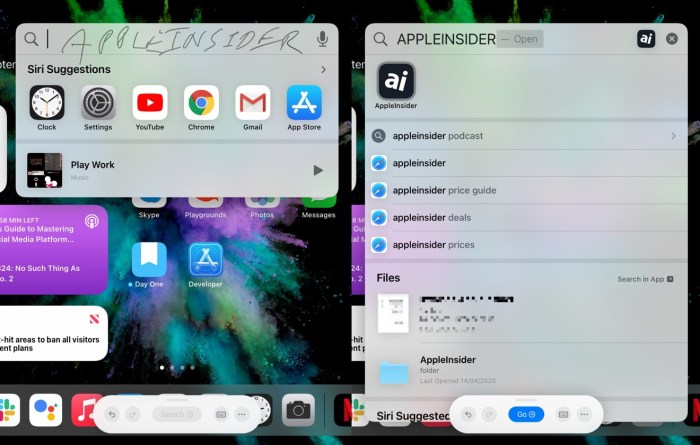
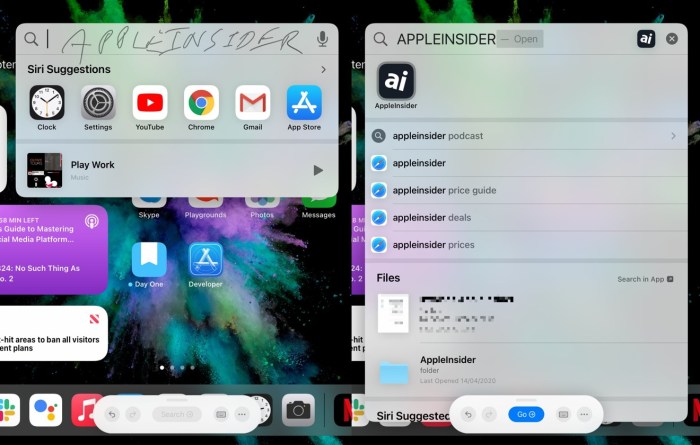
How to enter handwritten text with Scribble on iPad OS 14 is a game-changer for iPad users who prefer a more natural way to input text. Scribble, introduced in iPadOS 14, lets you write directly on your iPad screen using the Apple Pencil and have it instantly converted to typed text.
It’s like having a magic pen that understands your handwriting and translates it into digital text, seamlessly integrating with your favorite apps.
This guide will walk you through everything you need to know about Scribble, from enabling it on your iPad to using advanced features and troubleshooting common issues. We’ll explore the benefits of using Scribble, compare it to other input methods, and show you how it can enhance your productivity and creativity.
Introduction to Scribble: How To Enter Handwritten Text With Scribble On IPad OS 14
Scribble is a revolutionary feature introduced in iPadOS 14 that allows you to write directly on your iPad screen using Apple Pencil and have it automatically converted into text. This feature makes handwriting a seamless and intuitive way to interact with your iPad, offering numerous benefits for both productivity and creativity.Scribble’s core functionality lies in its ability to recognize handwritten characters and convert them into digital text.
It seamlessly integrates with various iPadOS applications, allowing you to effortlessly write in text fields, edit documents, and even search the web.
Comparison with Other iPadOS Input Methods
Scribble provides a unique and distinct approach to input compared to other methods available on iPadOS. Here’s a comparison:
- On-screen keyboard:The traditional keyboard remains a reliable option for typing, especially for longer texts. However, it can be less convenient for quick notes or when you need to input text in confined spaces.
- Voice dictation:While voice dictation offers hands-free input, it can be unreliable in noisy environments or when dealing with complex terminology. It also requires a clear speaking voice and may not be suitable for all situations.
- Scribble:Scribble offers a natural and intuitive way to input text, particularly for quick notes, sketches, or when working with applications that support handwriting. It’s also highly accurate and adaptable to different handwriting styles.
Enabling Scribble
Scribble is a feature in iPadOS 14 that lets you write on your iPad’s screen as if you were writing on paper. This allows you to write text in any app that supports text input, like Safari, Notes, and Messages.
To use Scribble, you need to enable it in your iPad settings.
iPad Models with Scribble Support
Scribble is supported on all iPad models with an Apple Pencil (1st or 2nd generation) and iPadOS 14 or later. Here’s a list of compatible iPad models:
- iPad Pro 12.9-inch (3rd generation and later)
- iPad Pro 11-inch (1st generation and later)
- iPad Air (3rd generation and later)
- iPad mini (5th generation and later)
- iPad (8th generation and later)
Enabling Scribble, How to enter handwritten text with Scribble on iPad OS 14
Here’s how to enable Scribble in iPadOS 14:
- Open the Settings app on your iPad.
- Tap on “Apple Pencil.”
- Toggle the “Scribble” switch to the “On” position.
Using Scribble for Text Input
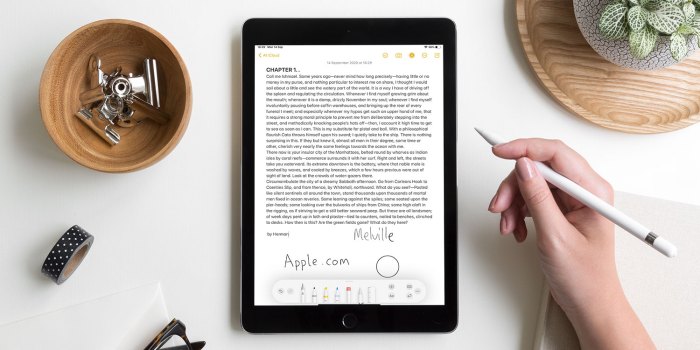
Scribble is a powerful feature in iPadOS 14 that allows you to write directly in any text field using the Apple Pencil. It’s like having a digital notepad that seamlessly integrates with your iPad’s keyboard and apps. This feature lets you write naturally and have your handwriting converted to text in real-time.
Handwriting Recognition with Scribble
Scribble uses advanced handwriting recognition technology to convert your writing into text. When you write in a text field, the iPad’s algorithms analyze your strokes and determine the corresponding letters or symbols. This conversion happens instantly, making it feel like you’re typing directly on the screen.
Scribble Features and Functionality
Scribble is more than just a simple handwriting-to-text converter. It’s packed with features that make it a powerful tool for interacting with your iPad. Scribble seamlessly integrates with other iPadOS features, making it a truly versatile and intuitive way to interact with your device.
Text Formatting
Scribble allows you to format your text using a variety of gestures. For example, you can draw a line through a word to strike it out, draw a squiggly line under a word to underline it, and draw a line at the beginning of a word to capitalize it.
This feature makes Scribble a valuable tool for editing and formatting documents.
Scribble on iPad OS 14 is a super useful feature, especially when you’re taking notes in class. It’s way faster than typing on a tiny keyboard. But sometimes, you’re just too busy for that, like when you’re trying to crush a workout.
For those moments, check out these awesome tips for swimming with your Apple Watch, Top 10 tips for swimming with Apple Watch , so you can get back to Scribbling in no time.
Symbol Support
Scribble supports a wide range of symbols, including punctuation marks, mathematical symbols, and even emojis. This means you can easily add symbols to your text without having to switch to a separate keyboard.
Language Options
Scribble supports a variety of languages, including English, Spanish, French, German, Chinese, and Japanese. This means you can use Scribble to write in your preferred language, regardless of the language settings on your iPad.
Integration with QuickType and Auto-Correction
Scribble works seamlessly with QuickType and Auto-Correction. This means that Scribble will learn your writing style and suggest words as you write. QuickType also provides contextual suggestions based on the content of your text, making it easier to find the right words.
Auto-Correction helps to correct any spelling mistakes you might make, ensuring that your text is always accurate.
Examples of Scribble Usage
Scribble can be used for a wide range of tasks, including:
- Note-taking: Scribble is a great way to take notes quickly and easily. You can jot down ideas, create lists, and even draw diagrams, all within the Notes app.
- Email composition: Scribble makes it easy to write emails on your iPad. You can use Scribble to compose emails, reply to messages, and even sign your name.
- Web browsing: Scribble can be used to search the web, fill out forms, and even comment on websites.
- Social media: Scribble is a great way to post on social media, write messages, and even create captions.
Advanced Scribble Techniques
Scribble isn’t just about typing with your Apple Pencil. It’s a powerful tool that lets you interact with your iPad in a more intuitive and creative way. You can draw, sketch, and edit text with precision and ease, opening up new possibilities for how you use your iPad.
Drawing and Sketching with Scribble
Scribble allows you to use your Apple Pencil to draw and sketch directly in apps that support it. This is a fantastic way to express your creativity, take notes, or even create digital artwork. You can draw with varying line thicknesses, add shading, and even use different colors, all with the responsiveness and accuracy of your Apple Pencil.
Scribble is super handy for entering handwritten text on your iPad, especially if you’re a note-taker or prefer the feel of pen on paper. But did you know you can also create a custom Persona for your Vision Pro? It’s like a digital avatar, and you can even use Scribble to personalize it.
Check out How to create your Persona in Vision Pro for the full rundown. Anyway, back to Scribble – it’s a great way to jot down notes, write emails, and even draw simple sketches. So give it a try!
The integration of Scribble with these apps makes it seamless to switch between drawing and typing, allowing you to seamlessly blend your artistic vision with text-based content.
Using Gestures for Editing and Navigation
Scribble allows you to use gestures to edit and navigate text, making it incredibly efficient and user-friendly. For example, you can swipe left or right to move the cursor, tap to select text, and use a double-tap to select a word.
You can also use gestures to undo, redo, and even copy and paste text. These gestures are intuitive and easy to learn, allowing you to quickly and effortlessly edit and navigate your text.
Scribble on iPad OS 14 is a game-changer for taking notes, but sometimes you just want to kick back and relax. While you’re at it, make sure you’re getting the most out of your Apple Watch’s Handwashing app – check out this guide for tips on maximizing its potential.
After all, clean hands are essential, especially when you’re about to start scribbling away on your iPad.
Creating Personalized Handwriting Styles
Scribble lets you personalize your handwriting style by adjusting various settings. You can choose from different fonts, adjust the thickness of your lines, and even customize the slant of your handwriting. These options allow you to create a unique and personalized handwriting style that reflects your individual preferences.
Scribble for Different Apps and Scenarios
Scribble is not just about replacing your keyboard. It’s a versatile tool that can enhance your iPad experience in various ways. Let’s explore how Scribble works in different apps and scenarios, highlighting its unique advantages.
Scribble in Popular Apps
Scribble is designed to work seamlessly with a wide range of popular apps, making it a valuable tool for various tasks. Here are a few examples:
- Notes:Scribble is a natural fit for taking notes. You can jot down ideas, create lists, or draw diagrams directly within the Notes app, using your Apple Pencil. The app automatically converts your handwriting to text, making it easy to search and organize your notes.
- Mail:Scribble can simplify writing emails. Instead of constantly switching between your Apple Pencil and the on-screen keyboard, you can write directly in the email body, making it faster and more intuitive.
- Safari:Scribble can be used for web browsing. For instance, you can quickly write a search term in the address bar or fill out forms online without having to switch to the keyboard.
- Pages:Scribble can be used for document editing. You can add handwritten notes to your documents, draw diagrams, or even create handwritten signatures. The handwritten text can be easily converted to typed text, making it a versatile tool for both creative and professional tasks.
- Numbers:Scribble can be used to enter data in spreadsheets. You can easily write numbers and formulas in cells, making it a convenient tool for quick data entry.
Scribble for Note-Taking and Journaling
Scribble excels in note-taking and journaling. The ability to write directly on the screen with your Apple Pencil provides a natural and intuitive experience. This is especially useful for capturing quick thoughts, brainstorming ideas, or keeping a personal journal. Scribble’s handwriting recognition ensures that your notes are easily searchable and organized, making it a powerful tool for capturing and managing your thoughts.
Scribble for Creative Writing
Scribble can be a powerful tool for creative writing. It allows you to write directly on the screen, capturing your ideas as they flow. The natural writing experience can be more conducive to creative expression, as you’re not constrained by the limitations of a keyboard.
Scribble can also be used for sketching and drawing, adding another layer of creativity to your writing process.
Scribble Experience in Different Apps
| App | Scribble Features | Notes |
|---|---|---|
| Notes | Handwriting recognition, text formatting, drawing, image insertion, audio recording | Offers a complete note-taking experience with Scribble. |
| Handwriting recognition, text formatting | Focuses on text input for emails, providing a quick and efficient way to write messages. | |
| Safari | Handwriting recognition, text input for search and forms | Provides a convenient way to interact with websites without switching to the keyboard. |
| Pages | Handwriting recognition, text formatting, drawing, image insertion, table creation | Offers a versatile tool for document creation and editing with Scribble. |
| Numbers | Handwriting recognition, number and formula input | Simplifies data entry in spreadsheets, making it easier to work with numbers and formulas. |
The Future of Scribble
Scribble, Apple’s handwriting-to-text technology, has already made a significant impact on the iPad experience. As iPadOS continues to evolve, Scribble is poised to become even more powerful and integrated into the Apple ecosystem.
Potential Improvements and Advancements
The future of Scribble holds exciting possibilities for enhanced functionality and user experience. Apple could explore various improvements, including:
- Improved Recognition Accuracy:Scribble’s accuracy could be further refined by leveraging advancements in machine learning and artificial intelligence. This would lead to a more seamless and intuitive writing experience, especially for complex or nuanced handwriting styles.
- Enhanced Language Support:Expanding Scribble’s language support to include a wider range of languages would make it accessible to a more global user base. This would involve training the technology on a broader range of handwriting styles and alphabets.
- Advanced Gesture Recognition:Scribble could incorporate gesture recognition to enhance its capabilities beyond simple text input. For example, users could draw symbols or diagrams that are automatically converted into text or data, enabling a more intuitive and expressive way of interacting with the iPad.
- Integration with Third-Party Apps:Extending Scribble’s functionality to third-party apps would allow users to utilize handwriting input in a wider range of contexts. This would involve collaborating with app developers to integrate Scribble into their applications.
Integration with Other Apple Devices and Services
Scribble’s potential extends beyond the iPad, as it could be integrated with other Apple devices and services to enhance user experience across the ecosystem.
- Mac Integration:Scribble could be seamlessly integrated into macOS, allowing users to utilize handwriting input on their Macs, especially on devices like the MacBook Air with a touchscreen.
- Apple Watch Integration:Scribble could be incorporated into the Apple Watch interface, allowing users to write text directly on their watch faces, making it easier to send messages or interact with apps.
- iCloud Synchronization:Scribble could be synchronized across devices through iCloud, allowing users to seamlessly transition between their iPad, Mac, and Apple Watch while maintaining a consistent handwriting experience.
Potential Impact on the Future of Handwriting Input
Scribble’s continued development could significantly impact the future of handwriting input, potentially leading to a resurgence of handwritten communication in the digital age.
- Enhanced Accessibility:Scribble’s accessibility features could be further developed, making it easier for individuals with disabilities to interact with their devices. This could include features like dynamic font resizing and customizable input settings.
- Personalization and Expression:Scribble could become a more personalized tool, allowing users to customize their handwriting style, font, and even color, fostering a more expressive and unique digital writing experience.
- Creative Applications:Scribble’s potential extends beyond simple text input, as it could be utilized for creative applications like digital art, calligraphy, and even music composition. This would involve exploring how handwriting can be translated into different creative mediums.
Conclusive Thoughts
Scribble on iPadOS 14 is a powerful tool that makes handwriting input more accessible and intuitive than ever before. Whether you’re a student taking notes, a writer crafting a story, or simply someone who prefers a more natural way to interact with their iPad, Scribble offers a unique and efficient way to get your thoughts down on the digital page.
With its real-time text conversion, advanced features, and integration with various apps, Scribble empowers you to express yourself freely and effortlessly.
FAQ Section
What iPad models support Scribble?
Scribble is compatible with all iPad models that support Apple Pencil (1st or 2nd generation).
Can I use Scribble with other styluses?
Currently, Scribble only works with the Apple Pencil.
Does Scribble work with all languages?
Scribble supports a wide range of languages, but the availability may vary depending on your region and iPadOS version.
Can I customize my handwriting style in Scribble?
While Scribble doesn’t allow for full customization of handwriting styles, it adapts to your individual handwriting over time, improving accuracy.
 Hubungi Kami di WhatsApp