
How To Zip And Unzip Files On Ios
How to zip and unzip files on iOS is a crucial skill for anyone who wants to manage their files efficiently. Whether you’re sending large documents, backing up your data, or downloading files from the internet, knowing how to compress and decompress files can save you time and storage space.
In this guide, we’ll walk you through the process of zipping and unzipping files using the built-in Files app and explore some popular third-party apps that offer additional features.
Zipping files, essentially compressing them into a single archive, is a common practice for reducing file sizes and making it easier to share or store multiple files together. Unzipping, on the other hand, allows you to extract the original files from the compressed archive.
Both processes are surprisingly straightforward on iOS devices.
Introduction
Zipping and unzipping files are essential tasks for anyone who wants to manage their digital files efficiently. Zipping is the process of compressing one or more files into a single archive file, making it smaller and easier to store, share, and download.
Unzipping, on the other hand, is the process of extracting the original files from the compressed archive.These techniques offer several benefits, making them valuable tools for anyone using digital files. Zipped files are smaller than their original counterparts, reducing storage space requirements and making them easier to share over email or upload to online platforms.
Zipping also helps protect files from accidental modification or deletion.
Examples of Zipping and Unzipping
Zipping and unzipping are used in various scenarios, including:
- Sharing large files:Zipping large files like videos, images, or documents makes them easier to share through email or messaging apps.
- Downloading software:Software developers often provide zipped files for easier distribution and installation.
- Backing up data:Zipping files can create compressed backups that are smaller and take less time to transfer.
- Organizing files:Zipping related files into a single archive can help keep your digital space organized and tidy.
Zipping Files on iOS
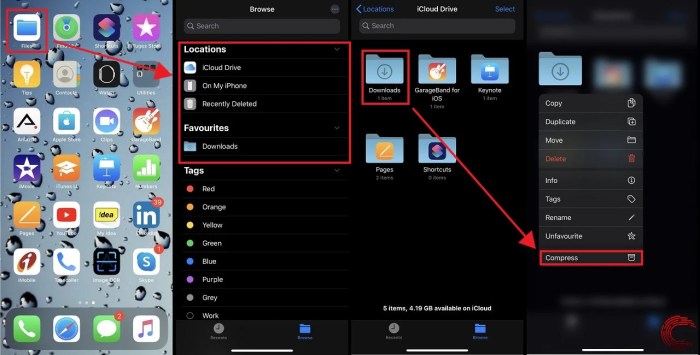
Zipping files on iOS is a simple process that allows you to combine multiple files into a single compressed archive, making it easier to share, store, or send them. You can use the Files app to create ZIP archives, which can be password-protected for added security.
Creating a ZIP Archive
The Files app on iOS makes creating ZIP archives a breeze. You can quickly compress multiple files or folders into a single ZIP file. Here’s how to create a ZIP archive using the Files app:
- Open the Files app on your iOS device.
- Navigate to the location where the files you want to zip are stored.
- Select the files or folders you want to add to the ZIP archive. You can select multiple items by tapping on each one.
- Tap the “Share” icon (a square with an upward arrow) in the top right corner of the screen.
- Scroll down the list of sharing options and tap “Compress.”
- The Files app will create a ZIP archive containing the selected files. The archive will be saved in the same location as the original files.
Selecting Multiple Files for a ZIP Archive
When selecting multiple files for a ZIP archive, you have a few options:
Tap to Select
Tap on each file or folder you want to include in the archive.
Drag to Select
You can also drag your finger across the screen to select multiple files in a row.
Select All
To select all files in a folder, tap “Select All” in the top right corner of the screen.
Setting a Password for a ZIP Archive
You can protect your ZIP archive with a password to ensure that only authorized individuals can access its contents. To set a password:
- While creating the ZIP archive, tap on the “Compress” option.
- A pop-up menu will appear with options to set a password.
- Enter a strong password and confirm it.
- The ZIP archive will be created with the password enabled.
Sharing a Zipped File
Once you have created a ZIP archive, you can share it with others via email or messaging apps.
Zipping and unzipping files on iOS is a breeze, especially with the built-in Files app. You can easily compress and decompress files for easier sharing or storage. If you’re using a Mac, you might also want to check out How to use the Mac’s secret emoji panel for a fun way to add some personality to your messages.
Once you’re done with that, you can get back to zipping and unzipping files on your iPhone or iPad, and maybe even send them to your Mac friends!
You can share a ZIP archive via email by selecting the archive in the Files app, tapping the “Share” icon, and choosing “Mail.”
Messaging Apps
Zipping and unzipping files on iOS is super easy! Just use the Files app and you’re good to go. But hey, if you’re looking for some cool live wallpapers for your iPhone 6s, check out this Pro Tip: How to get ready-made live wallpapers for iPhone 6s article.
Once you’ve got those downloaded, you’ll be able to zip them up and move them around your phone like a pro!
To share a ZIP archive via a messaging app, select the archive in the Files app, tap the “Share” icon, and choose the desired messaging app.
Unzipping Files on iOS
Unzipping files on iOS is a straightforward process, thanks to the built-in Files app. You can easily extract files from a ZIP archive, browse its contents, and save the extracted files to your preferred location.
Extracting Files from a ZIP Archive
To extract files from a ZIP archive, open the Files app and locate the ZIP file. Tap on the ZIP file to open it. You’ll see a list of the files and folders contained within the archive. To extract all the files, tap the “Extract All” button at the bottom of the screen.
Alternatively, you can select individual files or folders by tapping on them, then tap the “Extract” button at the top right corner of the screen.
Navigating Through the Archive, How to zip and unzip files on iOS
Once the ZIP archive is open, you can easily navigate through its contents. The Files app provides a clear hierarchy of folders and files, making it easy to locate specific items. You can tap on a folder to view its contents, or tap on a file to open it in its associated app.
Saving Extracted Files
When extracting files, you can choose where to save them. By default, the Files app will save them to the same location as the ZIP archive. However, you can change the destination by tapping the “Save To” button and selecting a different location.
You can save extracted files to iCloud Drive, your device’s internal storage, or other supported cloud services.
Deleting the ZIP Archive
After extracting the files, you can delete the ZIP archive to free up space. To delete the archive, simply tap and hold on the ZIP file, then select “Delete” from the options that appear.
Third-Party Apps for Zipping and Unzipping: How To Zip And Unzip Files On IOS
While the Files app on iOS offers basic zipping and unzipping functionalities, several third-party apps provide more advanced features and capabilities. These apps often offer additional features like password protection, file encryption, and cloud integration, making them a more versatile option for managing compressed files.
Popular Third-Party Apps
Several popular third-party apps offer zipping and unzipping functionalities on iOS. Here are some of the most notable:
- WinZip: A well-known and trusted name in file compression, WinZip offers a robust app for iOS that supports a wide range of compression formats, including ZIP, 7Z, and RAR. It also provides features like password protection, file encryption, and cloud integration with services like Dropbox and Google Drive.
WinZip’s intuitive interface and comprehensive features make it a popular choice for users who need a reliable and feature-rich app for managing compressed files.
- iZip: iZip is another popular app that offers a simple and user-friendly interface for zipping and unzipping files on iOS. It supports various compression formats, including ZIP, 7Z, and RAR, and also allows you to password-protect your files. iZip’s focus on simplicity makes it an excellent option for users who prefer a straightforward and easy-to-use app.
- Unarchiver: Unarchiver is a free app that focuses primarily on unzipping files. It supports a wide range of compression formats, including ZIP, 7Z, RAR, and TAR, making it a versatile option for extracting files from various sources. While it doesn’t offer zipping functionality, its extensive support for decompression formats makes it a valuable tool for users who need to extract files from archives.
- FileMaster: FileMaster is a comprehensive file manager app for iOS that includes zipping and unzipping functionality as part of its features. It offers a range of features, including file transfer, cloud storage integration, and a built-in media player. FileMaster’s comprehensive suite of tools makes it a good choice for users who need a versatile file management app that includes zipping and unzipping capabilities.
Comparison of Features and Capabilities
Each of these apps offers a unique set of features and capabilities.
- Compression Formats: Some apps, like WinZip and iZip, support a broader range of compression formats, including ZIP, 7Z, and RAR, while others, like Unarchiver, focus primarily on decompression.
- Password Protection and Encryption: Apps like WinZip and iZip offer password protection and encryption features to secure your compressed files. This is particularly important for sensitive data that you want to keep private.
- Cloud Integration: Some apps, like WinZip and FileMaster, integrate with popular cloud storage services like Dropbox and Google Drive, allowing you to easily store and access your compressed files from anywhere.
- Additional Features: Some apps offer additional features beyond basic zipping and unzipping, such as file transfer, media playback, and document editing.
Advantages and Disadvantages of Third-Party Apps
Using a third-party app for zipping and unzipping offers both advantages and disadvantages compared to using the Files app.
Advantages
- More Features: Third-party apps often offer more features than the Files app, such as password protection, encryption, and cloud integration.
- Support for More Compression Formats: Some third-party apps support a broader range of compression formats than the Files app, allowing you to work with more types of archives.
- More User-Friendly Interface: Some third-party apps offer a more user-friendly interface than the Files app, making it easier to navigate and manage your compressed files.
Disadvantages
- Cost: Some third-party apps require a subscription or a one-time purchase, while the Files app is free.
- Privacy Concerns: Some users may have privacy concerns about using third-party apps, as they may collect data about your usage.
Scenarios Where a Third-Party App Might Be Preferred
A third-party app might be preferred in several scenarios:
- Need for Password Protection or Encryption: If you need to password-protect or encrypt your compressed files, a third-party app that offers these features is essential.
- Working with Multiple Compression Formats: If you need to work with a variety of compression formats, a third-party app that supports a wider range of formats is beneficial.
- Need for Cloud Integration: If you want to easily store and access your compressed files from the cloud, a third-party app that integrates with your preferred cloud storage service is helpful.
- Desire for a More User-Friendly Interface: If you find the Files app’s interface cumbersome or difficult to use, a third-party app with a more intuitive interface might be a better option.
File Compression Formats
File compression is the process of reducing the size of a file, making it easier to store and transmit. This is accomplished by removing redundant data and using algorithms to represent the information more efficiently. Different file compression formats use various algorithms and techniques to achieve this, leading to varying compression ratios, compatibility, and security levels.
ZIP Format
ZIP is a widely used and versatile file compression format. It is a lossless compression format, meaning that no data is lost during the compression process. This ensures that the original file can be perfectly reconstructed after decompression. ZIP files can contain multiple files and folders, making them suitable for archiving and sharing large amounts of data.
RAR Format
RAR is another popular file compression format known for its high compression ratios. It uses a more advanced algorithm than ZIP, resulting in smaller file sizes. RAR files can also be password-protected, enhancing security. However, RAR is not as widely supported as ZIP, and some operating systems may require additional software to open them.
7Z Format
Z is a relatively new file compression format developed by the 7-Zip software. It offers excellent compression ratios, often surpassing both ZIP and RAR. 7Z supports various compression algorithms, allowing for customization based on the type of data being compressed.
7Z also provides strong encryption capabilities, making it a secure choice for sensitive data. However, 7Z is not as widely supported as ZIP or RAR, and some applications may not be able to open 7Z files.
Comparison of File Compression Formats
| Format | Compression Ratio | Compatibility | Security | Examples |
|---|---|---|---|---|
| ZIP | Good | Widely supported | Basic password protection | Archiving documents, sharing software, backing up data |
| RAR | High | Moderately supported | Strong password protection | Archiving large files, sharing multimedia content |
| 7Z | Excellent | Limited support | Strong encryption | Archiving sensitive data, compressing large databases |
Choosing the Right Format
The best file compression format depends on your specific needs. If you require wide compatibility and ease of use, ZIP is the best choice. If you need the highest compression ratios, RAR is a good option. If security is a primary concern, 7Z provides strong encryption capabilities.
Consider the following factors when choosing a file compression format:
- Compression Ratio:How much smaller do you want the file to be?
- Compatibility:Will the recipient be able to open the file?
- Security:Do you need to protect the file with a password?
- Features:Does the format offer any additional features you need?
Troubleshooting Common Issues
While zipping and unzipping files on iOS is generally straightforward, you might encounter some hiccups along the way. These issues are usually minor and can be resolved with a few simple steps.
Common Problems and Solutions
Let’s dive into some common problems and their solutions:
- Files not Zipped or Unzipped Properly:Sometimes, files might not be zipped or unzipped correctly due to errors in the process. This can happen if the app you’re using has bugs or if there are issues with the file itself. To fix this, try restarting your device and then try zipping or unzipping the files again.
If the problem persists, try using a different app for zipping and unzipping.
- ZIP Archive Corrupted:A corrupted ZIP archive can occur due to various reasons, including network issues during download or accidental modification. This will prevent you from extracting the contents. To address this, try downloading the ZIP archive again from a reliable source. If that doesn’t work, you might need to use a specialized ZIP repair tool.
- Insufficient Storage Space:You might encounter issues if your device doesn’t have enough storage space for the ZIP file or the extracted files. Ensure you have sufficient free space before attempting to zip or unzip files. Delete unnecessary files or consider using cloud storage services to free up space on your device.
- App Compatibility Issues:If you’re using a third-party app for zipping and unzipping, compatibility issues with the app or iOS version could cause problems. Ensure that the app is updated to the latest version and compatible with your iOS version. You might also consider using an alternative app.
Handling Corrupted ZIP Archives
If you encounter a corrupted ZIP archive, there are a few ways to try and recover the data:
- Use a ZIP Repair Tool:Several dedicated ZIP repair tools are available for iOS, such as “ZIP Repair” or “iZip.” These tools can scan the corrupted ZIP archive and attempt to repair it, allowing you to extract the files.
- Try Extracting with a Different App:If the problem is with the specific app you’re using, try using a different app to extract the contents of the ZIP archive. Sometimes, different apps handle corrupted archives differently.
- Contact the Source of the Archive:If the ZIP archive was downloaded from a website or received from someone else, contact the source and ask for a replacement. They might have a working version of the archive.
Security Considerations
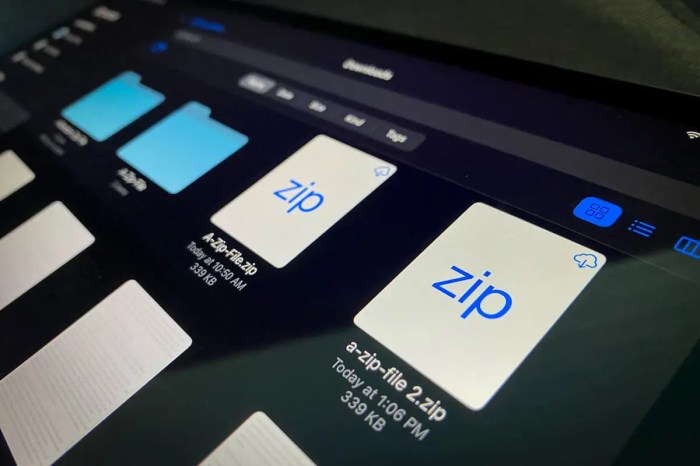
Zipping files on iOS is a convenient way to organize and share your data, but it’s essential to prioritize security, especially when dealing with sensitive information. Protecting your ZIP archives from unauthorized access is crucial, and we’ll explore how to do just that.
Password Protection
Password protection is the first line of defense against unauthorized access to your ZIP archives. A strong password acts as a barrier, preventing anyone without the correct credentials from opening and viewing the files within.
Choosing a Strong Password
- Length:Aim for at least 12 characters, combining uppercase and lowercase letters, numbers, and symbols. Longer passwords are harder to crack.
- Avoid Common Words:Don’t use dictionary words or easily guessable phrases.
- Unique Passwords:Use a different password for each of your ZIP archives. This limits the damage if one password is compromised.
Storing Passwords Securely
- Password Managers:Consider using a password manager to generate, store, and manage your passwords securely.
- Physical Note:If you prefer to write down your password, keep it in a secure location, like a locked safe or a fireproof box.
- Avoid Sharing:Never share your passwords with anyone.
Protecting ZIP Archives
- Encryption:When zipping files, use encryption algorithms like AES-256 to scramble the data within the archive.
- Secure Storage:Store your ZIP archives in secure locations like password-protected folders or encrypted cloud storage services.
- File Permissions:Set appropriate file permissions to restrict access to your ZIP archives.
Best Practices for Zipping and Unzipping
Zipping and unzipping files on iOS are common tasks, but following best practices can help you save time and storage space. By understanding how to efficiently compress and extract files, you can optimize your workflow and ensure smooth file management.
Zipping and unzipping files on iOS is a breeze, especially if you’re dealing with a bunch of documents or photos. You can use the Files app to compress or extract files, which is super handy for sending stuff over email or sharing with friends.
While you’re at it, check out How to use Safari’s super-quick pop-up tab history shortcut , it’s a really helpful tip for navigating between tabs quickly. Once you’ve got your files zipped up, you can easily share them with anyone, making it a great way to organize and manage your digital life.
Optimizing ZIP Archive Size
Optimizing the size of your ZIP archives is essential for efficient storage and transmission. There are several strategies you can employ to reduce the size of your compressed files.
- Choose the Right Compression Level:Most ZIP utilities offer different compression levels, ranging from “fast” to “maximum.” Higher compression levels generally result in smaller files but take longer to process. For everyday files, a medium compression level often strikes a good balance between size and processing time.
- Exclude Unnecessary Files:Before zipping, review the files you intend to include and remove any unnecessary or redundant items. This can significantly reduce the overall size of the archive.
- Use File Compression Tools:Consider using specialized file compression tools that offer advanced compression algorithms. These tools can often achieve higher compression ratios than standard ZIP utilities.
Managing and Organizing Compressed Files
Properly managing and organizing your compressed files is crucial for easy retrieval and efficient storage. Here are some tips for maintaining a well-organized file system:
- Use Descriptive File Names:Give your ZIP archives descriptive names that reflect their contents. This makes it easier to identify and locate specific files later.
- Create Folders for Organization:Organize your ZIP archives into folders based on their purpose or project. This helps maintain a structured file system and prevents clutter.
- Utilize File Metadata:Take advantage of file metadata features, such as tags or s, to categorize and search for specific files quickly.
Advanced Techniques
While basic zipping and unzipping on iOS are straightforward, there are advanced techniques that can be incredibly useful for managing and working with large files or for specific tasks.
Splitting Large Files into Multiple Archives
Splitting large files into multiple archives is beneficial when dealing with files exceeding the storage limits of a single ZIP file or when you need to transfer the data across different platforms or devices with limited storage. Here’s how to do it:
- Using Third-Party Apps:Many third-party apps like WinZip or 7-Zip allow you to split large files into multiple archives. These apps usually offer settings to define the size of each archive and the desired output format.
- Command-Line Tools:If you’re comfortable with command-line interfaces, tools like
splitandzipcan be used to split and compress files, respectively.
Creating Self-Extracting Archives
Self-extracting archives are ZIP files that contain an executable program that automatically extracts the files within the archive when the file is run. This simplifies the extraction process for recipients who may not have a dedicated ZIP extraction tool.
- Third-Party Apps:Several apps, like WinZip, offer the option to create self-extracting archives.
- Command-Line Tools:Tools like
zipand7zcan be used with specific options to create self-extracting archives.
Using ZIP Archives for Data Backup and Recovery
ZIP archives are commonly used for data backup and recovery due to their compression capabilities, which can significantly reduce storage space, and their ability to store multiple files in a single archive.
- Regular Backups:Regularly backing up important data to ZIP archives ensures that you have a copy of your files in case of accidental deletion, hardware failure, or other data loss scenarios.
- Versioning:By creating separate ZIP archives for each backup, you can easily track changes and restore previous versions of your files if needed.
- Disaster Recovery:In case of a major disaster, having a backup stored in a separate location can help recover critical data and minimize downtime.
Closure
Zipping and unzipping files on iOS is a breeze with the Files app, and you can even explore third-party apps for additional features and customization. Whether you’re a student, a professional, or just someone who likes to stay organized, mastering this simple skill can make a big difference in your digital life.
So, go ahead and try it out – you might be surprised at how easy it is to manage your files on your iOS device.
Answers to Common Questions
Can I zip files without using the Files app?
Yes, you can use third-party apps like WinZip or iZip to zip and unzip files on iOS. These apps often offer additional features like password protection and file encryption.
What are the advantages of using a third-party app?
Third-party apps often provide more advanced features like password protection, file encryption, and support for different compression formats. They can also offer a more user-friendly interface and additional tools for managing your files.
Can I unzip a file without using the Files app?
While the Files app is the primary method for unzipping files on iOS, some third-party apps, like WinZip or iZip, also offer unzipping capabilities. You can choose the method that best suits your needs and preferences.
How do I know if a ZIP file is password protected?
If a ZIP file is password protected, you’ll usually see a lock icon next to the file name in the Files app. You’ll be prompted to enter the password before you can access the files inside.
 Hubungi Kami di WhatsApp