
5 Features In Apple’S Photos App You Need To Try Today
5 Features in Apple’s Photos app you need to try today! Apple’s Photos app is packed with cool features that can take your pics from “meh” to “wow” in seconds. Think of it as a secret weapon for turning your average snaps into masterpieces.
From bringing your memories to life with Live Photos to creating pro-level portraits with Portrait Mode, you’ll be surprised at what this app can do.
Whether you’re a photography pro or just starting out, these features are easy to use and can make a big difference in your photos. So grab your iPhone and let’s dive in!
Live Photos
Live Photos are a feature in Apple’s Photos app that capture a brief moment of motion before and after a still photo is taken. When you take a Live Photo, your iPhone or iPad records a short video clip, capturing a few seconds of action leading up to and following the moment you pressed the shutter button.
This allows you to relive the moment with a touch of movement, bringing your memories to life.
Creating Animated GIFs and Boomerangs
Live Photos can be used to create animated GIFs and Boomerangs, adding a dynamic touch to your photos. To create an animated GIF, you can use the “Live” option in the Photos app to turn your Live Photo into a looping animation.
This option allows you to adjust the length of the GIF and select the portion of the Live Photo you want to include. To create a Boomerang, you can use the Boomerang app (available on the App Store), which is specifically designed to create short, looping videos.
You can import your Live Photos into Boomerang and let the app do its magic, creating a fun and engaging video that plays forward and backward.
Benefits of Live Photos
Live Photos offer several benefits for capturing special moments and enhancing memories:
- Reliving Memories:Live Photos allow you to relive moments with a touch of motion, adding a new dimension to your memories.
- Capturing Action:Live Photos are perfect for capturing fleeting moments of action, like a child’s laughter or a wave crashing on the shore.
- Creative Possibilities:Live Photos can be used to create animated GIFs, Boomerangs, and other creative content, expanding your photo editing options.
- Unique Perspective:Live Photos offer a unique perspective on events, capturing the moments leading up to and following the main photo, providing a more complete picture of the event.
Portrait Mode
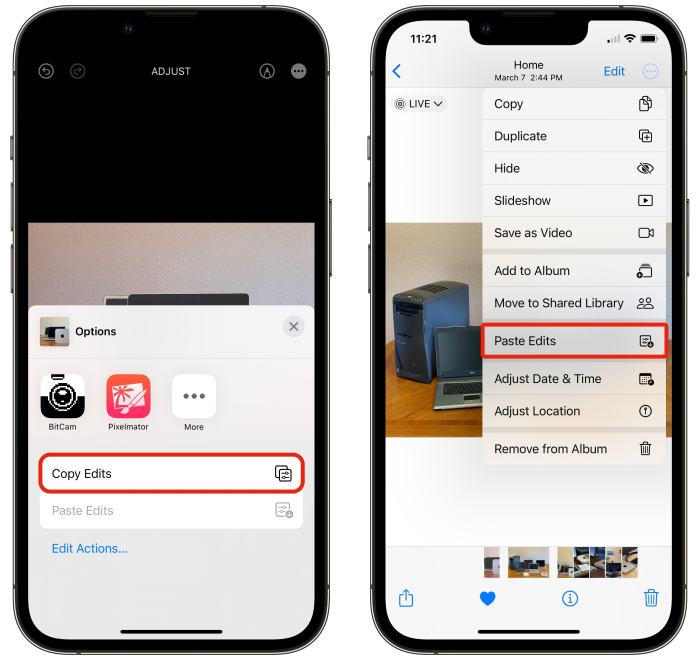
Portrait Mode is a game-changer for taking professional-looking photos on your iPhone. It uses depth-of-field effects to blur the background, making your subject pop out and look like it was taken with a fancy DSLR camera. It’s super easy to use and gives your photos a touch of artistry that’s sure to impress.
Portrait Mode Features
Portrait Mode offers a bunch of cool features to help you take stunning photos. One of the best things about it is the lighting options. You can choose from different lighting styles, like Natural Light, Studio Light, Contour Light, Stage Light, and Stage Light Mono.
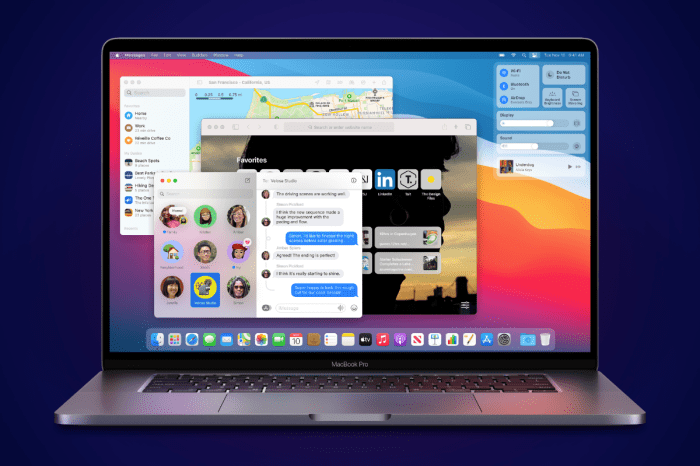
From creating stunning collages to using the powerful editing tools, there are tons of cool features in Apple’s Photos app you should check out. If you’re feeling overwhelmed by the sheer number of apps on your Mac, though, you might want to take a look at How to make the Mac’s Launchpad useful again to streamline your workflow.
Once you’ve got your Launchpad in order, you can get back to experimenting with all the awesome things you can do with the Photos app.
These options let you adjust the lighting in your photos to create different moods and effects. Another awesome feature is the ability to adjust the depth of field. This means you can control how much the background is blurred, allowing you to fine-tune the focus on your subject.
You can even adjust the depth of field after you take the photo, giving you more control over the final look.
Comparison Table, 5 features in Apple’s Photos app you need to try today
Here’s a quick table comparing Portrait Mode to traditional photos:| Feature | Portrait Mode | Traditional Photo ||—|—|—|| Background | Blurred | In focus || Focus | Sharp subject | Sharp subject || Lighting Options | Available | Not available || Depth of Field Adjustment | Available | Not available || Overall Look | Professional, artistic | Standard |
Editing Tools
The Photos app on your iPhone or iPad comes packed with powerful editing tools that let you transform your photos from ordinary to extraordinary. Whether you want to make subtle adjustments or create dramatic effects, the app has everything you need to make your photos look their best.
Yo, Apple Photos has some killer features you gotta check out, like Live Photos, Memories, and even the ability to edit RAW images. But here’s a pro tip: Pro Tip: Set your Apple Watch time a few minutes ahead to avoid being late for class.
Once you’re all set, you’ll be able to fully appreciate the awesome features of Apple Photos, like the “People” album that automatically sorts your photos by the people in them!
Basic Adjustments
The Photos app provides a suite of basic adjustments that allow you to fine-tune your photos with precision. These adjustments give you control over the overall look and feel of your images.
- Brightness: This slider controls the overall lightness or darkness of your photo. You can use it to brighten up a photo that’s too dark or to darken a photo that’s too bright.
- Contrast: Contrast determines the difference between the lightest and darkest areas of your photo. Increasing contrast makes the bright areas brighter and the dark areas darker, while decreasing contrast makes the overall image more balanced.
- Highlights: This slider lets you adjust the brightest areas of your photo. You can use it to bring back details in overexposed areas or to tone down overly bright highlights.
- Shadows: The shadows slider allows you to adjust the darkest areas of your photo. You can use it to brighten up dark areas or to deepen shadows for a more dramatic look.
- Black Point: This slider controls the darkest point in your photo. Adjusting the black point can help to create a richer, more vibrant image.
- White Point: The white point slider adjusts the brightest point in your photo. This helps to create a more balanced and natural-looking image.
Color Adjustments
The Photos app provides several tools to adjust the colors in your photos. These tools give you the ability to enhance colors, create specific moods, or even transform the overall color scheme of your photos.
- Saturation: This slider controls the intensity of colors in your photo. Increasing saturation makes colors more vibrant, while decreasing saturation makes them more muted.
- Vibrance: Similar to saturation, vibrance also adjusts the intensity of colors, but it’s smarter. It focuses on boosting the less saturated colors in your photo, while leaving the already vibrant colors untouched.
- Temperature: This slider adjusts the warmth or coolness of the colors in your photo. Shifting the temperature towards warmer tones can create a more sunset-like feel, while cooler tones can give your photo a more blueish, almost ethereal feel.
- Tint: This slider adds a green or magenta tint to your photo. This is helpful for adjusting the color balance of your image, especially if it’s a bit too warm or too cool.
Filters
Filters are pre-designed effects that can be applied to your photos to instantly change their look and feel. The Photos app includes a variety of filters that emulate different photographic styles, moods, and even classic film looks.
- Black and White: This filter removes all color from your photo, giving it a classic, timeless feel.
- Vintage: These filters add a faded, nostalgic look to your photos, making them appear as if they were taken decades ago.
- Dramatic: These filters enhance the contrast and saturation of your photo, creating a more dramatic and impactful image.
Memories
Memories is a feature in the Photos app that automatically creates slideshows and videos from your photo library, highlighting significant moments. It uses facial recognition, location data, and time stamps to identify and group photos and videos, creating a personalized collection of your memories.
Memories are a great way to relive special moments, share them with friends and family, or simply enjoy a nostalgic trip down memory lane.
From editing out blemishes with the “Retouch” tool to creating stunning collages with the “Merge” feature, Apple’s Photos app is packed with awesome features you need to try. But you know what’s even cooler? Using Siri to silence alarms on your other Apple devices, like your iPad or MacBook, by saying “Hey Siri, silence the alarm on my iPad,” or “Hey Siri, stop the alarm on my MacBook.” How to make Siri silence alarms on other Apple devices is a great resource for learning how to do this.
Once you’ve mastered that, you’ll be a pro at using Apple’s Photos app and Siri to make your life easier.
Customization Options
Memories offers a variety of customization options to personalize your slideshows and videos. You can choose from a variety of music tracks to accompany your Memories, select specific photos and videos to include, and adjust the duration of the Memory.
Music
Memories offers a wide selection of music tracks to choose from, including popular songs, classical music, and ambient sounds. You can also add your own music from your music library.
Photos and Videos
You can select specific photos and videos to include in your Memories. You can also remove photos and videos that you don’t want to be included.
Duration
You can adjust the duration of your Memories by selecting a shorter or longer playback time. This allows you to create Memories that are tailored to your specific needs and preferences.
Types of Memories
Memories can be categorized into different types based on their content and features. The following table Artikels the different types of Memories and their respective features:
| Type of Memory | Features |
|---|---|
| People | Highlights photos and videos of specific people, such as family members, friends, or pets. |
| Places | Features photos and videos taken at specific locations, such as vacations, trips, or events. |
| Pets | Shows photos and videos of your pets, including adorable moments and funny antics. |
| Trips | Creates Memories from photos and videos taken on specific trips, highlighting the highlights of your journey. |
| Events | Features photos and videos taken at specific events, such as birthdays, weddings, or holidays. |
Shared Albums
Sharing photos with friends and family is a breeze with Shared Albums. This feature allows you to create albums where you can share photos with specific people, control who can see and contribute, and even receive notifications about new additions.
Creating and Managing Shared Albums
Creating a Shared Album is simple.
- Open the Photos app and tap the “Shared” tab.
- Tap the “Create Shared Album” button.
- Give your album a name and choose the photos you want to include.
- Select the people you want to share the album with by tapping on their names in the “Add People” section.
You can easily manage your Shared Albums by tapping on the album you want to edit. From here, you can:
- Add or remove people from the album.
- Change the album’s name and cover photo.
- Turn on or off notifications for new additions.
Sharing and Collaborating
Shared Albums are perfect for collaborating with friends and family on special events, vacations, or even just everyday moments. You can share photos from your Camera Roll or directly from the Shared Album.
- Once you’ve created a Shared Album, your selected contacts will receive an invitation to join. They can then view and contribute to the album.
- To share photos from your Camera Roll, simply select the photos you want to add and tap the “Share” button.
- From the sharing options, select “Shared Album” and choose the album you want to add the photos to.
Features of Shared Albums
Shared Albums are packed with features that make sharing photos a more interactive and enjoyable experience.
- Comments:Add comments to photos to share your thoughts and memories with everyone in the album.
- Likes:Show your appreciation for photos by liking them. This is a great way to highlight your favorite moments.
- Notifications:Stay updated on new photos and comments added to the album by turning on notifications. You’ll receive alerts whenever someone adds a new photo or comment.
Final Wrap-Up
With these five features in Apple’s Photos app, you can take your photography to the next level and create stunning memories that you’ll cherish for years to come. So, get out there, experiment, and unleash your inner artist! You might be surprised at what you can create.
FAQ Insights: 5 Features In Apple’s Photos App You Need To Try Today
Can I use these features on my iPad or Mac?
Yes! Many of these features are available on other Apple devices like iPads and Macs, though some may have slight variations. You can access them through the Photos app on these devices.
Do I need to have an iCloud account to use these features?
While you can use the Photos app without iCloud, you’ll need to have an iCloud account to access features like Shared Albums and Memories. These features rely on iCloud storage and syncing to work properly.
Can I edit Live Photos?
You can edit Live Photos just like regular photos, using the editing tools available within the Photos app. You can crop, adjust brightness, add filters, and even trim the Live Photo to remove parts of the animation.

 Hubungi Kami di WhatsApp