
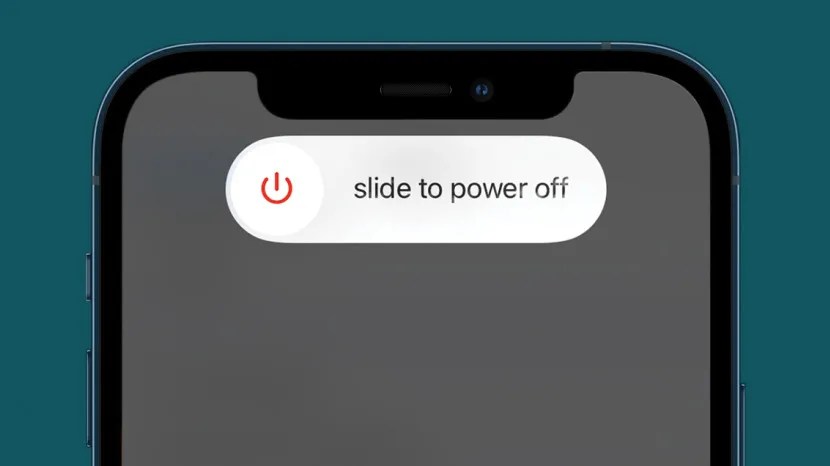
How To Turn Off Your Iphone Or Ipad Without Using Its Buttons
How to turn off your iPhone or iPad without using its buttons? It’s a question that might arise if your device’s buttons are malfunctioning or if you just want to explore alternative ways to control your tech. Whether you’re facing a sticky power button or simply want to learn a new trick, this guide has you covered.
We’ll dive into a few methods, each with its own advantages and limitations, to help you power down your iPhone or iPad without relying on those pesky physical buttons.
From the virtual magic of AssistiveTouch to the power of voice commands with Siri, we’ll explore various options to get the job done. We’ll also discuss the benefits and drawbacks of each method, so you can choose the one that best suits your situation.
Understanding the Issue
It’s a frustrating experience when your iPhone or iPad’s buttons stop working, leaving you unable to turn off your device. This situation can arise due to various reasons, and knowing the potential causes can help you understand the problem better.
You know how to turn off your iPhone or iPad without using the buttons, right? Just go to Settings, then Accessibility, and you’ll find an option for AssistiveTouch. It’s a lifesaver when your buttons are acting up, and it’s also a great reminder that there’s always a way to get things done, even when things seem tough.
Speaking of tough times, it’s important to stay informed about the world around us, but it’s also easy to get overwhelmed by all the negativity. That’s why you should check out this great article on how to stay informed about coronavirus without terrifying yourself.
Just like with your iPhone, you can find ways to manage the situation and stay calm. So, go ahead and turn off your phone for a bit and take a deep breath. You’ll feel better in no time!
Common Causes of Button Malfunctions
Button malfunctions are a common problem that can occur with any electronic device, including iPhones and iPads. Several factors can contribute to this issue.
- Physical Damage:A common cause of button malfunctions is physical damage. This can happen due to drops, impacts, or excessive wear and tear. The buttons might become loose, stuck, or unresponsive due to internal damage.
- Water Damage:Water damage can also affect the functionality of buttons. If your device has been exposed to water, the liquid can seep into the internal components and cause corrosion or short circuits, leading to button failures.
- Software Glitches:Sometimes, software glitches can cause button malfunctions. This might be due to a bug in the operating system or a faulty app that is interfering with the button’s functionality.
- Dust and Debris:Dust and debris can accumulate in the button mechanism, obstructing its movement and causing it to become unresponsive.
- Wear and Tear:Over time, repeated use can wear down the button mechanism, making it less responsive. This is especially common for older devices.
“Understanding the root cause of the button malfunction is crucial for determining the appropriate solution.”
AssistiveTouch
AssistiveTouch is a fantastic accessibility feature built into iOS and iPadOS that provides a virtual button on your screen. This button serves as a control center, allowing you to access various functions, including those related to power management, without needing to use the physical buttons on your device.
Enabling AssistiveTouch
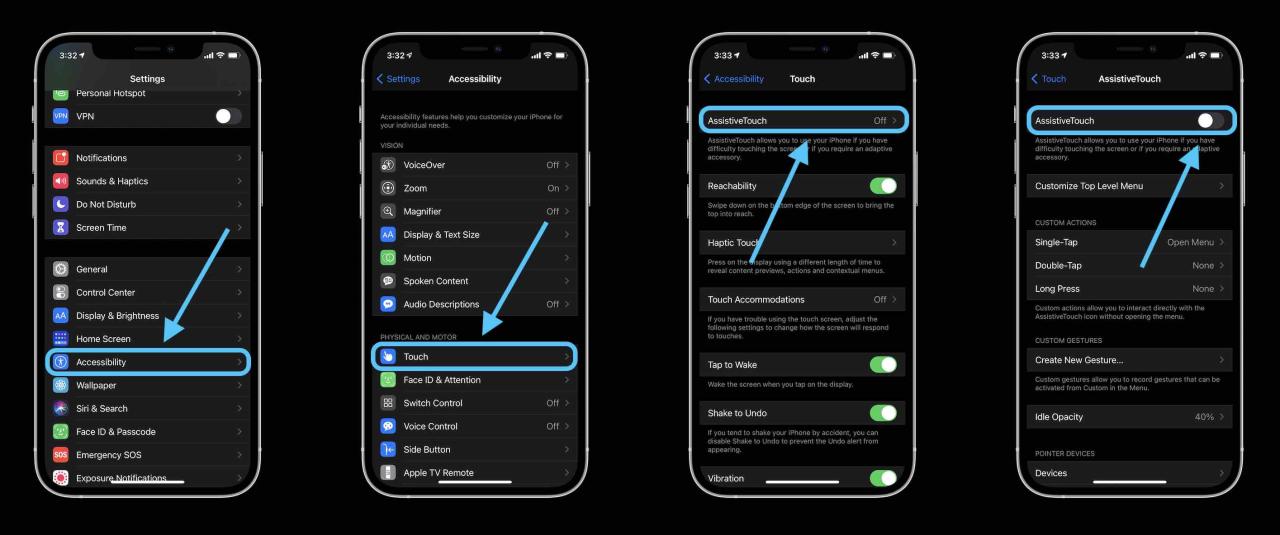
To use AssistiveTouch, you first need to enable it. Here’s how:
- Open the Settingsapp on your iPhone or iPad.
- Scroll down and tap on Accessibility.
- Select Touch.
- Toggle the switch for AssistiveTouchto the ONposition.
Once enabled, a transparent circular button will appear on your screen. This button is your gateway to AssistiveTouch’s capabilities.
Functionality of AssistiveTouch
AssistiveTouch offers a wide range of functions, making it a versatile tool for interacting with your device. It provides virtual replacements for physical buttons, allowing you to perform actions like:
- Home Button:Pressing the AssistiveTouch button acts as a virtual Home button, allowing you to return to the home screen.
- Volume Control:You can adjust the volume of your device by tapping and dragging the volume slider within the AssistiveTouch menu.
- Rotation Lock:AssistiveTouch enables you to toggle the rotation lock, preventing the screen from rotating.
- Multitasking:You can access the multitasking view by selecting the “Multitasking” option within the AssistiveTouch menu.
- Power-Related Actions:AssistiveTouch allows you to perform power-related actions like taking a screenshot, locking your device, and even turning it off.
Turning Off Your Device with AssistiveTouch
To turn off your iPhone or iPad using AssistiveTouch, follow these steps:
- Tap on the AssistiveTouch button to open its menu.
- Select Devicefrom the menu options.
- Choose Lock Screen.
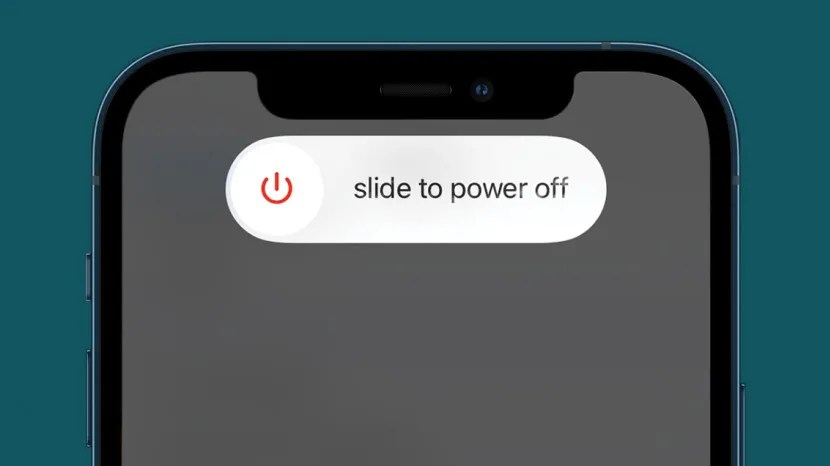
- Press and hold the Sleep/Wakebutton on the virtual screen until the “slide to power off” slider appears.
- Slide the slider to the right to power off your device.
Using Siri for Power Control
Siri, Apple’s voice assistant, offers an alternative to using buttons to turn off your iPhone or iPad. You can activate Siri without touching your device, allowing you to control your device even when buttons are inaccessible.
Activating Siri Without Buttons
Siri can be activated using various methods that don’t require using buttons:
- “Hey Siri” Command:This is the most common method, allowing you to activate Siri by simply saying “Hey Siri” followed by your command. Make sure that “Hey Siri” is enabled in your device settings.
- Press and Hold Side Button:On iPhone 8 and later, pressing and holding the side button will activate Siri.
- Connect AirPods:If you have AirPods connected to your device, double-tapping the earbud will activate Siri.
Siri Voice Commands for Power Control
Once Siri is activated, you can use specific voice commands to turn off your iPhone or iPad.
- “Turn off my iPhone/iPad”: This is the most direct command to shut down your device.
- “Shut down my iPhone/iPad”: This is another way to tell Siri to turn off your device.
Limitations of Siri-Based Power Control
While Siri offers a convenient way to turn off your device, it’s important to be aware of its limitations.
- Requires Internet Connection:Siri relies on an internet connection to function, so you won’t be able to use it to turn off your device if you’re offline.
- Limited Functionality:Siri can only be used to shut down your device. It cannot be used to restart or put your device into sleep mode.
- May Not Work in All Situations:In some situations, such as when your device is experiencing a software issue, Siri may not respond to your commands.
Connecting to a Computer
Sometimes, your iPhone or iPad might be frozen or unresponsive, making it impossible to use the on-screen buttons or even Siri. In such situations, connecting your device to a computer can be a lifesaver, allowing you to force a shutdown.
Using iTunes or Finder to Force Shutdown
Connecting your iPhone or iPad to a computer using a USB cable provides a reliable way to force a shutdown. This method is particularly useful when your device is unresponsive to touch input or other commands. To use this method, follow these steps:
- Connect your iPhone or iPad to your computer using a USB cable.Ensure the cable is properly plugged into both the device and the computer.
- Open iTunes or Finder on your computer.The specific application will depend on your computer’s operating system. iTunes is used for older macOS versions, while Finder is used for newer macOS versions and Windows computers.
- Select your iPhone or iPad in iTunes or Finder.This will open a window displaying information about your device.
- Force restart your device.You can force restart your iPhone or iPad by pressing and holding the volume up button, then the volume down button, and finally the side button until the Apple logo appears on the screen.
This method is generally more effective than using AssistiveTouch or Siri, as it directly interacts with the device’s operating system. However, it requires a computer and a USB cable, making it less convenient than other methods.
Using a Keyboard
If you can’t use the physical buttons on your iPhone or iPad, connecting a Bluetooth keyboard can provide a convenient and accessible way to navigate and turn off your device.
Connecting a Bluetooth Keyboard
Connecting a Bluetooth keyboard to your iPhone or iPad is a straightforward process.
- Ensure your Bluetooth keyboard is turned on and within range of your device.
- On your iPhone or iPad, go to Settings > Bluetooth.
- Tap on the name of your Bluetooth keyboard when it appears in the list of available devices.
- Once connected, you’ll see a checkmark next to the keyboard’s name, indicating a successful connection.
Navigating to the Power-Off Option
Once your Bluetooth keyboard is connected, you can use it to navigate to the power-off option.
- Press the Homebutton on your keyboard to return to the home screen.
- Use the arrow keys to navigate to the Settingsapp icon.
- Press Enterto open the Settingsapp.
- Scroll down to the Generalsection and press Enter.
- Navigate to the Shutdownoption and press Enter.
- You’ll see a slider that you can drag to confirm the power-off action. Use the arrow keys to move the slider and press Enterto confirm.
Accessibility and Speed, How to turn off your iPhone or iPad without using its buttons
Using a Bluetooth keyboard offers several advantages in terms of accessibility and speed.
- It provides an alternative input method for users who have difficulty using the touchscreen or physical buttons.
- The keyboard’s layout can be familiar and comfortable for users who are accustomed to typing on a physical keyboard.
- Navigating with arrow keys and pressing Entercan be faster and more precise than using the touchscreen, especially for users with motor impairments.
Troubleshooting and Alternatives
While these methods are generally effective, you might encounter some situations where they don’t work as expected. This section explores common issues and provides potential workarounds.
Common Issues and Workarounds
There are a few scenarios where the alternative methods might not function as intended.
- AssistiveTouch Not Responding:If AssistiveTouch is not responding, it could be due to a software glitch or a problem with the accessibility settings. To troubleshoot, try restarting your device or checking if AssistiveTouch is enabled in the accessibility settings. You can also try reinstalling AssistiveTouch if it’s not working properly.
- Siri Not Recognizing Voice Commands:If Siri is not recognizing your voice commands, ensure your device’s microphone is not covered or obstructed. Check the microphone settings in your device’s settings app and make sure they are properly configured. Also, try restarting your device or updating to the latest iOS or iPadOS version.
- Device Not Responding to Keyboard Input:If your device is not responding to keyboard input, make sure the keyboard is properly connected and paired with your device. Try restarting both your device and the keyboard. You can also check if the keyboard’s batteries are low or need to be replaced.
Contacting Apple Support
If you’ve tried all the troubleshooting steps and are still experiencing issues, you can contact Apple Support for assistance. They can help diagnose the problem and provide solutions.
Sometimes your iPhone or iPad’s buttons just decide to act up, making it impossible to turn the device off. But don’t panic! You can still power it down by going to Settings, then Accessibility, and finally tapping on AssistiveTouch. This feature lets you use a virtual button on your screen to control your device, and you can use it to turn off your iPhone or iPad just like you would with the physical buttons.
While you’re at it, why not check out how to add your driver’s license to Apple Wallet ? It’s a super convenient way to keep your ID handy, and you can even use it for age verification at certain locations.
Once you’re done with that, you can use AssistiveTouch to turn your device back on as well.
- Apple Support Website:You can access Apple Support’s website for troubleshooting guides, FAQs, and contact information.
- Apple Store:If you have an Apple Store nearby, you can visit them for in-person support.
- Phone Support:Apple offers phone support for technical issues. You can find their phone number on their website or in the Apple Support app.
Powering On the Device
After using an alternative method to turn off your iPhone or iPad, you’ll need to power it back on. While the process may vary slightly depending on the method you used, the basic steps remain similar.
Re-Enabling AssistiveTouch or Other Features
Once your device is powered on, you may need to re-enable any features you used to turn it off, such as AssistiveTouch. This is usually a simple process.
- AssistiveTouch:To re-enable AssistiveTouch, go to Settings > Accessibility > Touch > AssistiveTouchand toggle it on.
- Siri:If you used Siri to turn off your device, you’ll likely need to re-enable Siri. Go to Settings > Siri & Searchand toggle Listen for “Hey Siri”on. You can also enable other Siri features, such as allowing Siri to respond with hands-free voice commands.
- Other Features:If you used any other features, such as a connected keyboard or a computer, you’ll need to re-enable them as well.
Preventing Future Button Malfunctions
While button malfunctions are often caused by hardware issues, there are steps you can take to prevent them:
- Avoid Excessive Pressure:Pressing buttons too hard can wear them down over time. Use a gentle touch when using your device’s buttons.
- Protect Your Device:Using a protective case can help prevent damage to your device’s buttons.
- Clean Your Device:Dust and debris can accumulate in the buttons, making them difficult to press. Regularly clean your device’s buttons with a soft, dry cloth.
Safety Considerations: How To Turn Off Your IPhone Or IPad Without Using Its Buttons
It’s crucial to prioritize the safety and security of your iPhone or iPad, especially when using alternative methods to power it off. These methods can sometimes be less reliable or even potentially risky, so understanding these risks and taking appropriate precautions is essential.
Data Backup
Regularly backing up your data is crucial for protecting your information in case of device malfunction or loss. This ensures that you won’t lose any important data, including photos, videos, contacts, and other essential files. You can back up your iPhone or iPad to iCloud, a computer, or an external drive.
- iCloud Backup: iCloud automatically backs up your device data, including apps, photos, videos, and settings, to Apple’s cloud storage. This allows you to restore your device to a previous state if necessary.
- Computer Backup: You can back up your device to your computer using iTunes (for older devices) or Finder (for newer devices). This creates a complete backup of your device, including data and settings, on your computer.
- External Drive Backup: You can use an external drive to create a backup of your device. This is a good option if you want to have a separate backup that is not stored on your computer or in the cloud.
Risks Associated with Alternative Power Off Methods
While using AssistiveTouch, Siri, or connecting to a computer can be helpful in powering off your device when buttons are unresponsive, these methods can pose some risks.
- Data Loss: In rare cases, using alternative methods to power off your device might lead to data loss. This is because these methods might not properly shut down the device, potentially corrupting data or causing data to be lost.
- Device Damage: Using these methods incorrectly or excessively might potentially damage your device. Always follow the instructions carefully and avoid using these methods if your device is exhibiting other signs of malfunction.
- Security Risks: Connecting your device to an untrusted computer could expose your device to security risks. Only connect your device to computers you trust and ensure that the computer is protected with antivirus software.
Best Practices for Device Safety and Security
- Regularly Update Software: Keeping your iPhone or iPad updated with the latest software is essential for security and performance. Updates often include security patches that protect your device from known vulnerabilities.
- Use Strong Passcodes: Set a strong passcode for your device to prevent unauthorized access. A strong passcode is at least six characters long and includes a combination of uppercase and lowercase letters, numbers, and symbols.
- Enable Two-Factor Authentication: Two-factor authentication adds an extra layer of security to your Apple ID. This requires you to enter a code sent to your trusted device in addition to your password when signing in.
- Be Cautious of Suspicious Links and Apps: Avoid clicking on suspicious links or downloading apps from untrusted sources. These could contain malware that can harm your device and steal your personal information.
Conclusion
So, you’ve learned about various ways to turn off your iPhone or iPad without using its buttons. It’s a handy skill to have, especially if your buttons are malfunctioning or you simply prefer a different approach. Let’s recap the methods we’ve discussed and their pros and cons.
Sometimes your iPhone’s buttons just don’t wanna cooperate, right? But don’t stress, you can still turn it off without them! Just go to Settings > Accessibility > AssistiveTouch and you’re good to go. Speaking of cool tech tips, did you know you can also sign, scan, and send PDFs right from your iPhone or iPad?
Check out How to sign, scan and send PDFs with an iPhone or iPad to learn how. Anyway, back to turning off your phone, you can also use AssistiveTouch to access the power menu and shut down your phone.
Pretty neat, huh?
Comparing the Methods
Each method has its own strengths and weaknesses, making it crucial to choose the one that best suits your situation.
- AssistiveTouch: A user-friendly and versatile option that offers a wide range of controls. It’s especially useful for those with physical limitations or button issues. However, it can be slightly slower than using physical buttons.
- Siri: A convenient and voice-activated method for turning off your device. It’s ideal for hands-free operation but requires a working microphone and an internet connection.
- Connecting to a Computer: A reliable method that provides complete control over your device. It’s especially helpful when your device is frozen or unresponsive. However, it requires a computer and a compatible cable.
- Using a Keyboard: A simple and straightforward method for those who prefer a physical keyboard. It’s best for users who are familiar with keyboard shortcuts and don’t have any button issues. However, it requires a compatible keyboard and Bluetooth connection.
Conclusion
So there you have it – a variety of ways to turn off your iPhone or iPad without needing to press a single button. Whether you’re dealing with a faulty button, prefer a hands-free approach, or simply want to learn a new trick, you now have a few options at your disposal.
Remember, each method has its pros and cons, so choose the one that best fits your needs and situation. And, as always, make sure to back up your data regularly to keep your information safe and sound.
General Inquiries
Can I turn off my iPhone or iPad without using any buttons at all?
While some methods require minimal button interaction, completely buttonless shutdown isn’t possible. Even using AssistiveTouch or Siri involves tapping on the screen, which technically uses a button.
Is it safe to turn off my iPhone or iPad using these alternative methods?
Yes, the methods discussed are safe and approved by Apple. However, it’s always good practice to back up your data regularly, just in case.
What if I’m still having trouble turning off my iPhone or iPad?
If you’re facing persistent issues, it’s best to contact Apple support for further assistance.




 Hubungi Kami di WhatsApp