
Rename Multiple Files On Mac The Easy Way
Rename multiple files on Mac the easy way? It’s a task that can feel like a real drag if you’re doing it manually. Who wants to click on each file, rename it, and repeat that process over and over again?
Thankfully, there are a bunch of ways to make this process a whole lot easier. Whether you’re dealing with a few files or a whole bunch, there’s a method out there that’s perfect for you. Let’s dive in and explore some of the most effective techniques.
From using Finder’s built-in renaming tools to leveraging the power of Automator and Terminal, we’ll cover a range of options to suit different skill levels and preferences. We’ll even touch on some cool third-party apps that can take your file renaming game to the next level.
So, buckle up and get ready to learn how to conquer those tedious renaming tasks with ease.
Renaming Multiple Files on Mac
Imagine you’ve just downloaded a bunch of photos from your latest trip, and they’re all named “IMG_001,” “IMG_002,” and so on. Or maybe you’ve got a folder full of documents with generic names like “File1” and “File2.” Manually renaming each file one by one can be a real time-suck, especially if you’ve got a large number of files.
This is where batch renaming tools come in handy. They let you rename multiple files simultaneously, saving you tons of time and effort.
Batch Renaming Tools: The Easy Way to Rename Files
Batch renaming tools are like magic wands for file organization. They allow you to make changes to multiple file names at once, whether you want to add prefixes, suffixes, or replace specific characters. Here are some of the benefits of using batch renaming tools:
- Time-Saving:Imagine renaming 100 files individually! Batch renaming tools let you do it in a few clicks, saving you hours of tedious work.
- Consistency:Batch renaming ensures all your files follow a consistent naming scheme, making it easier to find and organize them.
- Flexibility:These tools offer a variety of renaming options, from simple replacements to complex transformations.
Using Finder’s Rename Feature
Finder, the file management app on macOS, offers a built-in feature to rename multiple files simultaneously. This simplifies batch renaming tasks, making it convenient to modify filenames in a structured manner.
Renaming Multiple Files
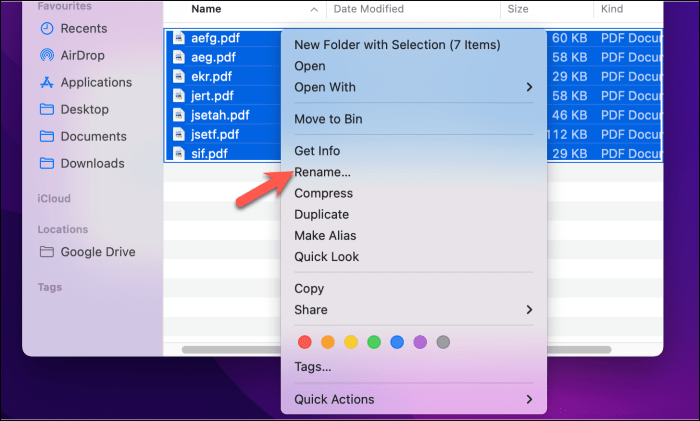
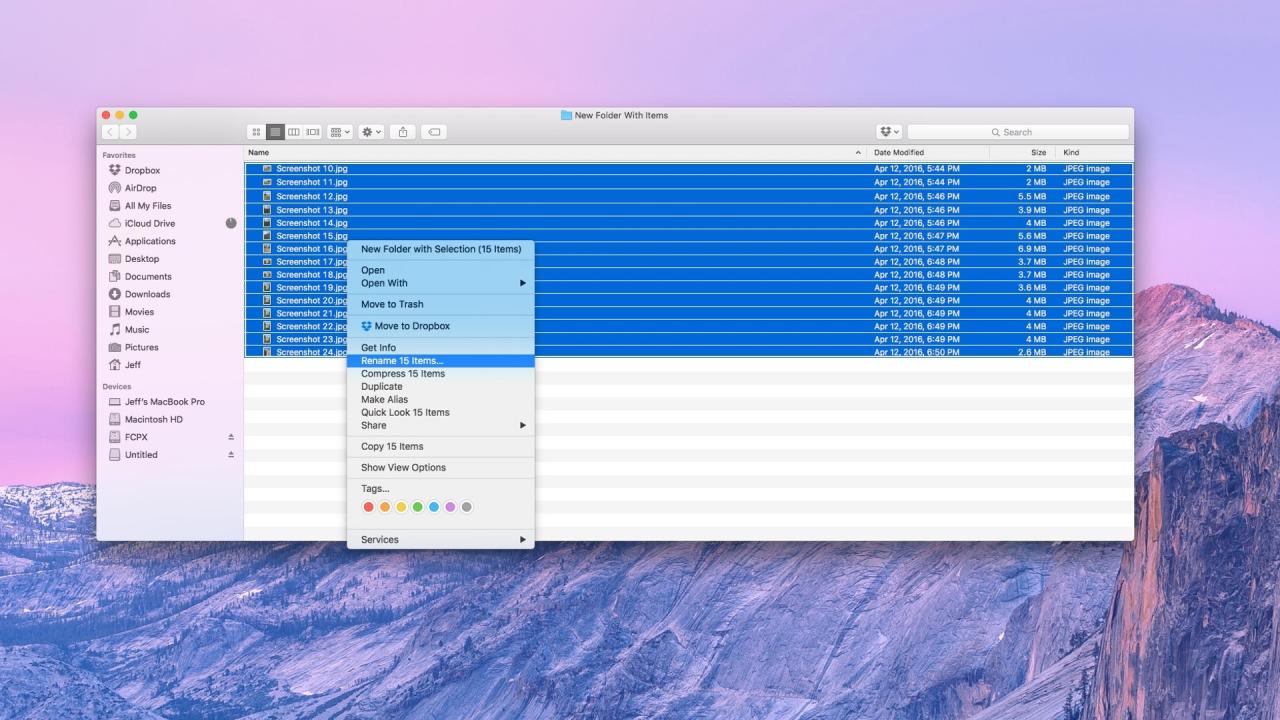
To rename multiple files using Finder, you need to first select the files you want to modify. This can be done by clicking and dragging your mouse over the files, or by using the command key (⌘) and clicking on individual files.
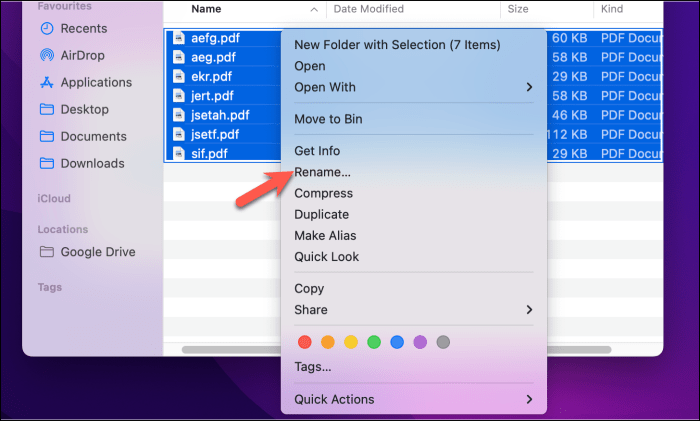
Once you have selected the files, right-click on one of them and choose “Rename Items” from the context menu. Alternatively, you can press the “return” key on your keyboard.
Using the Rename Feature
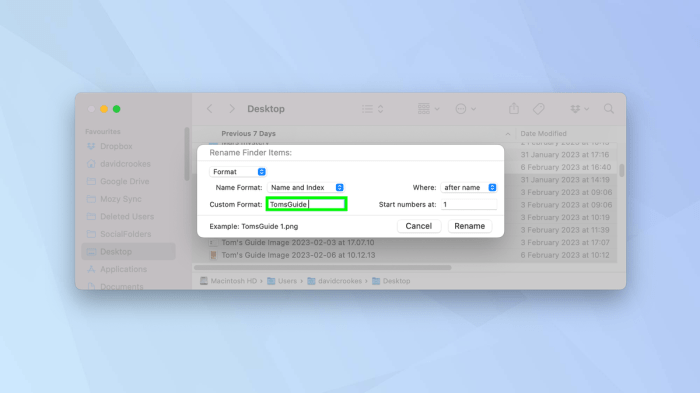
Once you’ve selected the files and accessed the Rename feature, you’ll see a pop-up window with several options for renaming your files. These options are:
- Replace Text:This option allows you to replace a specific text string within the filename with another string. For example, you can replace “old” with “new” in all selected filenames.
- Add Text:This option adds text to the beginning or end of the filename. You can specify whether the text should be added before or after the existing filename.
- Format:This option allows you to apply a specific format to the filename. You can choose from various options like adding a number sequence, date, or custom format.
Replacing Text in Filenames
The “Replace Text” option is useful when you want to make a specific change to all selected filenames. To use this option, simply enter the text you want to replace in the “Find” field and the replacement text in the “Replace with” field.
For instance, if you want to replace “old” with “new” in all filenames, you would enter “old” in the “Find” field and “new” in the “Replace with” field.
Adding Text to Filenames, Rename multiple files on Mac the easy way
The “Add Text” option is useful when you want to add a prefix or suffix to all selected filenames. To use this option, simply enter the text you want to add in the “Add Text” field. You can also choose whether to add the text before or after the existing filename.
For example, if you want to add “new” to the beginning of all filenames, you would enter “new” in the “Add Text” field and select “Before” in the “Add Text” dropdown menu.
Automator for Batch Renaming
Automator is a powerful tool in macOS that allows you to automate repetitive tasks, making your workflow more efficient. It offers a user-friendly interface where you can drag and drop actions to create workflows that can handle various tasks, including batch renaming files.This section will guide you through creating an Automator workflow for renaming files, showcasing the flexibility and power of this tool.
Creating an Automator Workflow for Renaming Files
To create an Automator workflow for renaming files, follow these steps:
1. Open Automator
Open the Automator application, located in your Applications folder.
2. Choose Workflow Type
Select “Application” as the workflow type. This will create a standalone application that you can run to perform the renaming task.
3. Add Actions
In the left sidebar, navigate to the “Files & Folders” section. Drag and drop the “Get Specified Finder Items” action to the workflow area. This action will allow you to specify the files you want to rename.
Renaming multiple files on Mac is a breeze with a few simple tricks. You can use the Finder’s “Rename Items” feature, or even leverage the power of the Terminal for more advanced options. But before you dive into file management, take a break and watch a classic: How to watch It’s the Easter Beagle, Charlie Brown on Apple TV+.
Once you’re back, you’ll be ready to tackle those file names with renewed energy.
4. Configure “Get Specified Finder Items” Action
Click on the “Choose” button next to the “Finder Items” field. This will open a Finder window where you can select the files you want to rename. You can select multiple files or an entire folder.
5. Add “Rename Finder Items” Action
From the “Files & Folders” section, drag and drop the “Rename Finder Items” action to the workflow area. This action will perform the actual renaming process.
6. Configure “Rename Finder Items” Action
The “Rename Finder Items” action offers various options for renaming files.
Replace Text
You can use this option to replace specific text within the file names. For example, you can replace “old” with “new” in all selected files.
Add Text
You can use this option to add text to the beginning or end of the file names. For example, you can add a prefix like “Project_” or a suffix like “_final”.
Change Case
You can change the case of the file names, such as converting them to all uppercase or all lowercase.
Format
You can use this option to format the file names using variables and special characters. For example, you can create a sequence of numbers for each file name.
7. Save Workflow
Click on the “File” menu and select “Save.” Give your workflow a descriptive name and save it to a location you can easily access.
Renaming multiple files on Mac can be a real pain, but there are some cool tools out there to make it easier. If you’re using Dropbox, you might want to check out How to get the Dropbox beta with full Apple silicon support , which could help speed things up.
Once you’ve got that sorted, you can really get down to business with batch renaming your files – you’ll be surprised how much time it saves!
Using Variables and Actions for Flexible Renaming
Automator’s power lies in its ability to use variables and actions to create flexible and adaptable workflows. Variablesallow you to dynamically modify the renaming process based on factors like file names, dates, and numbers. Here are some examples:* “Name” Variable:This variable represents the original file name.
You can use this variable in the “Rename Finder Items” action to create new file names based on the original names.
“Date” Variable
This variable represents the date the file was created or modified. You can use this variable to add a date prefix or suffix to the file names.
“Number” Variable
This variable represents a sequential number that can be used to create a unique identifier for each file. Actionscan be combined to create complex renaming workflows. For example, you can use the “Get Folder Contents” action to retrieve files from a specific folder and then use the “Rename Finder Items” action to rename them.
Example:To rename all files in a folder with a “Project_” prefix and a sequential number, you can use the following steps: 1. Use the “Get Folder Contents” action to select the folder containing the files you want to rename.
Renaming multiple files on Mac is a breeze with a few simple tricks. You can use the Finder’s “Rename” feature, or even leverage the power of the Terminal. But if you’re really concerned about privacy, you might want to check out How to make Safari Private Browsing much more private , as it’s crucial to ensure your browsing history stays hidden, especially when dealing with sensitive files.
Once you’ve taken care of your privacy, you can get back to renaming those files with ease!
2. Use the “Rename Finder Items” action with the following settings
“Replace Text”with the text “Project_” followed by a space.
“Add Text”with the “Number” variable.
By experimenting with variables and actions, you can create customized workflows that meet your specific renaming needs.
Terminal for Renaming
The Terminal is a powerful tool for renaming files on a Mac. It allows you to rename multiple files at once using commands, wildcards, and regular expressions. This approach is ideal for advanced renaming tasks and can be automated for repetitive file management.
Using `mv` for Renaming
The `mv` command is used for moving files and directories, but it can also be used for renaming files. The basic syntax is:
`mv [original_filename] [new_filename]`
For example, to rename a file named “document.txt” to “report.txt”, you would use the following command:
`mv document.txt report.txt`
Wildcards and Regular Expressions
Wildcards and regular expressions provide flexibility for renaming multiple files.
- Wildcards: Use asterisks (*) and question marks (?) to match multiple files. For example, to rename all files ending in “.jpg” to “.png”, you would use:
`mv-.jpg -.png`
- Regular Expressions: Regular expressions offer more complex pattern matching for renaming. You can use them to modify parts of filenames, insert text, or replace characters. For instance, to remove the first two characters from all files in a directory, you would use:
`mv- ‘$1..’`
Advantages and Limitations
- Advantages:
- Powerful: The Terminal offers precise control over renaming operations.
- Efficient: Batch renaming can be done quickly.
- Automate: You can create scripts to automate repetitive tasks.
- Limitations:
- Learning Curve: Requires familiarity with command-line syntax.
- Error Prone: Incorrect commands can lead to data loss.
Third-Party Renaming Apps
While Finder and Automator provide decent renaming capabilities, third-party apps offer a wider range of features and a more user-friendly interface for batch renaming. These apps often include advanced features like regular expression support, previewing changes before applying them, and support for various file formats.These apps are especially helpful for users who frequently rename large numbers of files or require more sophisticated renaming options.
Popular Renaming Apps
Third-party renaming apps provide specialized tools for renaming files, offering features not found in Finder or Automator. Here are some popular options:
- NameChanger: A versatile and powerful renaming tool with a user-friendly interface. It offers a wide range of features, including regular expression support, number sequence insertion, and the ability to rename files based on their contents. It also allows for previewing changes before applying them, ensuring accuracy.
- Batch & Renamer: A feature-rich app with a focus on flexibility and customization. It offers a variety of renaming methods, including text replacement, number sequences, and date/time stamping. It also includes a powerful scripting engine for advanced renaming tasks.
- A Better Finder Rename: A popular choice for its simplicity and ease of use. It offers a straightforward interface with essential renaming features, including text replacement, number sequences, and date/time stamping. It also provides a preview function for visual confirmation before applying changes.
- Renamer: A lightweight and efficient app with a clean interface. It offers basic renaming features, including text replacement, number sequences, and case conversion. It’s a good option for users who need a simple and straightforward renaming tool.
Comparing Features
Each app has its strengths and weaknesses. The following table compares the key features of the apps discussed:
| Feature | NameChanger | Batch & Renamer | A Better Finder Rename | Renamer |
|---|---|---|---|---|
| Regular Expression Support | Yes | Yes | No | No |
| Number Sequence Insertion | Yes | Yes | Yes | Yes |
| Date/Time Stamping | Yes | Yes | Yes | Yes |
| Preview Changes | Yes | Yes | Yes | No |
| Scripting Engine | No | Yes | No | No |
Renaming Files Based on Metadata: Rename Multiple Files On Mac The Easy Way
Metadata is like hidden information about a file, including details like its creation date, file type, and size. This information can be incredibly useful for renaming files in a structured and efficient way. Renaming files based on metadata allows you to organize them based on specific criteria, making it easier to find and manage your files.
Using Metadata for Renaming
Metadata can be accessed and utilized for renaming files using various methods on your Mac. One common approach is to use Finder’s built-in renaming features. Finder provides a convenient way to access and modify metadata for individual files or entire folders.
You can then leverage this information to rename files based on specific metadata attributes.Here’s how to access and utilize metadata for renaming purposes:
- Finder’s Get Info Window:You can access a file’s metadata by selecting it in Finder and pressing Command + Ior right-clicking and choosing Get Info. The Info window displays various metadata attributes, such as creation date, modification date, file size, and file type.
- Automator:Automator is a powerful tool that allows you to create workflows for automating tasks, including renaming files. You can use Automator to access metadata and create custom renaming rules based on specific attributes. For example, you could create a workflow that renames all files in a folder based on their creation date.
- Terminal:The Terminal is a command-line interface that provides access to powerful tools for managing files and folders. You can use Terminal commands like mdlsand setfileto access and modify file metadata. By combining these commands with other scripting tools, you can create sophisticated renaming workflows based on metadata.
- Third-Party Renaming Apps:Several third-party renaming apps offer advanced features for renaming files, including the ability to utilize metadata. These apps often provide user-friendly interfaces and a wide range of renaming options, making it easier to customize your renaming rules based on specific metadata attributes.
Renaming Scenarios Based on Metadata
Here are some examples of renaming scenarios that utilize metadata:
- Renaming Images Based on Capture Date:You can rename a collection of images based on their capture date. For example, you could rename all images taken on a specific day to include the date in their file name, making it easier to organize and find images taken on that day.
- Renaming Documents Based on File Type:You can rename documents based on their file type. For example, you could rename all Word documents to include the extension “.docx” in their file name, ensuring consistent file naming across your document collection.
- Renaming Music Files Based on Album and Artist:You can rename music files based on their album and artist metadata. This allows you to organize your music library based on these attributes, making it easier to browse and play your music.
Renaming Files in Specific Folders
Sometimes, you need to rename files within a specific folder or subfolder on your Mac. Maybe you want to organize a bunch of photos from a trip, or you need to update the names of documents for a project. Fortunately, Mac offers several ways to rename files in specific folders.Here are some techniques to rename files within specific folders or subfolders on your Mac.
Using Finder’s Rename Feature
Finder’s built-in rename feature lets you quickly change the names of multiple files. To use it, select the files you want to rename and then right-click (or Control-click) and choose “Rename.” You can then choose a renaming method, such as:* Replace Text:This option allows you to replace a specific text string in the file names with another text string.
For example, you could replace “IMG_” with “Photo_” in all of your photo files.
Add Text
This option allows you to add text to the beginning or end of the file names. For example, you could add “Trip to Paris_” to the beginning of all of your photo files.
Numbering
This option allows you to add sequential numbers to the file names. For example, you could add numbers to the end of your photo files, resulting in “Photo_1,” “Photo_2,” “Photo_3,” and so on.
Format
This option allows you to change the file name format. For example, you could change the format from “IMG_20230301_123456.jpg” to “2023-03-01 12:34:56.jpg.”
Example:You have a folder of photos from a trip to Paris. You want to rename all of the photos to include “Paris” in the file name. You can use the “Add Text” option in Finder’s Rename feature to add “Paris_” to the beginning of all of the file names.
Using Automator for Batch Renaming
Automator is a powerful tool that can be used to automate tasks, including renaming files. You can create a workflow in Automator that will rename multiple files in a specific folder. To use Automator for batch renaming:
- Open Automator.
- Choose “Quick Action” as the workflow type.
- Search for “Rename Finder Items” in the search bar and drag it to the workflow area.
- Configure the renaming options. You can choose to replace text, add text, number files, or change the format.
- Save the workflow.
- Select the files you want to rename and right-click (or Control-click) and choose “Services.”
- Choose the Automator workflow you just created.
Example:You have a folder of documents for a project. You want to rename all of the documents to include the project name in the file name. You can create an Automator workflow that will add “Project Name_” to the beginning of all of the file names.
Using Terminal for Renaming
If you’re comfortable using the command line, you can use Terminal to rename files in specific folders. Terminal offers more flexibility than Finder or Automator, but it requires more technical knowledge.Here are some basic Terminal commands for renaming files:* `mv` command:This command moves files from one location to another.
You can use it to rename files by moving them to a new location with a new name.
`find` command
This command searches for files that match specific criteria. You can use it to find files in a specific folder or subfolder.
`rename` command
This command is a more powerful alternative to `mv` for renaming files. It allows you to use regular expressions to rename files.
Example:You have a folder of images named “image1.jpg,” “image2.jpg,” “image3.jpg,” and so on. You want to rename them to “photo1.jpg,” “photo2.jpg,” “photo3.jpg,” and so on. You can use the following Terminal command to do this:“`find .
- name “image*.jpg”
- exec bash
- c ‘mv “$0” “$0/image/photo”‘ \;
“`
Third-Party Renaming Apps
Several third-party apps offer advanced renaming features, including the ability to rename files in specific folders. Some popular renaming apps include:* Name Mangler:Name Mangler is a powerful renaming app that offers a wide range of features, including the ability to rename files based on metadata.
BatchRename
BatchRename is another popular renaming app that offers a user-friendly interface and a wide range of renaming options.
A Better Finder Rename
A Better Finder Rename is a free renaming app that offers many of the same features as paid renaming apps.
Example:You have a folder of photos that you want to rename based on their date taken. You can use a third-party renaming app like Name Mangler to rename the photos based on their metadata.
Tips for Efficient Renaming
Renaming files efficiently can save you a lot of time and frustration, especially when dealing with large numbers of files. Here are some practical tips and tricks to streamline the process.
Organizing Files Before Renaming
Before diving into renaming, take a moment to organize your files. This will make the process smoother and help you avoid errors.
- Create Folders:Group similar files into folders to make them easier to find and manage. This is particularly helpful if you’re dealing with a large number of files. For example, create folders for photos, documents, music, or other file types.
- Use Descriptive Names:Choose clear and descriptive names for your folders. This will make it easier to identify the files within them. For example, instead of “Photos,” use “Vacation Photos 2023.”
- Sort Files:Sort your files by name, date, or other criteria before renaming. This will help you identify patterns and make the renaming process more efficient. For example, you can sort by date to rename files in chronological order.
Renaming Large Numbers of Files
Renaming large numbers of files can be a daunting task, but it doesn’t have to be. Here are some strategies to handle it effectively:
- Use Batch Renaming Tools:As discussed earlier, tools like Automator, Terminal, and third-party renaming apps are designed to handle multiple files at once. These tools allow you to apply the same renaming rules to multiple files simultaneously, saving you time and effort.
- Break Down the Task:If you have a massive number of files, consider breaking the renaming process into smaller, more manageable chunks. For example, you could rename files in one folder at a time or group them by category.
- Use a Spreadsheet:If you need to apply complex renaming rules or need to keep track of file changes, consider using a spreadsheet. You can list the original file names, the desired new names, and any other relevant information. This can be especially helpful if you’re dealing with a large number of files or need to make precise changes.
Using Regular Expressions for Advanced Renaming
Regular expressions (regex) are powerful tools that can be used for advanced file renaming. They allow you to search and replace text patterns in file names. For example, you can use regex to:
- Remove Specific Characters:Remove unwanted characters like spaces, underscores, or hyphens from file names.
- Replace Text:Replace specific words or phrases in file names. For example, you can replace “old_name” with “new_name” in all your files.
- Add Text:Add prefixes or suffixes to file names. For example, you can add “photo_” to the beginning of all your image files.
Tips for Renaming Files in Specific Folders
If you need to rename files in a specific folder, consider these tips:
- Use the “Find” Function:The Finder’s “Find” function allows you to locate files based on specific criteria, such as name, date, or type. You can use this function to narrow down your search to files in a particular folder.
- Use the “Get Info” Window:The “Get Info” window provides detailed information about a selected file, including its name, location, and creation date. You can use this window to view and edit the file’s name directly.
Using Metadata for Renaming
Metadata refers to information about a file, such as its creation date, author, or camera model. You can use metadata to rename files automatically. For example, you can rename image files based on their date taken or camera model.
- Use Third-Party Apps:Several third-party apps allow you to rename files based on their metadata. These apps typically offer a range of renaming options, including the ability to extract specific metadata fields and use them to create new file names.
Security Considerations
Renaming files on your Mac can be a simple process, but it’s important to consider the potential risks involved. Just like any operation that modifies your data, it’s crucial to be cautious and take precautions to avoid accidental data loss or corruption.
Data Backup
Before you start renaming files, it’s always a good idea to back up your data. This will give you a safety net in case something goes wrong during the renaming process. You can use a variety of methods for backing up your files, including external hard drives, cloud storage services, or time machine backups.
Having a recent backup ensures that you can easily restore your files if needed.
Risks of Incorrect Renaming
Renaming files incorrectly can have a range of consequences. Here are some of the most common risks:
- Data Loss:Renaming a file to an existing file name can overwrite the existing file, leading to data loss. For example, if you rename a file called “document.txt” to “important_document.txt” and a file with that name already exists, the original “important_document.txt” will be overwritten.
- File Corruption:Renaming a file to an invalid name can corrupt the file, making it inaccessible. For example, if you rename a file to a name that contains special characters or spaces, the file might become corrupted and unusable.
- Broken Links:Renaming files can break links to those files if the link refers to the original file name. This can happen with shortcuts, bookmarks, or references in other documents.
- Software Compatibility Issues:Some software programs rely on specific file names or extensions. Renaming a file could cause it to become incompatible with certain programs.
Preventing Data Loss
Here are some tips to help you prevent data loss during the renaming process:
- Preview Changes:Most renaming tools offer a preview feature that allows you to see the results of your changes before you commit them. This gives you a chance to catch any errors and avoid accidental renaming.
- Use Descriptive Names:When renaming files, use descriptive names that accurately reflect the content of the file. This will make it easier to find and manage your files in the future.
- Avoid Special Characters:Avoid using special characters like spaces, commas, or slashes in file names. These characters can cause problems with some software programs and operating systems.
- Use a Consistent Naming Convention:Establish a consistent naming convention for your files, such as using underscores instead of spaces or using a specific date format. This will help you keep your files organized and prevent confusion.
Conclusion
Renaming multiple files on a Mac is a common task, and there are several methods to achieve it efficiently. From Finder’s built-in rename feature to powerful automation tools like Automator and Terminal, you have a variety of options at your disposal.
Choosing the right method depends on your specific needs and the complexity of the renaming task. If you’re dealing with a simple batch rename, Finder’s built-in feature might suffice. However, for more complex tasks involving metadata or custom patterns, Automator or Terminal offer greater flexibility and control.
Choosing the Right Renaming Method
The most suitable renaming method depends on your specific needs:
- Finder’s Rename Feature: Ideal for basic batch renaming tasks with simple patterns, such as adding a prefix or suffix to multiple files.
- Automator: Suitable for more complex renaming tasks, allowing you to create custom workflows involving multiple steps and actions. This method is particularly useful for renaming files based on metadata, such as date or file type.
- Terminal: Offers the highest level of control and flexibility for renaming files. It’s particularly suitable for renaming files based on complex patterns or scripting, allowing you to automate repetitive tasks.
- Third-Party Apps: Provide specialized features for renaming files, such as advanced search and replace functionality or support for specific file formats. They offer convenience and additional features but come at an extra cost.
Experimenting with Different Approaches
Experimenting with different renaming methods is encouraged to find the most efficient solution for your specific workflow. By understanding the strengths and limitations of each method, you can choose the best tool for the job and streamline your file management process.
Closing Notes
Renaming multiple files on a Mac doesn’t have to be a chore. With the right tools and techniques, you can streamline the process and save yourself a ton of time and frustration. Whether you’re a seasoned Mac user or just getting started, we hope this guide has given you some valuable insights and practical tips.
So, go ahead and put your newfound knowledge to the test! You’ll be amazed at how much easier it is to manage your files with these efficient renaming methods.
FAQ Guide
Can I use these methods to rename files in a cloud storage service like iCloud Drive?
While you can use Finder and Automator to rename files in iCloud Drive, you might need to manually sync the changes to your cloud storage. Some third-party apps might have specific features for renaming files in cloud storage.
What are some good third-party renaming apps?
Some popular options include “NameChanger,” “BatchRenamer,” and “Renamer.” You can find more apps by searching the Mac App Store.
Are there any risks associated with renaming files?
Always make a backup of your files before renaming, especially if you’re using the Terminal or more complex renaming techniques. Mistakes can lead to data loss, so it’s best to be safe.





 Hubungi Kami di WhatsApp