
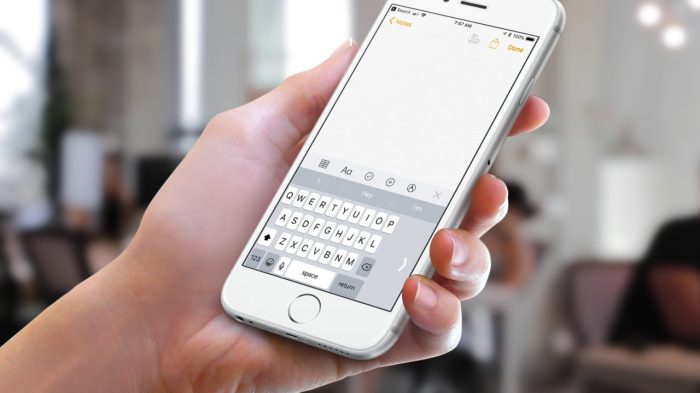
How To Use The Iphone’S One-Handed Keyboard In Ios 11
How to use the iPhone’s one-handed keyboard in iOS 11 – How to use the iPhone’s one-handed keyboard in iOS 11 is a game-changer for anyone who finds typing on a phone with one hand a challenge. This feature, introduced in iOS 11, lets you shrink the keyboard to the left or right side of the screen, making it easier to reach all the keys with just your thumb.
Whether you’re texting while driving, holding your baby, or simply prefer a more compact keyboard, this feature is a must-have for any iPhone user.
This article will guide you through the process of enabling and using the one-handed keyboard, highlighting its benefits, customization options, and accessibility features. We’ll also compare it to other input methods, offer tips for efficient use, and address common troubleshooting issues.
By the end, you’ll be a pro at typing with one hand, making your iPhone experience even smoother and more enjoyable.
The One-Handed Keyboard
The one-handed keyboard is a handy feature in iOS 11 that allows you to type comfortably with just one hand. It’s perfect for those times when you’re holding your phone with one hand and need to type a quick message or search for something.This feature is designed to make typing easier and more convenient for users who find it difficult to reach the entire keyboard with one hand.
Who Benefits from the One-Handed Keyboard?
The one-handed keyboard is particularly useful for:* People with small hands:If you have smaller hands, reaching across the entire keyboard can be uncomfortable or even impossible.
People who are using their phone one-handed
When you’re holding your phone with one hand, it can be difficult to type with both thumbs.
People who are typing on the go
Whether you’re walking, driving, or just trying to multitask, the one-handed keyboard can make typing easier and more efficient.
Enabling the One-Handed Keyboard
The one-handed keyboard is a handy feature that can be used to type more comfortably with one hand, especially on larger iPhones. It’s easy to enable and can be customized to fit your preferred hand.
Enabling the One-Handed Keyboard
To enable the one-handed keyboard, follow these steps:
- Open the Settingsapp.
- Tap General.
- Tap Keyboard.
- Scroll down and tap One-Handed Keyboard.
- Select Left, Right, or Off.
Using the One-Handed Keyboard
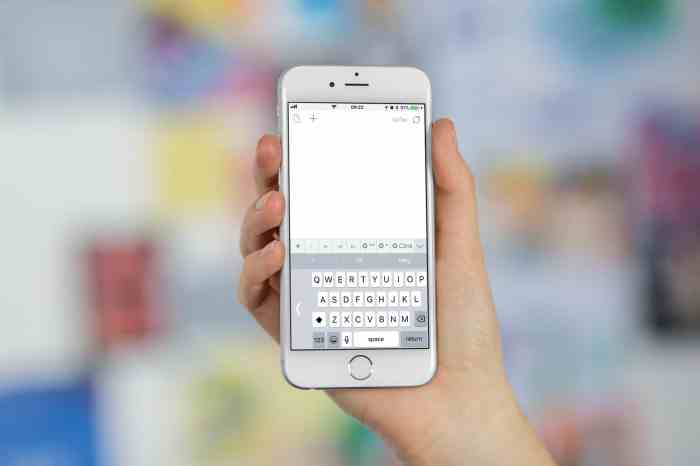
The one-handed keyboard in iOS 11 offers a convenient way to type with one hand, especially on larger iPhones. It shrinks the keyboard to one side of the screen, making it easier to reach all the keys with your thumb.
Let’s explore how to use this feature effectively.
Switching Between Left and Right-Handed Modes
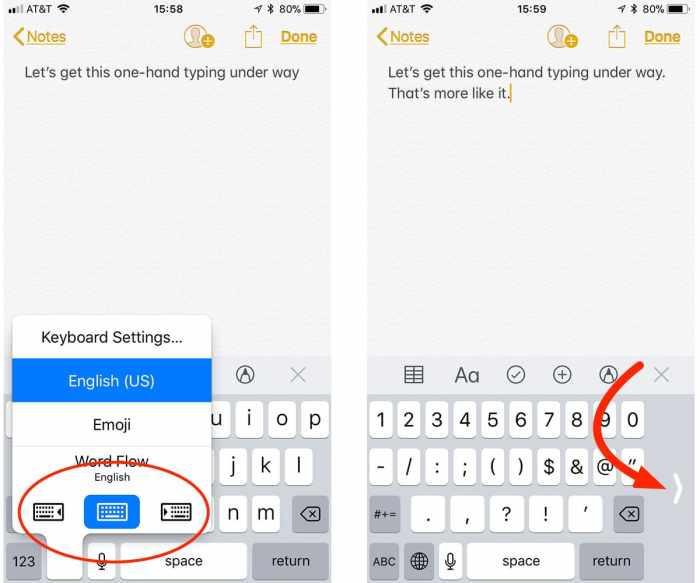
You can easily switch between left and right-handed modes depending on your preference and the position of your phone. To do this, you can simply tap the small arrow icon located at the bottom left corner of the keyboard. This arrow will change direction based on the current orientation of the keyboard, indicating the direction to which you’re switching.
Key Layout and Differences
The one-handed keyboard maintains the familiar QWERTY layout, but the keys are rearranged and grouped to fit the smaller space. The most noticeable difference is the placement of the keys. The keys are more compact, and the layout is adjusted to accommodate the smaller space.
The keys are also grouped closer together, which can take some time to get used to. For example, the keys in the top row are rearranged, with the numbers being placed in a different order than the standard keyboard. This change is necessary to accommodate the smaller space and allow for easier access with one hand.
Using the Keyboard for Typing, Punctuation, and Special Characters, How to use the iPhone’s one-handed keyboard in iOS 11
Typing with the one-handed keyboard is similar to using the standard keyboard. You can tap the keys to type letters, numbers, and symbols. To access punctuation marks, you can tap the “123” key at the bottom left corner of the keyboard.
This will bring up a row of punctuation marks and symbols. To access special characters, you can tap the globe icon, which is located to the right of the spacebar. This will bring up a list of special characters, including emojis.
Customization Options
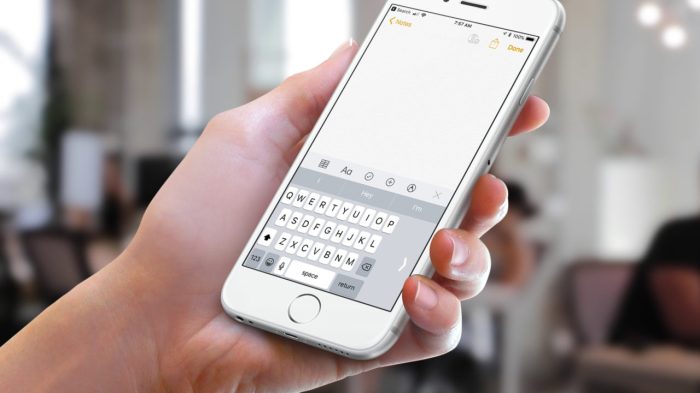
While the one-handed keyboard is a convenient feature, you can tailor it to your specific needs. Let’s explore the available customization options.
Keyboard Size and Position
You can adjust the size and position of the one-handed keyboard to suit your preference and hand size.
- To adjust the size, simply tap and drag the edge of the keyboard. You can make it smaller or larger depending on your comfort level.
- To reposition the keyboard, tap and hold the keyboard and then drag it to the left or right side of the screen.
Keyboard Themes and Colors
While the one-handed keyboard doesn’t offer customizable themes or colors, you can use the default system-wide settings to change the overall look and feel of your keyboard.
Accessibility Features
The one-handed keyboard can be a valuable tool for users with various disabilities, making typing more comfortable and efficient. Let’s explore how this feature can benefit users and how it can be customized for improved accessibility.
Accessibility Benefits
The one-handed keyboard can be particularly helpful for individuals with:
- Limited hand mobility:Users with conditions like arthritis, carpal tunnel syndrome, or limited dexterity may find it challenging to reach across the entire keyboard. The one-handed keyboard allows them to type using only one hand, reducing strain and improving comfort.
- Hand tremors:The one-handed keyboard can be beneficial for users with hand tremors, as it provides a smaller, more manageable target area for their fingers, reducing accidental key presses.
- Visual impairments:The one-handed keyboard can be easier to use for users with low vision, as it reduces the visual clutter of a full keyboard, making it easier to focus on individual keys.
Customization Options for Accessibility
The one-handed keyboard offers various customization options that can enhance its accessibility:
- Keyboard size:You can adjust the size of the one-handed keyboard to fit your hand size and comfort level. Larger keyboards may be easier to use for users with larger hands or limited dexterity, while smaller keyboards might be preferred by users with smaller hands.
You know how to use the iPhone’s one-handed keyboard in iOS 11, right? Just slide your thumb over to the left or right side of the keyboard, and it’ll shrink to fit your hand. It’s super handy for typing on the go.
Speaking of handy, you should check out how to join the awesome password-free future and use passkeys. It’s like a one-handed keyboard for your online accounts! Anyway, back to the iPhone keyboard, once you’re done typing, just tap the arrow to return to the full keyboard.
It’s a pretty slick feature.
- Keyboard position:The one-handed keyboard can be positioned on either the left or right side of the screen, allowing users to choose the most comfortable position based on their hand dominance and preferences.
- Key layout:The one-handed keyboard offers different key layouts, including a QWERTY layout and a Dvorak layout. Users can select the layout that best suits their typing style and preferences.
- Key colors:You can adjust the color of the keys to improve contrast and make them easier to see. This can be particularly helpful for users with low vision or color blindness.
Comparison with Other Input Methods
The iPhone’s one-handed keyboard offers a unique way to type, but it’s not the only option. Let’s explore how it compares to other input methods, including voice dictation and third-party keyboards, and when the one-handed keyboard might be the best choice.
Voice Dictation
Voice dictation uses your voice to convert speech into text. It can be a quick and efficient way to input text, especially when you’re on the go or have limited mobility. However, voice dictation isn’t always perfect. It can struggle with accents, background noise, or unfamiliar words.
Additionally, privacy concerns can arise when using voice dictation, as your voice data is being transmitted to a server for processing.
- Pros:
- Fast and efficient for long-form text entry.
- Can be used hands-free.
- Accessible for users with mobility limitations.
- Cons:
- Accuracy can be affected by accents, noise, or unfamiliar words.
- Privacy concerns as voice data is transmitted for processing.
- Not ideal for situations where quiet is required.
Third-Party Keyboards
Third-party keyboards offer a wide range of customization options and features beyond the standard iOS keyboard. Some popular third-party keyboards include SwiftKey, Gboard, and Fleksy. These keyboards often include features like gesture typing, auto-correction, and personalized themes. However, third-party keyboards can sometimes be less reliable than the standard iOS keyboard, and they may require additional permissions to access your data.
- Pros:
- Customization options, including themes, layouts, and features.
- Advanced features like gesture typing, auto-correction, and word prediction.
- Cons:
- Potential for less reliability compared to the standard iOS keyboard.
- May require additional permissions to access data.
One-Handed Keyboard vs. Other Input Methods
The one-handed keyboard is a good option when you need to type with one hand and have limited space. It’s ideal for situations like typing on a crowded train or while holding a baby. However, it may not be the best choice for longer pieces of writing, as it can be more challenging to type quickly and accurately with a smaller keyboard.
Voice dictation might be a better option in those cases. If you’re looking for customization options and advanced features, a third-party keyboard could be a good choice.
Tips and Tricks for Efficient Use
The one-handed keyboard can be a powerful tool for efficient typing, but it requires some practice and understanding to use it effectively. These tips and tricks will help you master the one-handed keyboard and avoid common errors.
Avoiding Common Typing Errors
To minimize errors, understanding common mistakes and adopting strategies to avoid them is crucial.
- Incorrect Keystrokes:The compact layout can lead to accidentally hitting the wrong key. Practice deliberate finger movements and focus on precision.
- Missed Keys:The smaller size of the keys can make it easy to miss a keystroke. Pay attention to the location of your fingers and use gentle pressure to ensure each keystroke registers.
- Word Prediction Errors:The autocorrect feature, while helpful, can sometimes suggest the wrong word. Review suggestions carefully and manually correct any errors.
Improving Typing Speed and Accuracy
Speed and accuracy are essential for efficient typing. Here are techniques to enhance your performance:
- Practice Regularly:The more you use the one-handed keyboard, the more comfortable you will become. Set aside time for practice sessions to improve your speed and accuracy.
- Use Proper Finger Placement:Just like with a standard keyboard, proper finger placement is key. Familiarize yourself with the key layout and use the appropriate fingers for each key.
- Learn Touch Typing:Touch typing, where you type without looking at the keyboard, is a valuable skill. Online typing tutors can help you learn the proper technique.
Troubleshooting Common Issues
While the one-handed keyboard is generally a handy feature, there are a few common issues that users might encounter. This section provides troubleshooting steps to help you resolve these issues and continue enjoying the convenience of the one-handed keyboard.
Keyboard Not Appearing
The one-handed keyboard might not appear when you expect it to. This could be due to a few reasons:
- The feature might not be enabled: Make sure you’ve enabled the one-handed keyboard in your settings. Navigate to “Settings > Accessibility > Keyboard > One-Handed Keyboard” and toggle the switch on.
- Incorrect gesture: The one-handed keyboard is activated by swiping your finger towards the left or right edge of the keyboard. Ensure you’re using the correct swipe gesture. If you’re using a third-party keyboard, check its settings for one-handed mode.
- App incompatibility: Some apps might not support the one-handed keyboard feature. Try using a different app or contact the app developer for support.
Future Enhancements and Considerations
The iPhone’s one-handed keyboard has come a long way, but there’s always room for improvement. Exploring potential enhancements and considering user experience optimization can further elevate the functionality and usability of this feature. This section will discuss potential future enhancements and improvements to the one-handed keyboard, analyze the user experience, and consider the evolving landscape of mobile input methods and their impact on the one-handed keyboard.
Improved Customization
The current one-handed keyboard offers some customization options, but expanding these options would greatly enhance user experience. The current keyboard offers the option to choose between left or right-handed mode, but additional customization options would enhance usability for a wider range of users.
- Allow users to adjust the keyboard’s size and position on the screen.
- Offer more keyboard layout options, including different key arrangements and sizes.
- Implement a more intuitive method for switching between one-handed and full keyboard modes.
Enhanced Accessibility Features
Accessibility features play a crucial role in ensuring that technology is usable by everyone. Expanding accessibility features would make the one-handed keyboard more accessible to users with disabilities.
So you’ve mastered the one-handed keyboard in iOS 11, right? Now, let’s talk about taking your gaming to the next level. Check out this guide on How to play PC games on your Mac with Steam Link to turn your Mac into a gaming powerhouse.
Once you’ve got that set up, you’ll be a pro at both one-handed typing and epic gaming sessions.
- Implement a dedicated accessibility mode that simplifies the keyboard layout and key sizes.
- Introduce support for voice dictation and gesture controls to further enhance accessibility.
- Consider integrating assistive technologies like screen readers for users with visual impairments.
Integration with Other Input Methods
The evolving landscape of mobile input methods, such as voice assistants and gesture recognition, presents opportunities for integrating the one-handed keyboard with these technologies. This integration can create a more seamless and efficient user experience.
- Allow users to seamlessly switch between the one-handed keyboard and voice input, enabling them to use the most appropriate input method based on the context.
- Explore gesture-based input methods for navigating the keyboard and selecting characters, offering a more intuitive and efficient way to interact with the keyboard.
- Consider integrating the one-handed keyboard with other features, such as predictive text and autocorrect, to enhance the overall typing experience.
Conclusion: How To Use The IPhone’s One-handed Keyboard In IOS 11
The one-handed keyboard in iOS 11 is a valuable accessibility feature that can significantly improve your typing experience, especially if you find yourself using your phone with one hand frequently. We’ve covered the basics of enabling, using, and customizing this feature, as well as its benefits and potential limitations.
By using this feature, you can navigate your iPhone more efficiently and comfortably, particularly when multitasking or using your phone on the go.
Example Use Cases
The one-handed keyboard is a valuable feature for many scenarios, especially when using your iPhone with limited mobility. Let’s explore some common situations where this feature shines.
So, you’ve mastered the one-handed keyboard in iOS 11, right? Now, you can easily type with one hand, but what about all those unwanted photos clogging up your storage? You can clear out that clutter in a flash by checking out this article on How to Delete your unwanted iPhone photos in one quick purge.
Once you’ve freed up some space, you’ll be able to fully appreciate the one-handed keyboard’s speed and efficiency, even with a larger phone.
Common Use Cases for the One-Handed Keyboard
Here’s a table summarizing some common scenarios where the one-handed keyboard proves beneficial:
| Use Case | Benefits | Potential Challenges |
|---|---|---|
| Texting while driving | Allows for easier and safer one-handed typing, minimizing distractions while driving. | The smaller keyboard size may lead to more typos, and it’s crucial to prioritize safety and pull over if needed. |
| Using the phone with one hand | Provides convenient typing with one hand, especially when holding the phone with the other. | The smaller keyboard may require some adjustment and practice to achieve comfortable typing. |
| Typing on a small screen | Offers a more accessible typing experience on smaller screens, reducing the need to stretch fingers across the entire keyboard. | The reduced keyboard size might lead to slower typing speeds initially. |
| Typing with limited mobility | Enables comfortable and efficient typing for users with limited hand mobility or dexterity. | Some users might find the smaller keyboard layout challenging to adapt to. |
Outcome Summary
The one-handed keyboard in iOS 11 is a testament to Apple’s commitment to accessibility and user experience. It’s a simple yet powerful feature that can significantly improve your iPhone typing experience. By taking advantage of this feature, you’ll not only be able to type more efficiently but also enjoy a more comfortable and intuitive way to interact with your phone.
So, go ahead and give it a try! You might be surprised at how much easier it makes your daily tasks.
User Queries
Can I use the one-handed keyboard on older iPhones?
The one-handed keyboard feature is only available on iPhones running iOS 11 or later.
Is there a way to switch between left and right-handed modes while typing?
Yes, you can switch between left and right-handed modes by tapping the small arrow icon on the left or right side of the keyboard.
Does the one-handed keyboard affect the accuracy of my typing?
While it may take some time to adjust to the new layout, the one-handed keyboard doesn’t necessarily affect typing accuracy. It’s just a matter of getting used to the smaller keyboard size and key placement.

 Hubungi Kami di WhatsApp